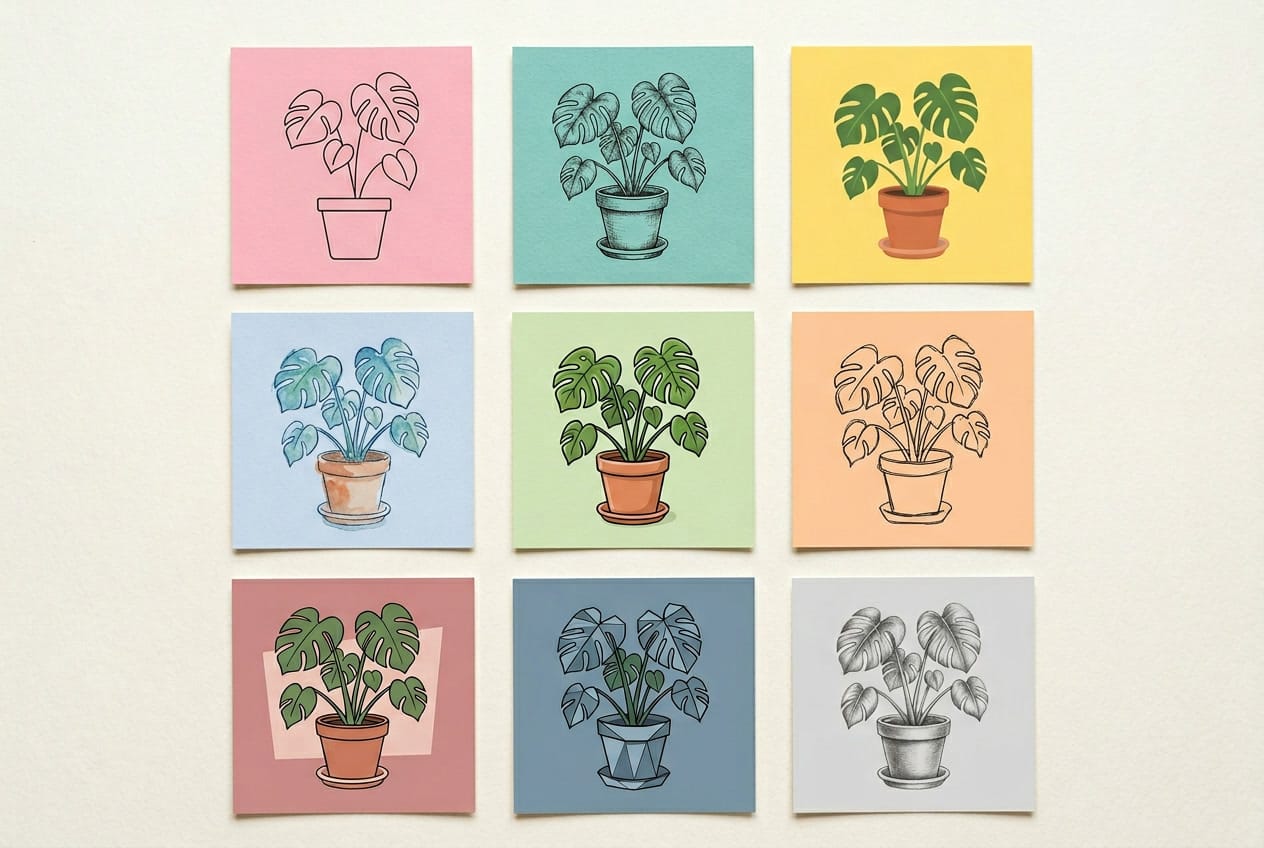
I don't use AI image generators in my creative process — or at least, I didn't before writing this article. Every time I tried to think of a reason to generate an image, my brain went straight to photorealism.
And then I'd think: why wouldn't I just pick up my phone and take a picture of the thing? But it turns out, I was only considering one slice of what these tools can do.
I'm not particularly artistic. Here's the evidence:
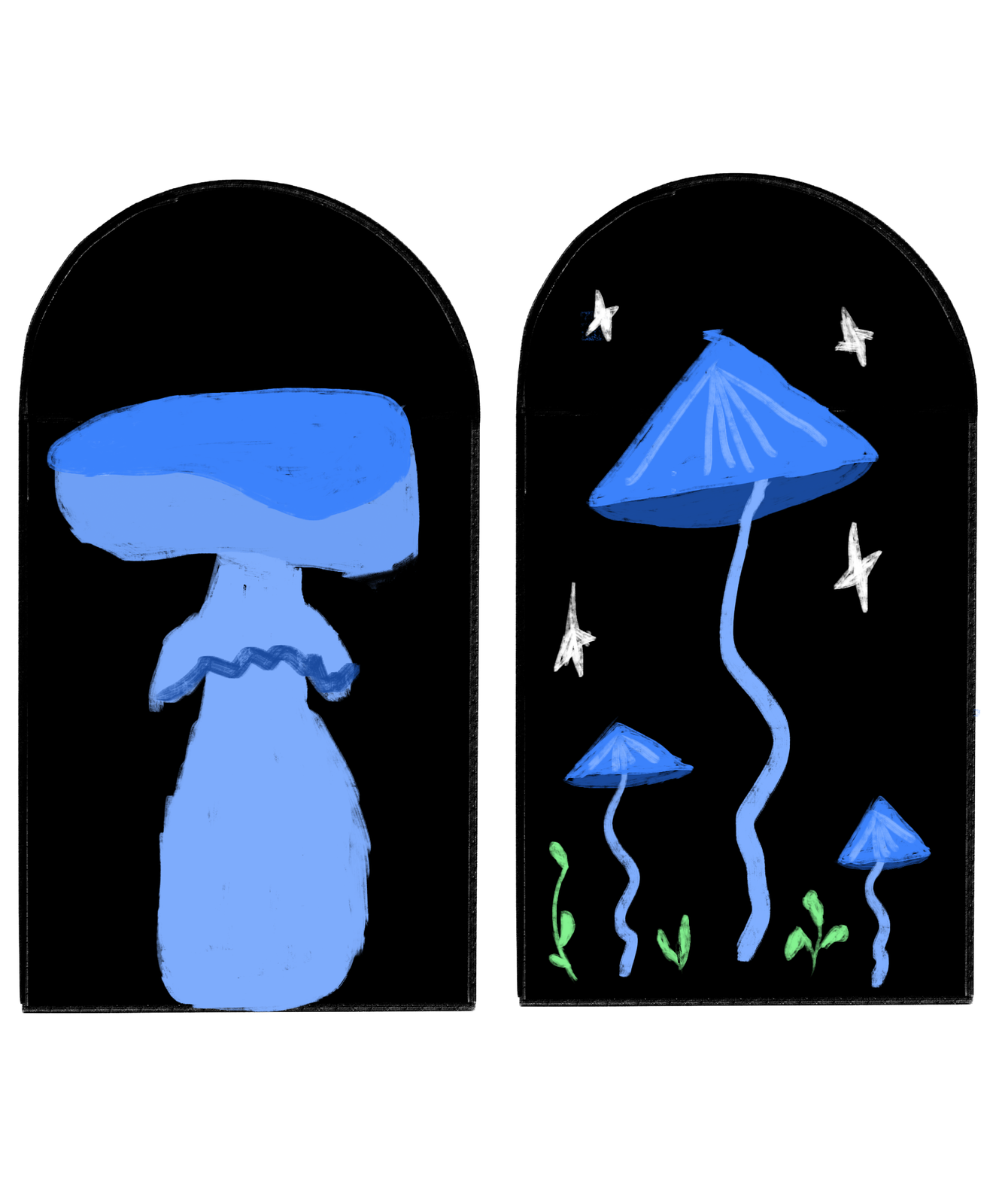
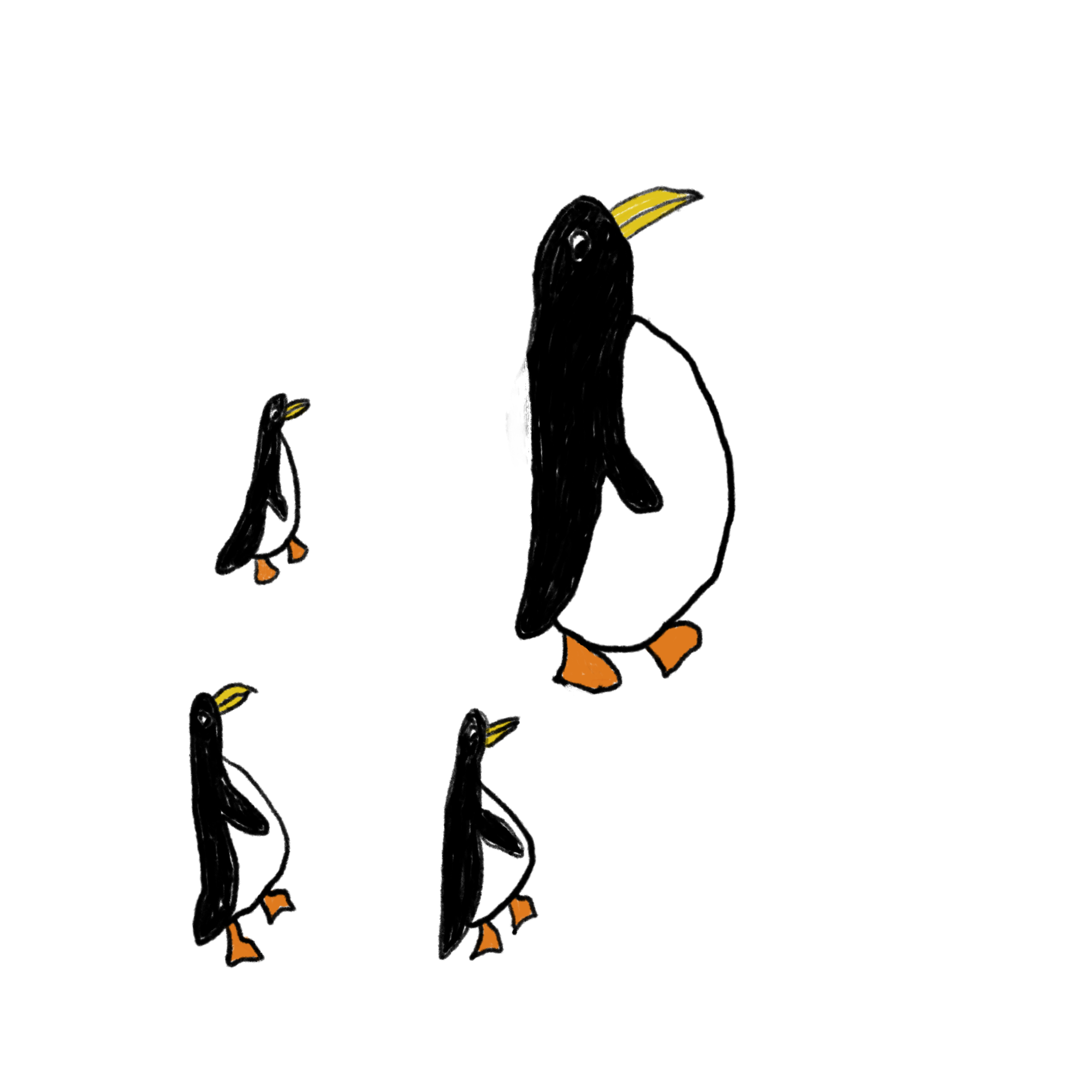
I can write. I can build a (pretty good, if I do say so myself) carousel in Canva or even Figma. But I can't draw, and I can't create the kind of illustrations I see other creators using across their content. That turned out to be exactly the gap where AI image generators are most useful — not replacing photography, but creating visuals I couldn't make on my own.
So I tested nine of them through that lens, focusing on the use cases where these tools actually solve a problem. Everything I learned about writing prompts that work, which tools performed best, and the AI image generators worth knowing about in 2026 is here.
Key Takeaways
- I tested nine AI image generation models across three prompts — a hand-drawn sticker sheet, a photorealistic product flat lay, and an embroidery typography graphic — to see which ones actually deliver usable results for creators.
- Nano Banana 2 (Google) was the most consistent performer overall. It nailed illustration accuracy, came closest to photorealism, and handled typography well. If you only try one model, start there.
- Every tool struggled with photorealism in some way. None produced an image I'd confidently pass off as a real photo without editing, especially when the prompt included brand names or device screens.
- Typography was the biggest divider. Seedream and Ideogram 3.0 were the most reliable at spelling and placing text. Others, like Midjourney and GPT Image, garbled words or skipped them entirely.
- Your prompt structure matters more than your tool choice. Leading with the subject (not the style), using photography language for realism, and describing colors in plain words instead of hex codes made a noticeable difference across every model.
- I ran most of my tests inside Leonardo.ai because it gives you access to multiple models in one place and integrates directly with Canva — which is where I do all my visual design work.
- AI-generated images are commercially usable, but they're not copyrightable yet. If you're building a brand around original visuals, that's worth factoring in.
What makes a good AI image prompt?
When I first sat down to test every tool in this article, I blanked completely. The generators have gotten absurdly good, especially in the past year. But I couldn't think of a single image I needed.
I think that's where most people get stuck. The tools aren't the bottleneck anymore. Knowing what to ask for is.
So I spent time researching before I started testing. I read through creator communities on Reddit (r/midjourney and r/StableDiffusion are goldmines for this), studied prompt breakdowns on Instagram, and went through Envato's illustration prompt guide. Then I ran dozens of prompt variations across every tool on this list. A clear pattern emerged in what works and what doesn't.
Start with the subject, not the style
The first few words of your prompt carry the most weight. Every tool I tested responded better when I led with what's in the image before describing how it should look. "A woman sitting at a desk with a laptop open" before "editorial lifestyle photography, warm natural light."
When I flipped the order and led with style, the results lost focus. The model seemed to treat the style as the priority and get vague about the actual content.
Use camera language for photorealism
"Shallow depth of field." "Shot from a slight angle." "Soft golden hour lighting." "35mm film photography."
Photography terms are the single most effective way to get photorealistic results, because these models were trained on image captions and photography descriptions. They understand camera vocabulary natively. Vague descriptors like "beautiful" or "high quality" do almost nothing.
Describe colors in words, not codes
I tested the same prompt with hex codes and with plain descriptions ("light blue," "butter yellow"). The descriptive version was more accurate in the majority of tools I tested.
This one has some nuance, though. The Envato guide recommends hex codes for brand accuracy, and some tools (particularly ones built for designers, like Recraft) handle them better than others. If you're not sure, start with descriptive color names. If you're working with a specific brand palette and a design-focused tool, try the hex codes and see what you get.
Anchor your illustration style or the tool will choose for you
This was the biggest lesson from the illustration tests. When I prompted for photorealism, the tools mostly knew what I meant. When I switched to illustration, the results fell apart until I got specific about what kind.
"Hand-drawn doodle, light blue ink, single color, simple line art with slightly wobbly quality, outlines only" gave me something usable. Without those anchors, most tools defaulted to either photorealism or something that looked like free clip art from 2008.
The Envato guide breaks illustration styles into specific technique language: "ink hatching, gouache blocks, flat vector shapes, stipple shading, gestural linework." The more precise you are about the medium and technique, the closer the output gets to what you actually pictured.
Tell the tool what you don't want
Negative prompts are underrated. Adding "no watermark," "no text," "no photorealism" to my illustration prompts cleaned up the outputs noticeably. But they only work when the core prompt is already solid. You can't subtract your way to a good image from a vague starting point.
Put your most important exclusions early in the negative prompt. "No photorealism, no watermarks, no text" performed better than burying those instructions at the end.
A template you can steal
Here's the structure that worked consistently across the tools I tested:
[Subject and what they're doing] + [setting or context] + [2 or more specific details] + [style]
And here are the prompts I came up with.
For illustration:
A sticker sheet of hand-drawn doodle illustrations on a butter yellow background, with generous spacing between every object so each can be cropped as an individual sticker. Exactly these objects and nothing else: 1) a structured clutch bag with clasp hardware, 2) a tall oval perfume bottle with a label reading "Orpheon", 3) chunky lace-up trail running sneakers, 4) wireless square transparent over-ear headphones with absolutely no wire and no earbud attached completely standalone, 5) angular rectangular sunglasses, 6) a leather zip-up moto biker jacket with zippered pockets, 7) an anthurium plant with large waxy leaves and a spadix, 8) an open laptop computer, 9) a smartphone with a screen, 10) a single hot steaming cup of tea in a teacup on a saucer no iced drinks, no straws, no second cup, 11) an open journal with handwritten lines on the pages, 12) a flat neat stack of magazines with spines reading Kinfolk, Dazed, i-D, 13) a plain simple canvas tote bag with handles not mesh, not net. Light blue line art on butter yellow background, single color, simple wobbly hand-drawn line art, outlines only, zero shading, zero fill, zero color blocks. Flat lay arrangement.
For photorealism:
A photorealistic image of an iPhone resting on a light marble surface, screen facing up, showing a colorful Instagram feed. A small iced coffee in a clear cup and a sprig of eucalyptus beside it. Three-quarter overhead angle, soft natural window light from the right, gentle shadows. Clean, styled, editorial product photography. No people, no hands, no text overlays, no watermarks.
For typography as design:
Square graphic. The phrase 'Brand Partnerships 101' rendered as colorful embroidery stitching on light blue linen fabric background. Letters in butter yellow thread with visible stitch texture, cross-stitch style. Small decorative floral embroidery accents in coral and white thread flanking the text. Fabric has subtle woven texture. Warm, tactile, handcrafted feel. No photographs of real objects, no watermarks.
You'll see how each model handled these prompts (and where they fell apart) in the reviews below.
The nine best AI image generators
I tested nine AI image generation models across three prompts: a hand-drawn doodle sticker sheet, a styled product flat lay, and an embroidered typography graphic.
Some of these are models (the AI that generates the image), and some are platforms (where you access the model). Rather than trying multiple tools across different websites, I used Leonardo.ai as my testing hub for the models available there, testing the most recent version of each. Then I tested Midjourney, Recraft, and Adobe Firefly as standalone tools.
I picked Leonardo.ai because of its Canva integration — I can seamlessly add the images into my Canva and edit them from there, so this is a plus for my workflow. You don’t have to use it, go for any all-in-one image generator of your choice that suits your workflow (Recraft is another great option).
If you only try one or two models: Nano Banana 2 delivered the most accurate results across all three test categories. For text-heavy graphics, start with Seedream. For the most artistic, visually rich outputs, Recraft’s models have a quality that other tools can't match.
Now, the results.
Jump to a section:
Midjourney
Best for: Creators who want artistic, mood-driven visuals and don't need precise text or highly specific object rendering.
Midjourney has a reputation as the "artistic" AI image generator, and the visual richness of its outputs backs that up. The editing experience is button-based: you can vary elements to be subtle or strong, lean more creative, and even animate your results without leaving the tool.
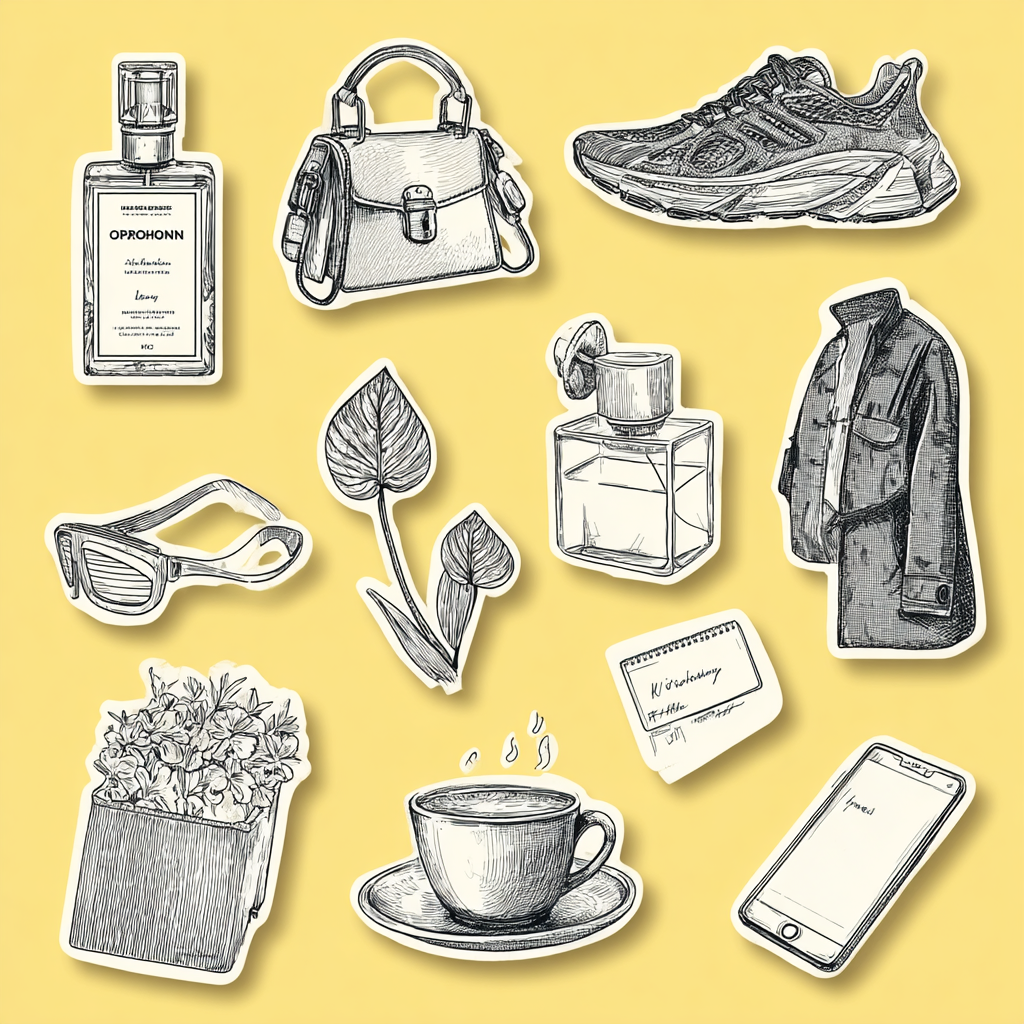
How it handled illustration: Of the four images Midjourney generated from my sticker sheet prompt, only one was close to usable. Midjourney struggles with this level of detail and specificity. When you're listing 13 distinct objects with particular characteristics (a clutch with clasp hardware, transparent over-ear headphones, magazines with specific spine text), it can't keep up. The objects it did render looked good individually, but it missed the brief.
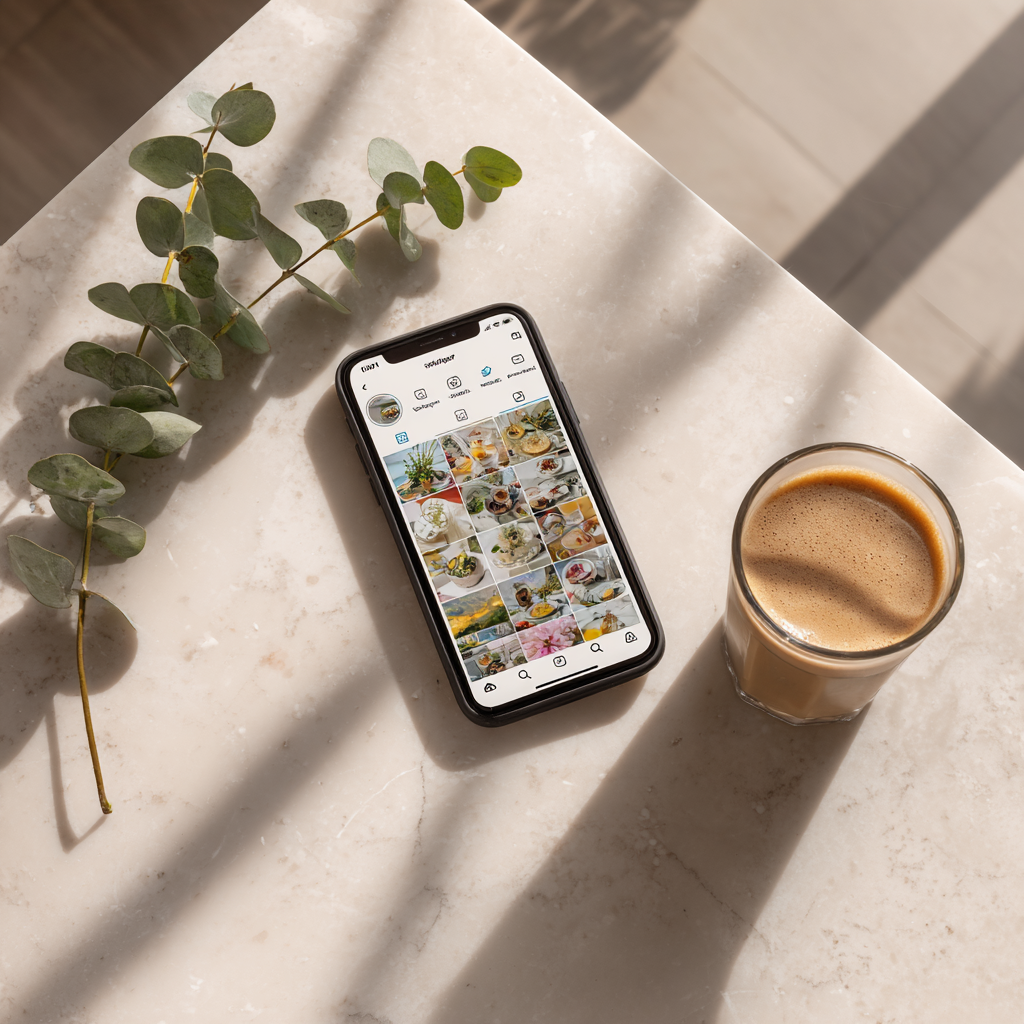
How it handled photorealism: The overall composition and photography feel were strong. The layout, the lighting, the general mood of the image landed well. But the details fell apart: the "iced coffee" had no ice (just an ambiguous glass of something), and the Instagram feed on the phone screen was warped beyond recognition. Midjourney builds a beautiful scene and then fumbles the specifics inside it.
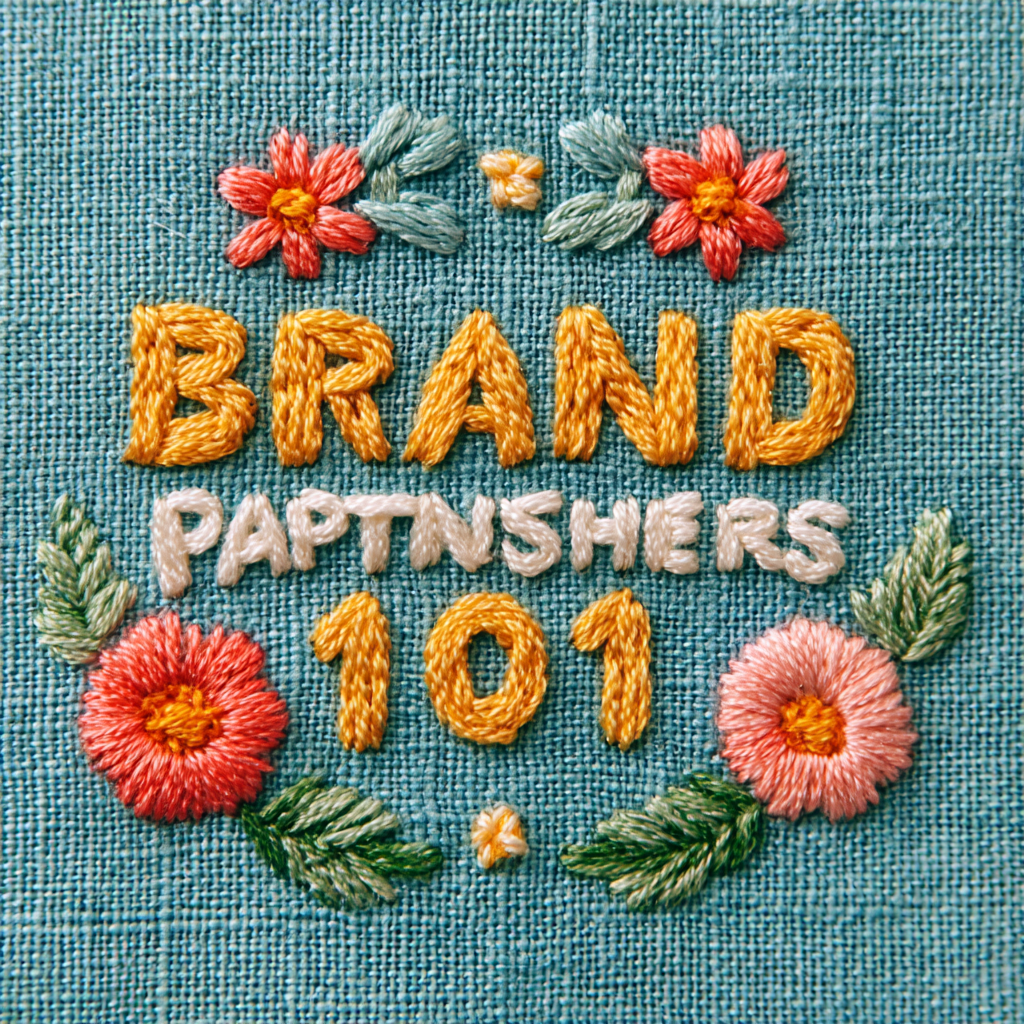
How it handled typography: This is where Midjourney hit a wall. It spelled "brand" correctly and got "101" right, but "partnerships" was garbled. The embroidery stitching itself looked genuinely handcrafted, maybe even the best texture of the bunch. But when your competitor tools are nailing the text on the first try, beautiful stitching on misspelled words doesn't cut it.
Adobe Firefly 5
Best for: Creators already in the Adobe ecosystem who want clean commercial licensing and don't mind working around brand-name restrictions.
Adobe Firefly 5 is the latest image-generation model from Adobe, and its biggest selling point is its workflow integration. If you're already in Photoshop or Illustrator, you can generate an image and move it straight into your editing workspace. Adobe has also been vocal about training Firefly on licensed and public-domain content, which means you get cleaner commercial-use rights than most competitors.
I don't use Photoshop or Illustrator in my day-to-day, but if they're part of your workflow, the direct handoff alone might make Firefly worth trying.
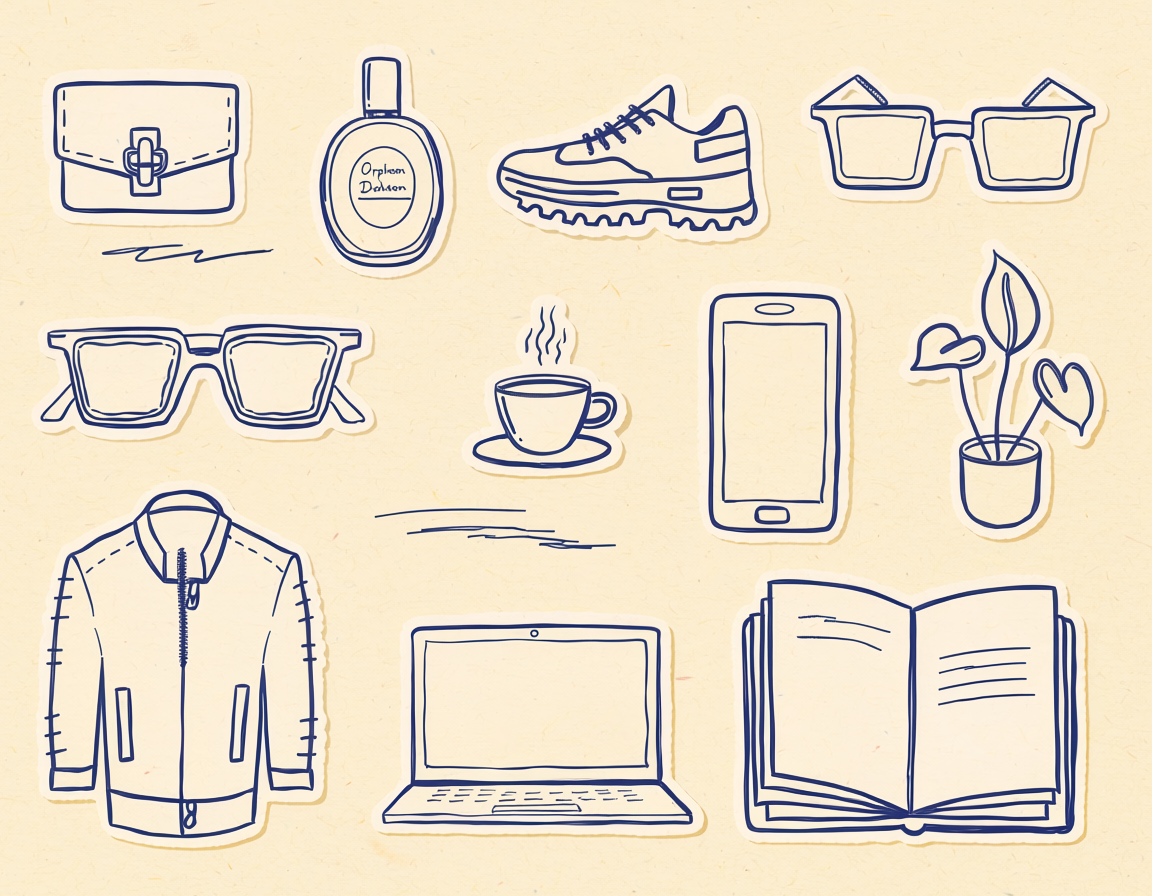
How it handled illustration: The hand-drawn illustrations had a whimsical quality to them and felt truly hand-drawn. There were some attempts at making things feel "human-generated," like scribbles on the page, which was a nice touch. But the accuracy wasn't there: the leather jacket had zipper placements at the collar and bottom that were visibly wrong, and a few other objects felt approximated rather than intentional.
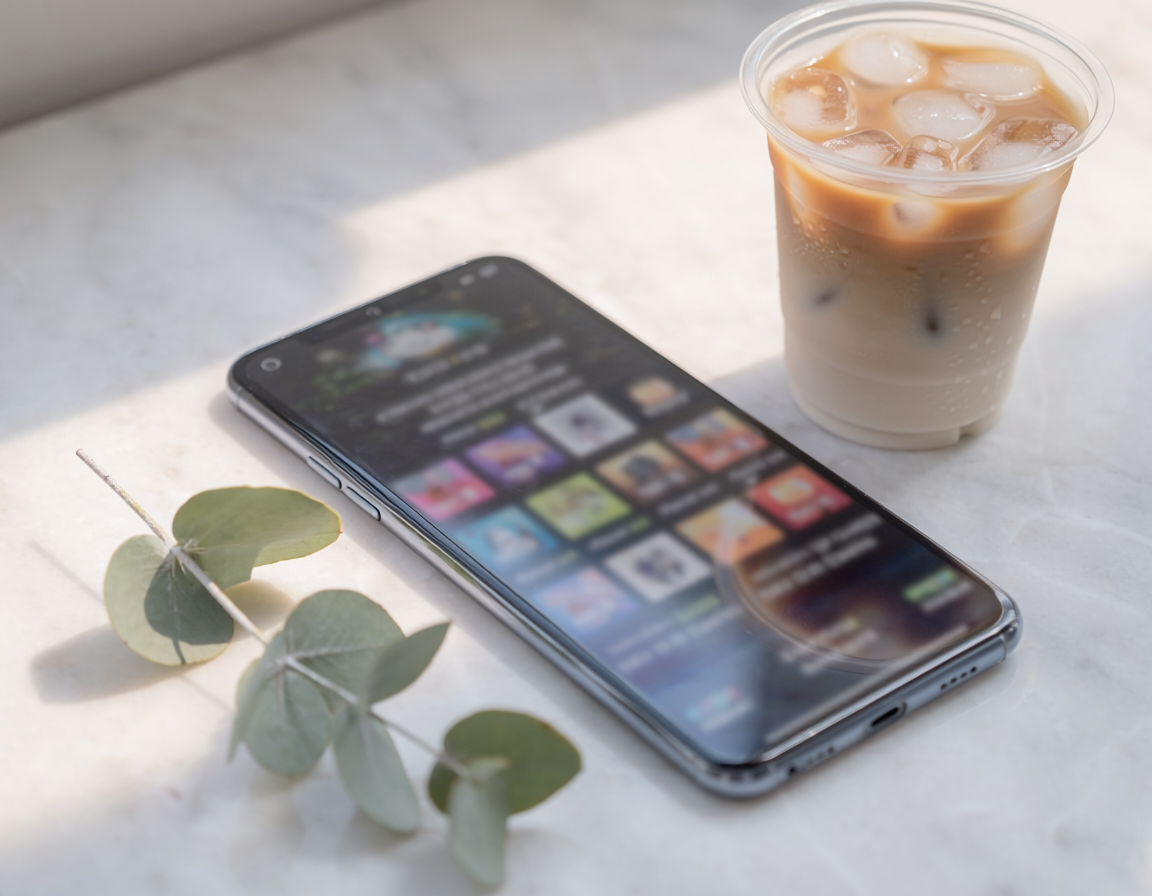
How it handled photorealism: This is where Firefly's copyright-conscious training showed up in a way I wasn't expecting.
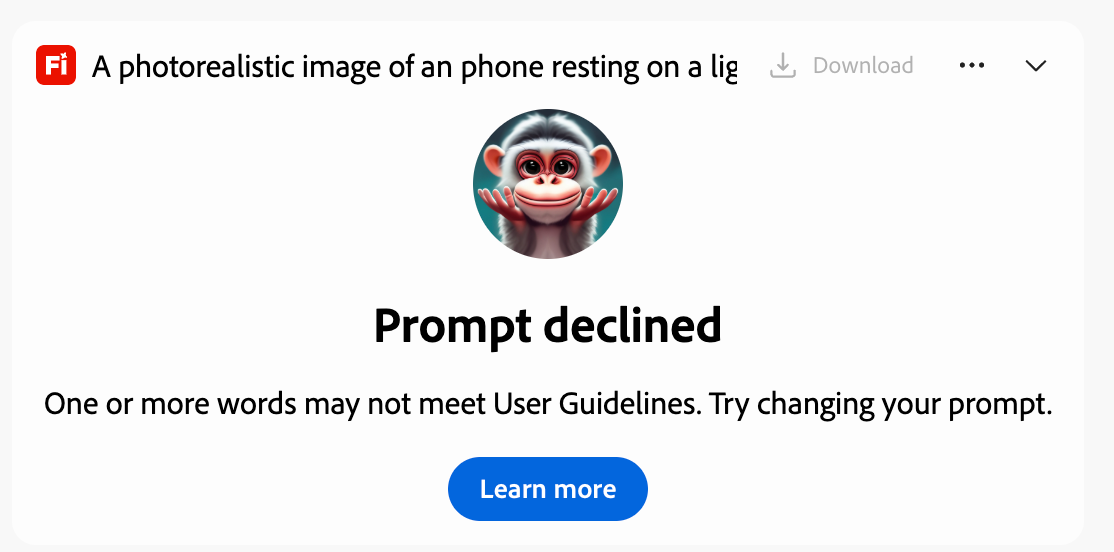
It declined the words "iPhone" and "Instagram" in the prompt, which aligns with how Adobe avoids potential trademark issues. That's worth knowing upfront: if your prompt references specific brand names or products, Firefly might push back.
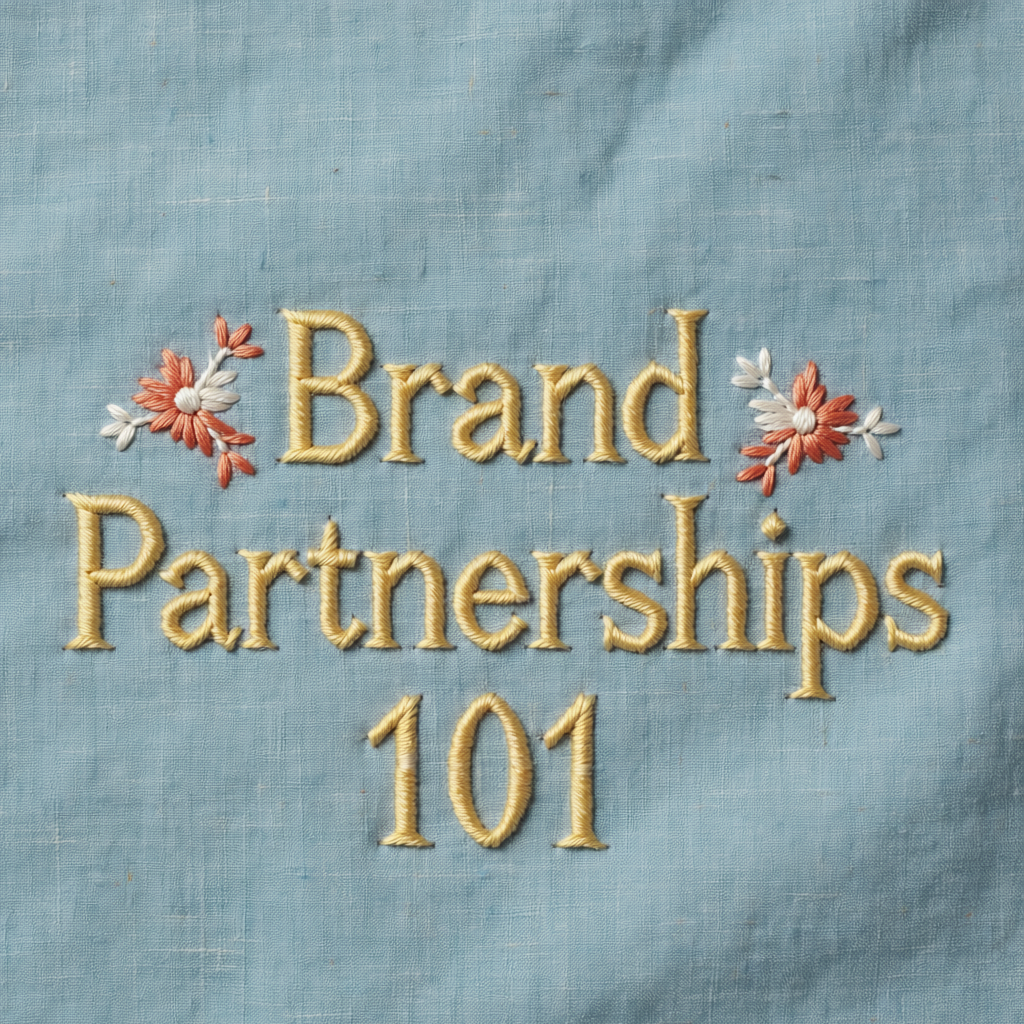
How it handled typography: The embroidery prompt was one of Firefly's better results. The fabric behind the text looked realistically aged and worn, the text itself was legible and well-generated, and there was genuine depth to the stitching. You could see the texture in a way that some of the other tools didn't quite achieve.
Recraft V4 Pro
Best for: Creators and designers who want serious control over visual style and want access to Recraft's reference and refinement features.
Recraft is another tool I tested as a standalone platform. It has a massive library of existing designs from real designers that you can use as reference images. You can assign a color palette, select from a wide range of visual styles, and work with its agentic chat to refine your images through conversation rather than re-prompting from scratch.
If you're not tied to Canva for your design workflow, Recraft is a genuinely solid all-in-one option. The ability to pull from its existing design library as reference images could save you a lot of back-and-forth if you already have a visual direction in mind.
I chose not to use any reference images from Recraft's library for this experiment, but it's something that could get you to better results faster.
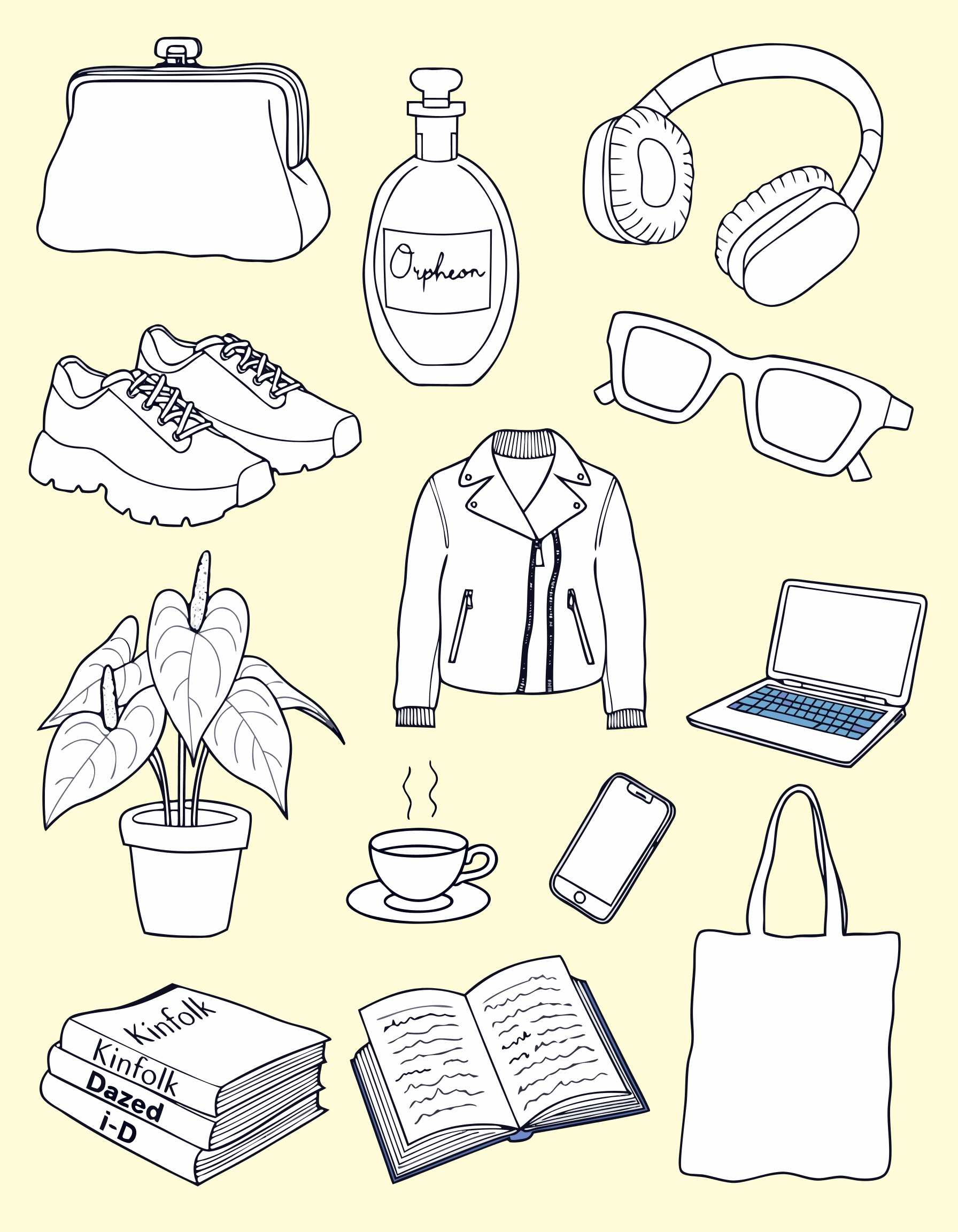
How it handled illustration (using the Vector Pro model): The images had that hand-drawn quality I was going for. Objects like the plant and the coffee cup looked right. But inconsistencies crept in: the sneakers felt generic, and the laptop suddenly introduced a color that nothing else in the image had. Because Recraft lets you layer in visual styles and references, I think the gap between "first attempt" and "polished result" is smaller here than with other tools. I just didn't take those extra steps for this test.
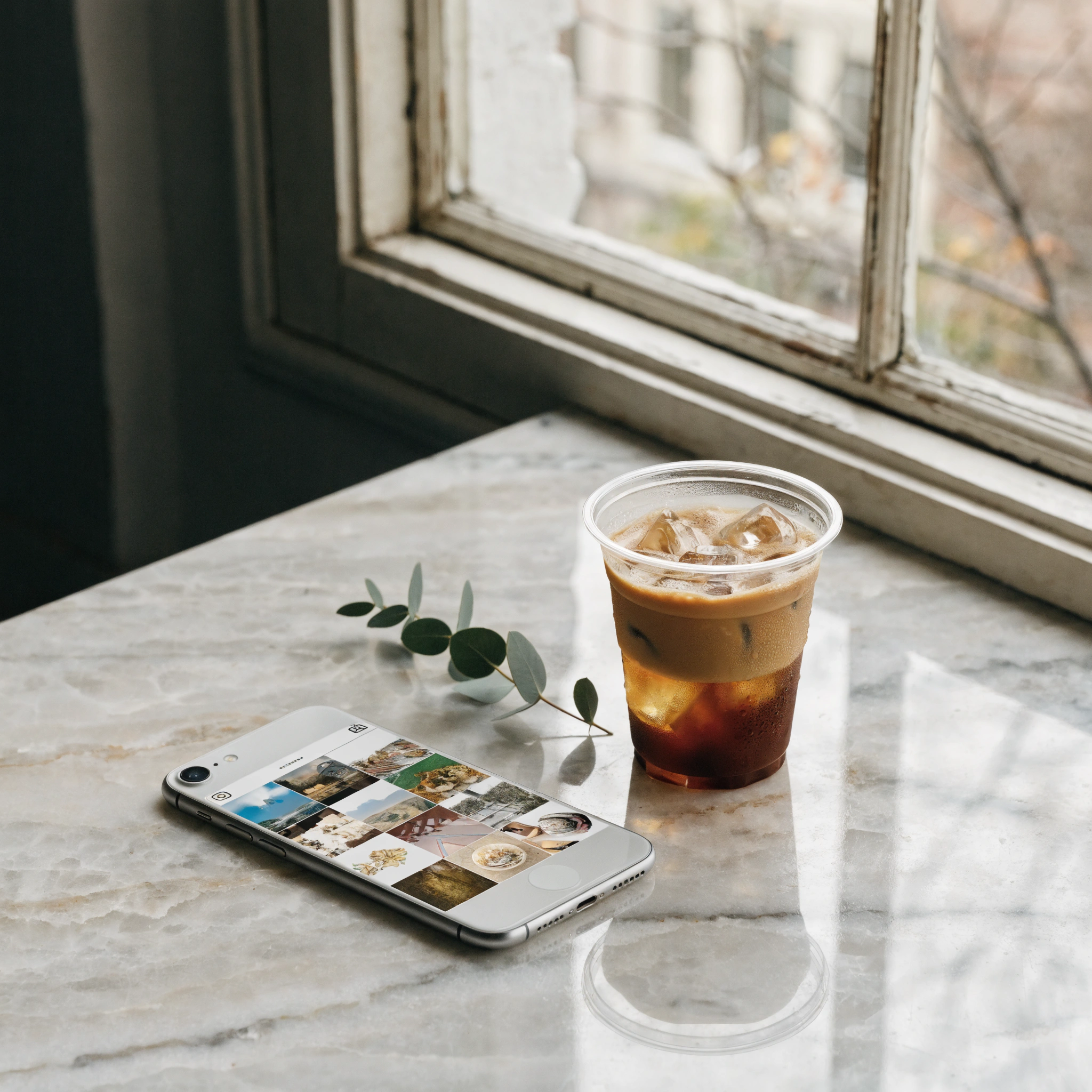
How it handled photorealism (using the V4 Pro model): At a glance, the image looked photorealistic. The objects cast very realistic shadows and the condensation detail on the iced coffee caught my attention. But zooming in told a different story: the phone dimensions looked off, the camera was on the front of the device, the on-screen images were gibberish, and the table was sinking into the wall.
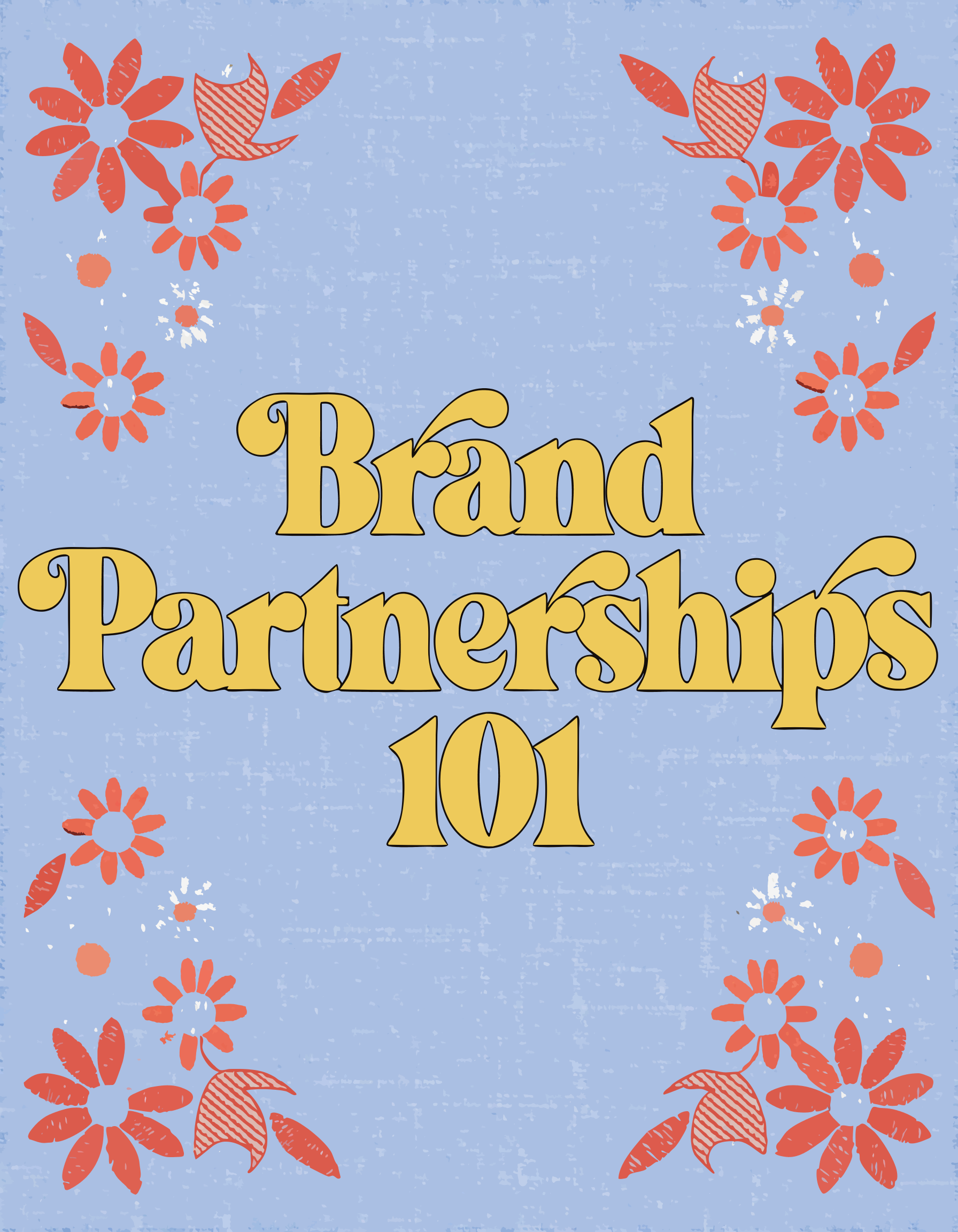
How it handled typography: Recraft went its own direction here. It didn't deliver the embroidery realism I asked for, but what it did produce had a clear aesthetic vision and a handcrafted feel that I could actually see myself using. I'd dock points for not following the brief, but then I’d have to add them back for creativity. Sometimes a tool that ignores your prompt gives you something better than what you asked for.
GPT Image 1.5 (OpenAI)
Best for: People already using ChatGPT who want quick image generation without switching tools. For more control, access the same model via an all-in-one image generator tool such as Leonardo.ai or Recraft.
If you've used image generation inside ChatGPT recently, you've likely used a version of this model. I tested GPT Image 1.5 inside Leonardo.ai, the first of the models on this list where I did this. You can dig deeper into style selection (illustration, photography, etc.), adjust quality settings, and control image dimensions. The model itself is the same underlying technology, but tools like Leonardo give you more knobs to turn.
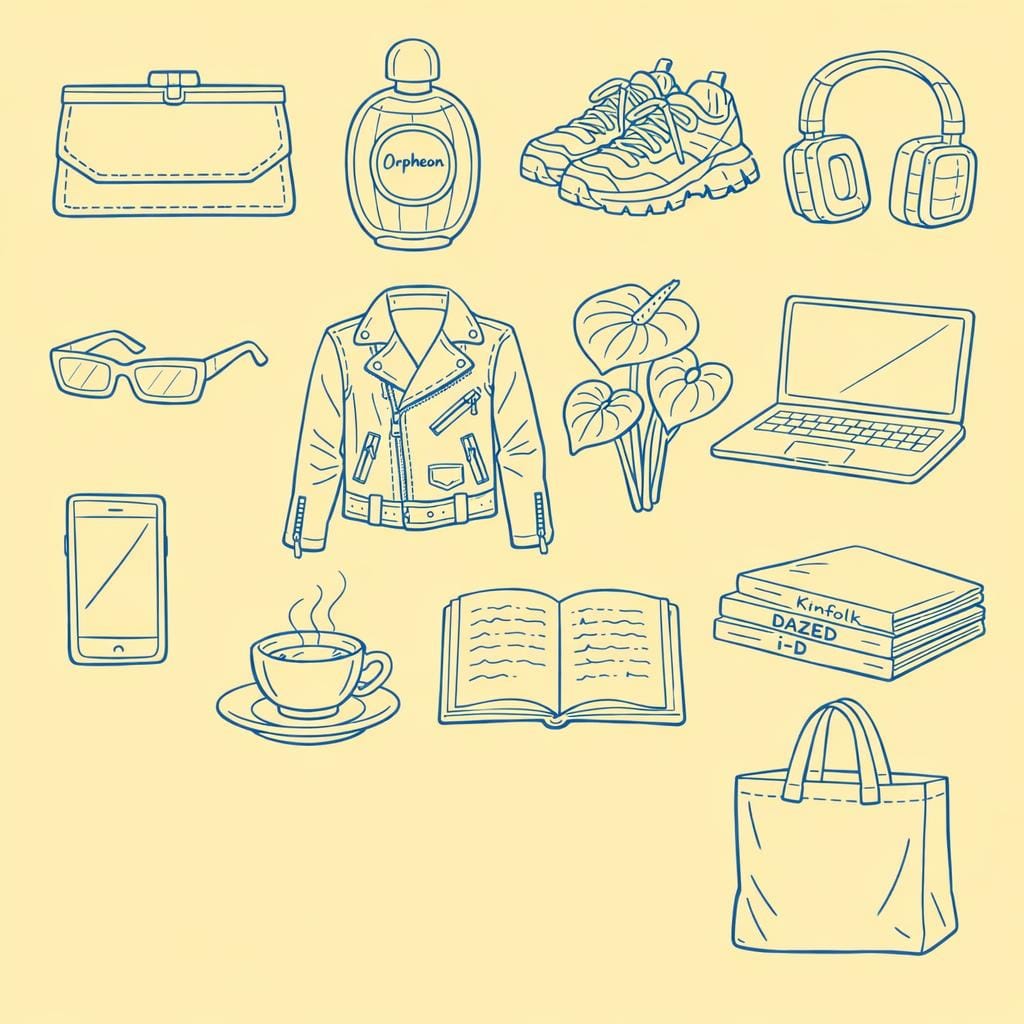
How it handled illustration: This was not GPT Image's strongest showing. The sticker images looked almost compressed, probably because the spacing I requested between objects resulted in a lot of empty space that the model didn't know how to handle. The whole image also had that yellowish tinge that's become a recognizable "this is AI" tell. Other tools rendered the butter yellow background without that filter-like quality.
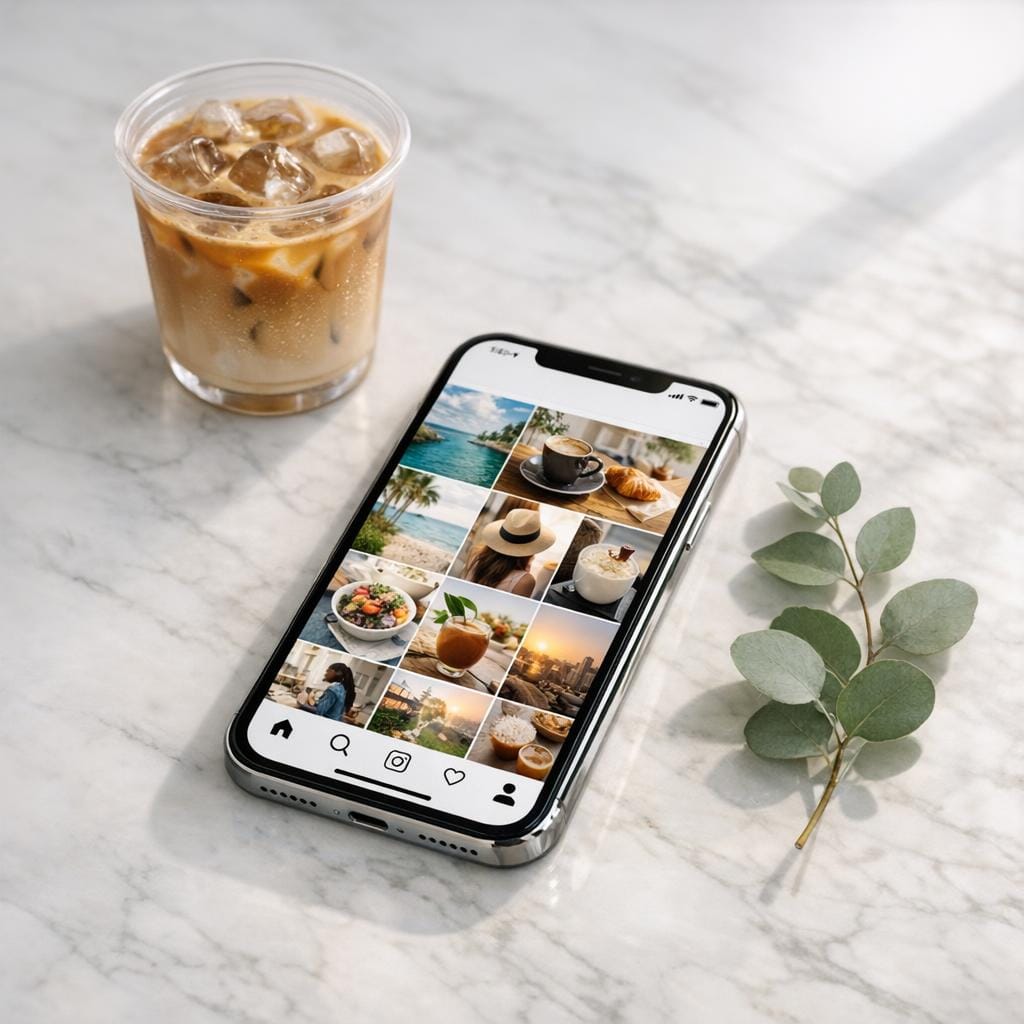
How it handled photorealism: It came closer than the illustration prompt, but the Instagram feed on the phone screen was missing the visible branding and layout cues that make it recognizable as Instagram.
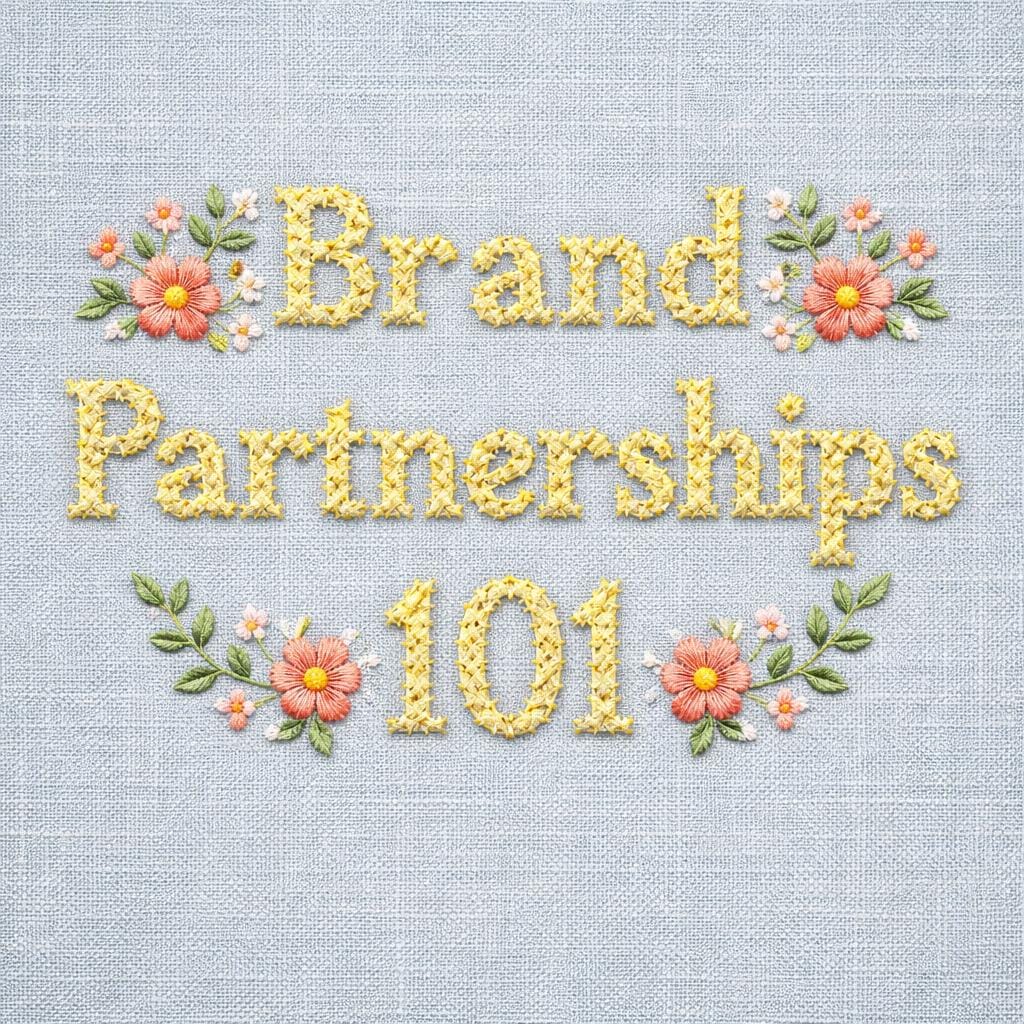
How it handled typography: GPT Image leaned hard into the cross-stitch texture, which was technically what I asked for. It followed the prompt more faithfully than several other tools, and the execution was accurate. But the result wasn't something I'd use in my content. If prompt adherence matters more than aesthetics for your use case, GPT Image delivers on that.
Nano Banana 2 (Google)
Best for: Creators who want the most accurate rendering of specific real-world objects and styles, particularly for illustration work.
Nano Banana 2 is a Google model, and I have a theory about why it outperformed several competitors: Google has the search engine. It has image search, Google Shopping, and years of indexed visual data. When I asked for a "Diptyque Orphéon" perfume bottle or "chunky trail running sneakers from Salomon," Nano Banana seemed to actually know what those things look like. Other tools freestyled the details. This one got the closest to reality.
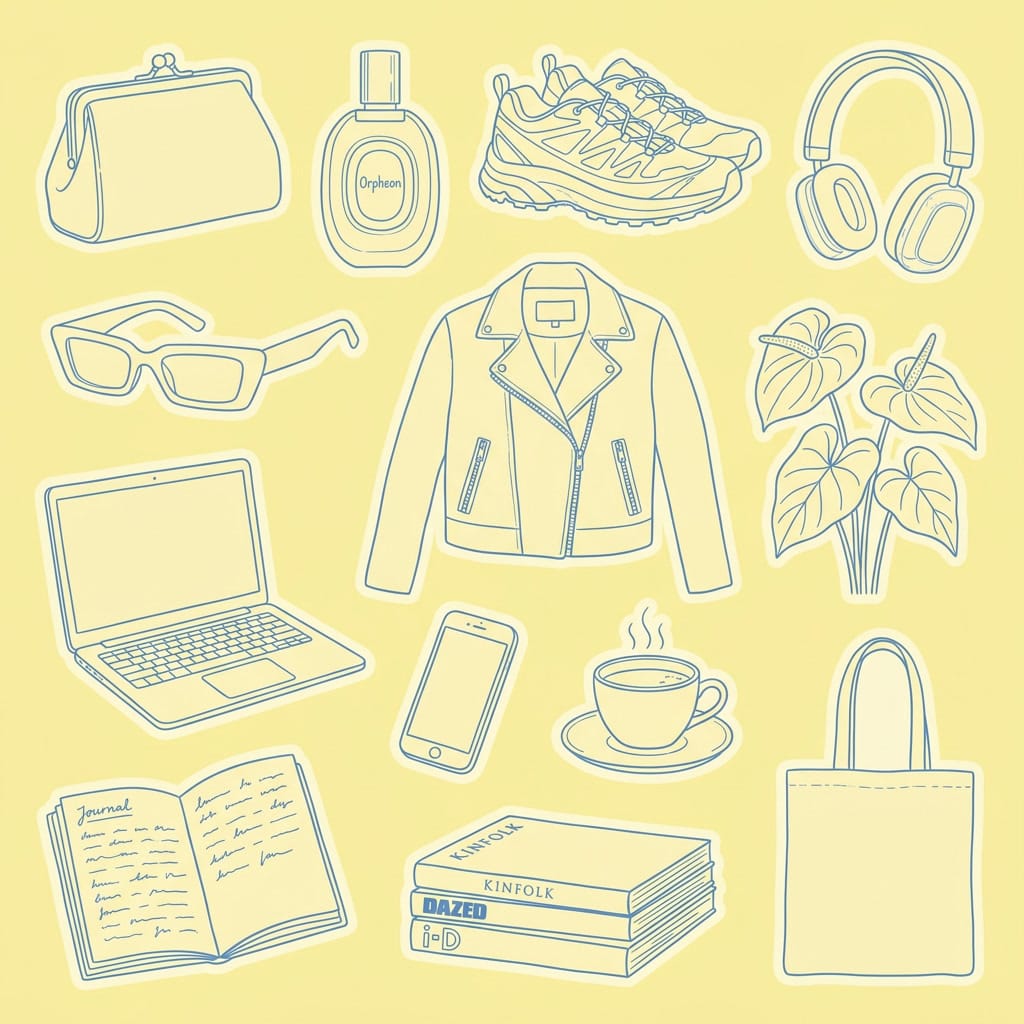
How it handled illustration: This was my top pick for the illustration prompt. The hand-drawn style landed, the proportions were correct, and nothing felt off. It got the style of the perfume bottle right, matched the sneaker aesthetic I was going for, and even rendered the magazine spines with fonts and imagery that felt close to the real publications. With reference images, I think this would get even closer, but even without them, Nano Banana 2 delivered the most complete sticker sheet of the group.
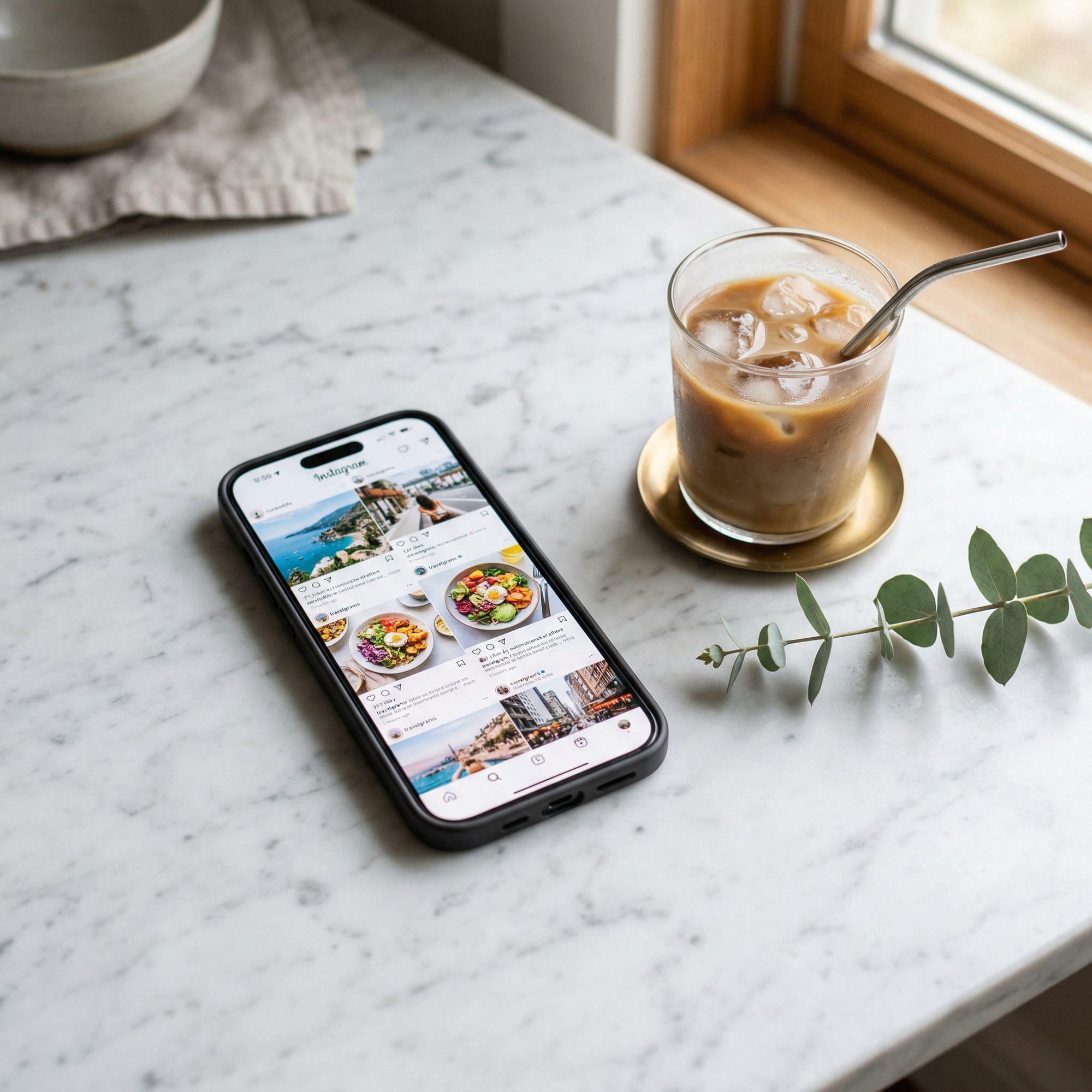
How it handled photorealism: Nano Banana came closest to generating a realistic Instagram feed, and the phone itself felt more believable than other tools' attempts. It did something interesting, though: it added elements I hadn't asked for (a small notebook, a pair of earbuds near the edge of the frame) that made the scene feel lived-in. That instinct for "what would actually be on this desk" pushed the image past the sterile quality that plagued other results.
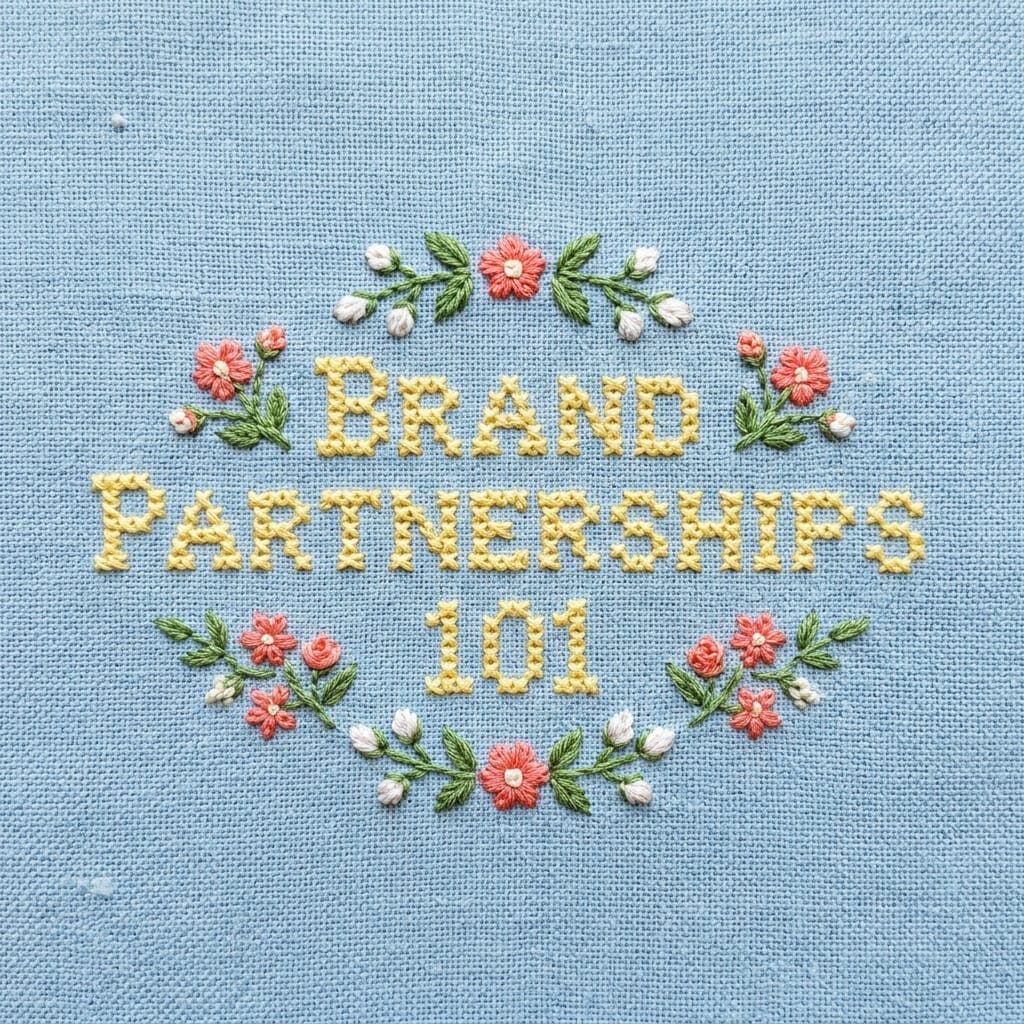
How it handled typography: The embroidery text came out whimsical and stylized, with visible texture on both the fabric and the stitching. The overall feel was one of my preferred outputs from the group. The flowers and surrounding design elements had a cohesive quality that matched the text treatment, which not every tool managed.
Seedream (ByteDance)
Best for: Creators who need reliable text generation in their images and access within CapCut.
Seedream is ByteDance's image generation model and bonus: you can use it if you have CapCut Pro. It had some interesting strengths and some familiar weaknesses.
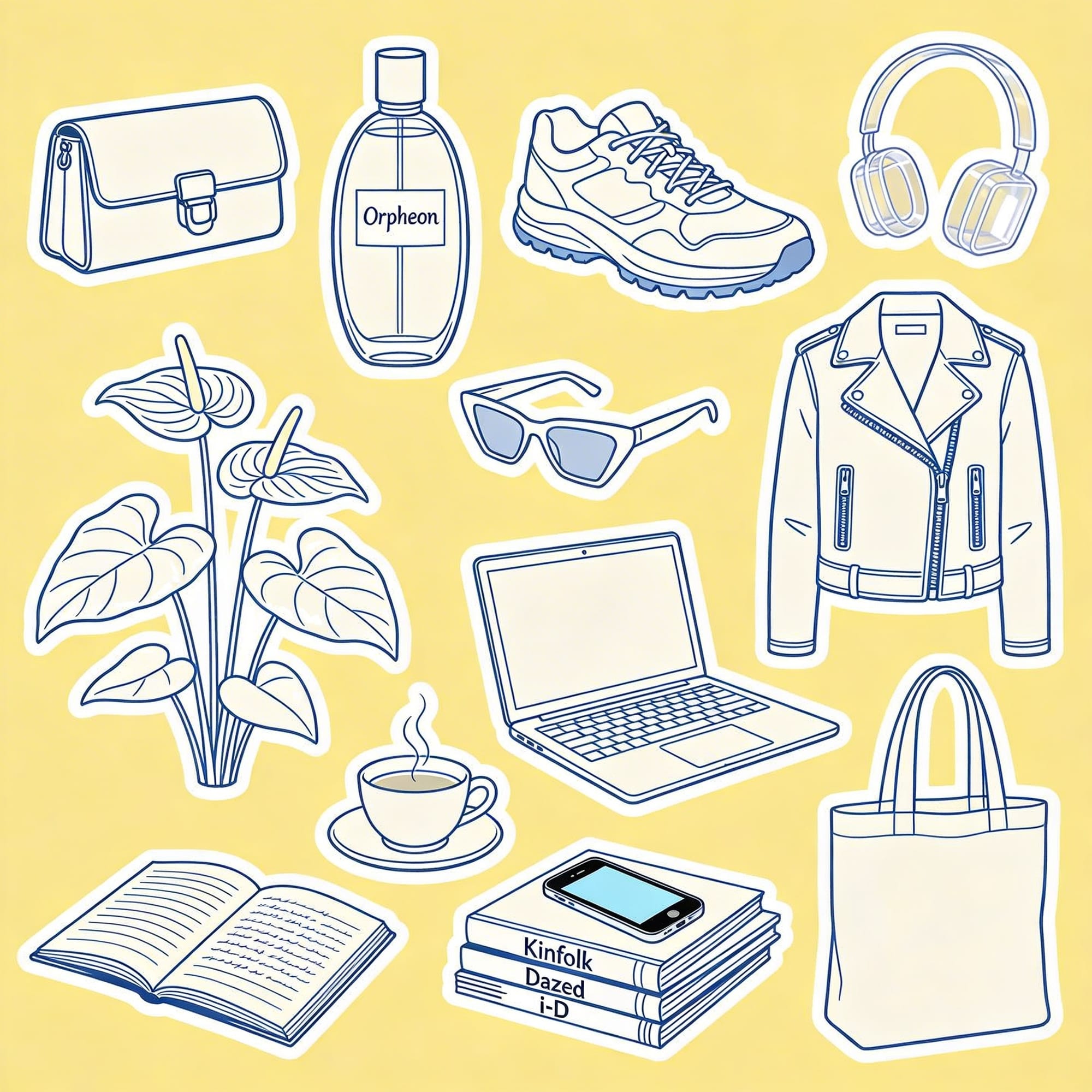
How it handled illustration: Seedream produced the most sticker-like effect of any tool, which was exactly the brief. But accuracy issues showed up on closer inspection: a phone appeared on the magazine stack (not requested), the headphones were transparent (not requested), and the perfume bottle didn't quite match the description. But text generation was spot-on. Every label, every spelling, every piece of text in the image was correct. It also correctly rendered an anthurium instead of defaulting to a monstera, which tripped up several other tools.
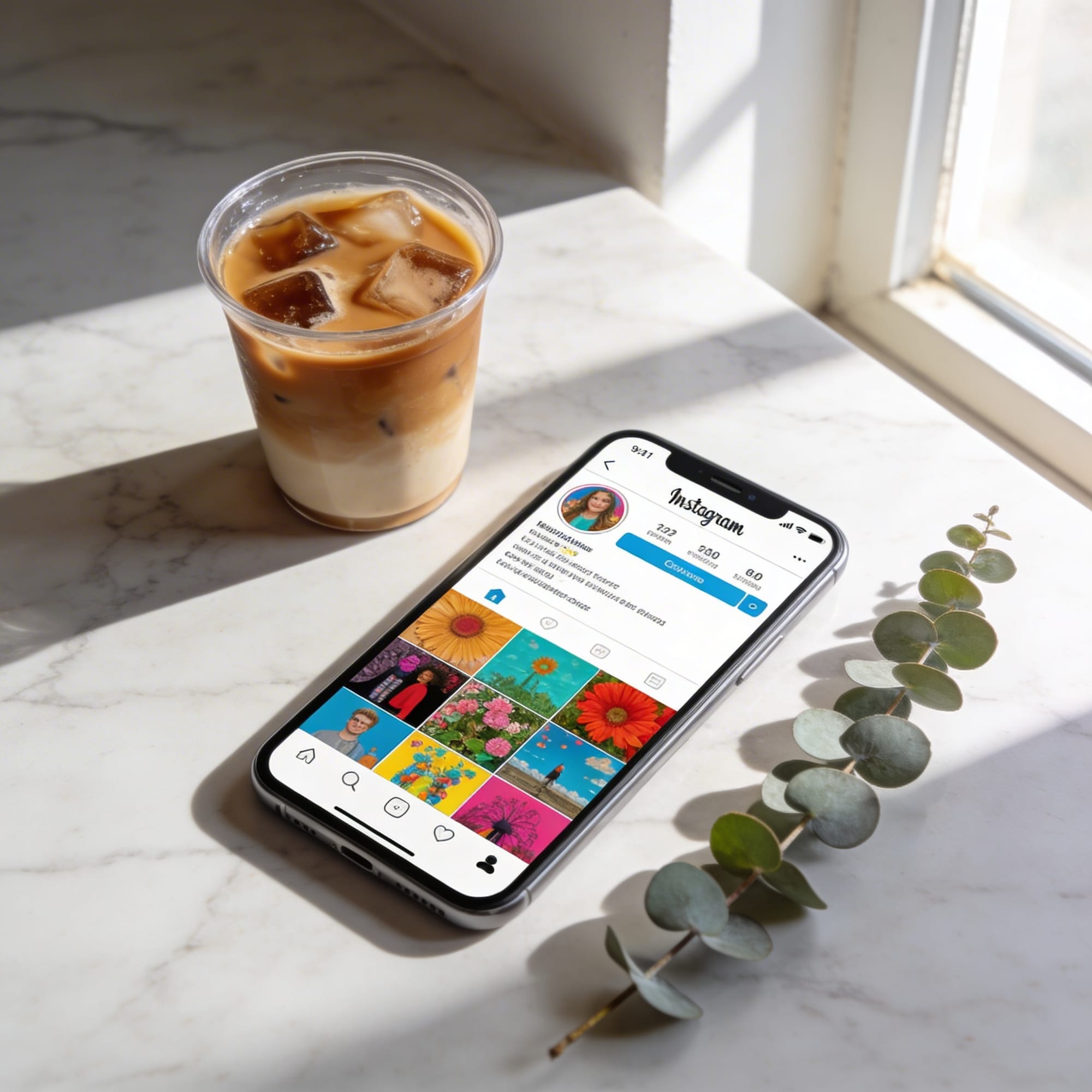
How it handled photorealism: The phone was the weak point: it was clearly not a real device. But the surrounding elements held up. The shadows were well-placed, the coffee cup was good (it even looked like a latte, more specific than what I asked for), and the overall scene had decent styling.
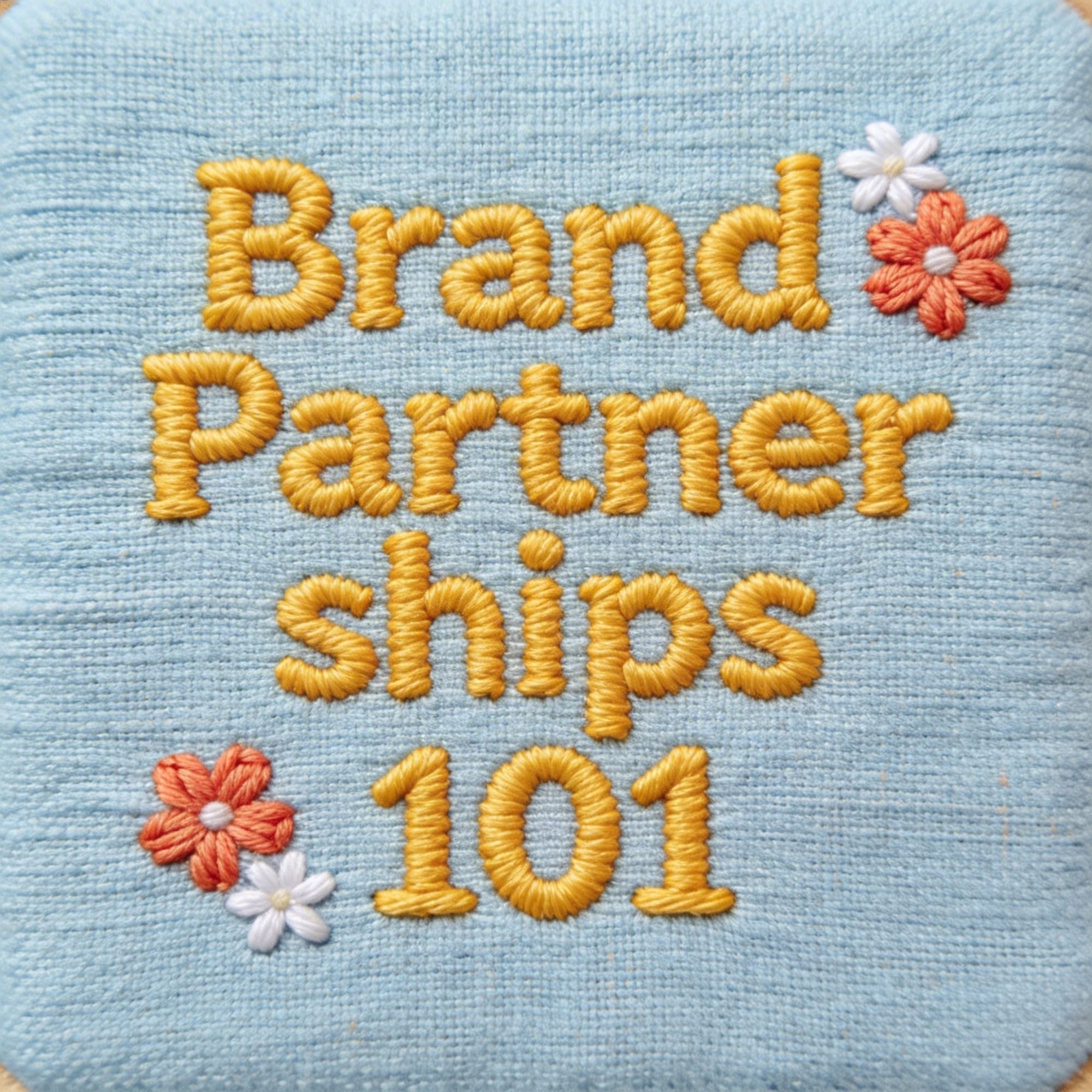
How it handled typography: Seedream did well here. The fabric texture behind the text looked realistic, and it got most of the prompt elements right. The font weight felt slightly cartoonish compared to the fabric realism, and it rendered "partnerships" across two lines, which didn't come up with other tools. But I could see myself using this in my content, which is more than I can say for some of the other outputs.
Ideogram 3.0
Best for: Creators who want accurate text in their generated images and are willing to trade visual personality for spelling precision.
Ideogram 3.0 is the latest model from Ideogram that is positioned as being great at generating images with text, but I found that it only got 75% of the way there in some of my requests.
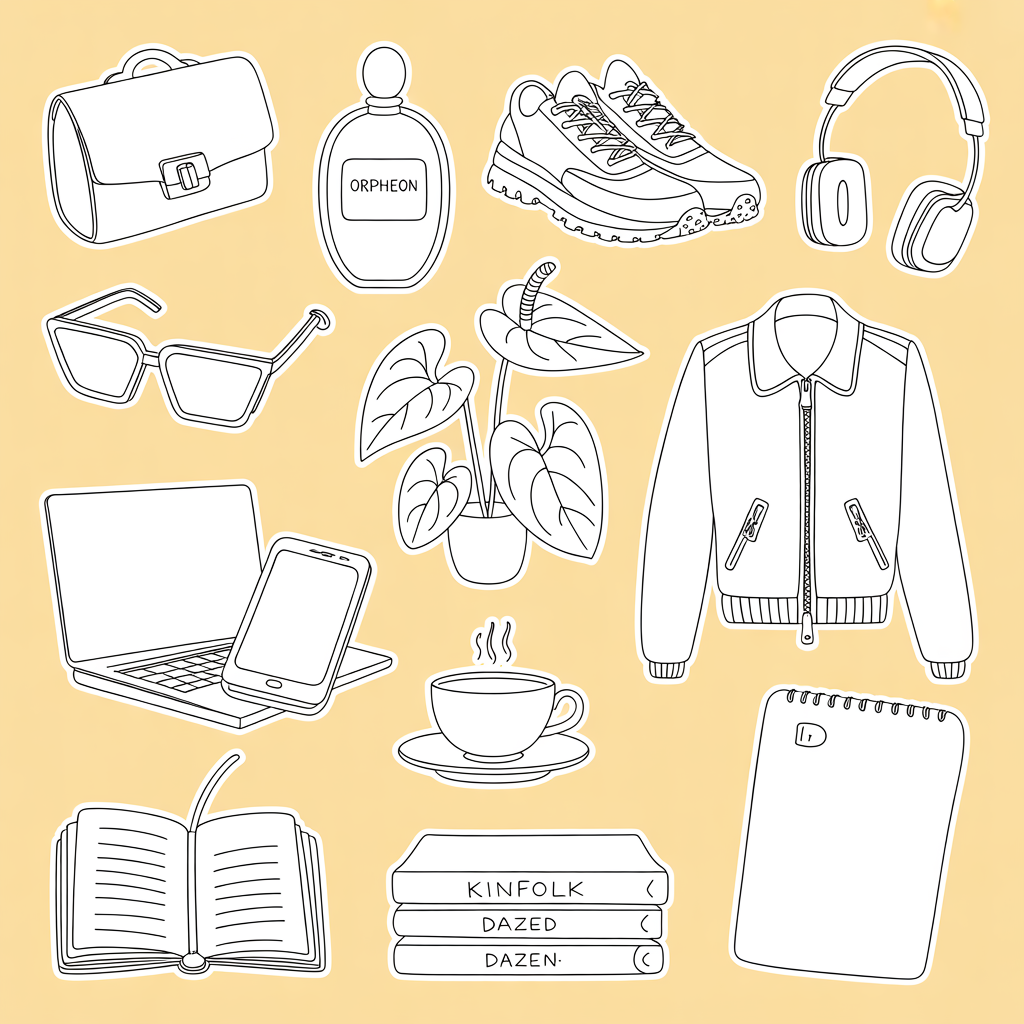
How it handled illustration: The colors were off: the yellow was deeper than requested and there was no blue in the image. The illustrations themselves were generic, with very little of the hand-drawn personality I was going for. It gave me something closer to a monstera when I asked for an anthurium, which is a specific enough request that getting it wrong felt like the model was pattern-matching to "houseplant" rather than following the prompt. With reference images, this probably improves. Without them, the first-pass results were underwhelming.
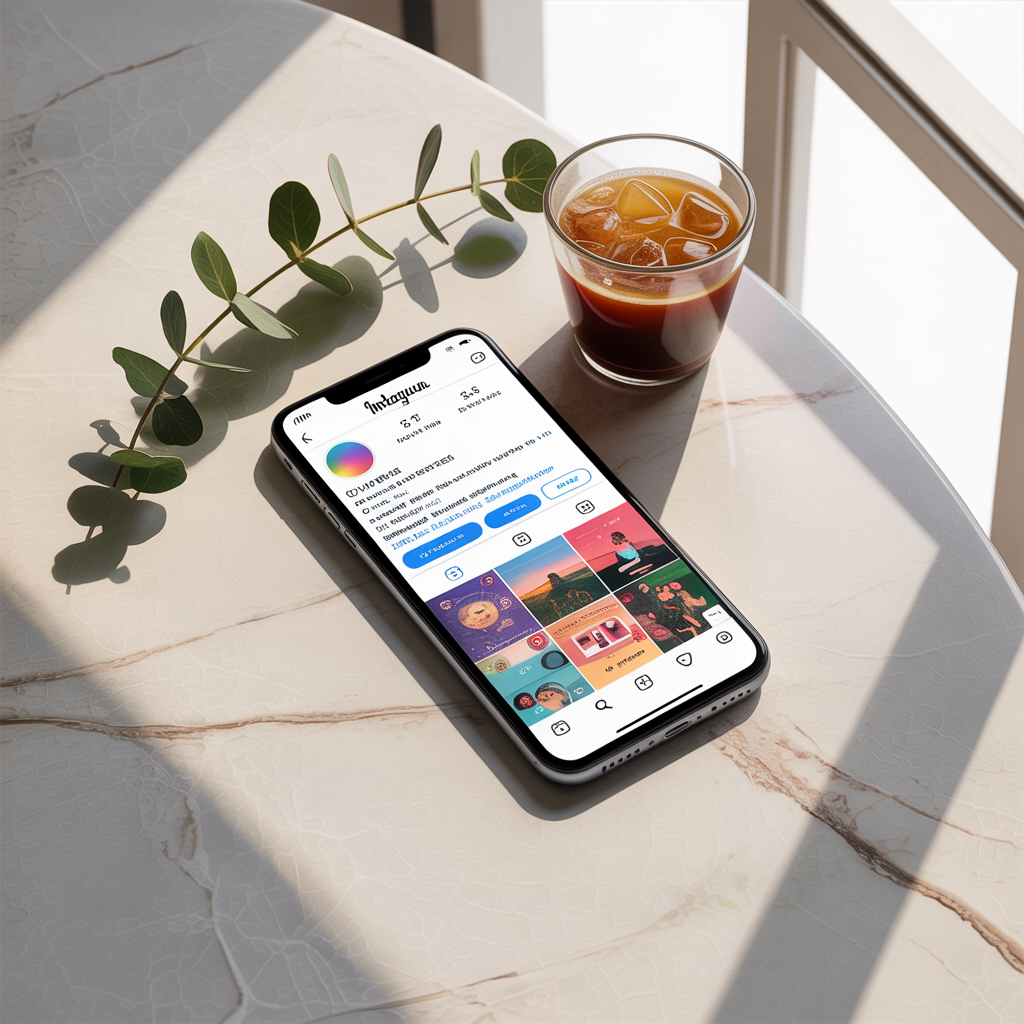
How it handled photorealism: The image had that uncanny valley quality at a glance where other tools needed a bit more attention. The coffee looked slightly fake in a way that's easy to pinooint as AI. The shadows and lighting were actually good, with a nice play of light across the objects. But the overall impression was "almost real," which in photorealism is the same as "not real."
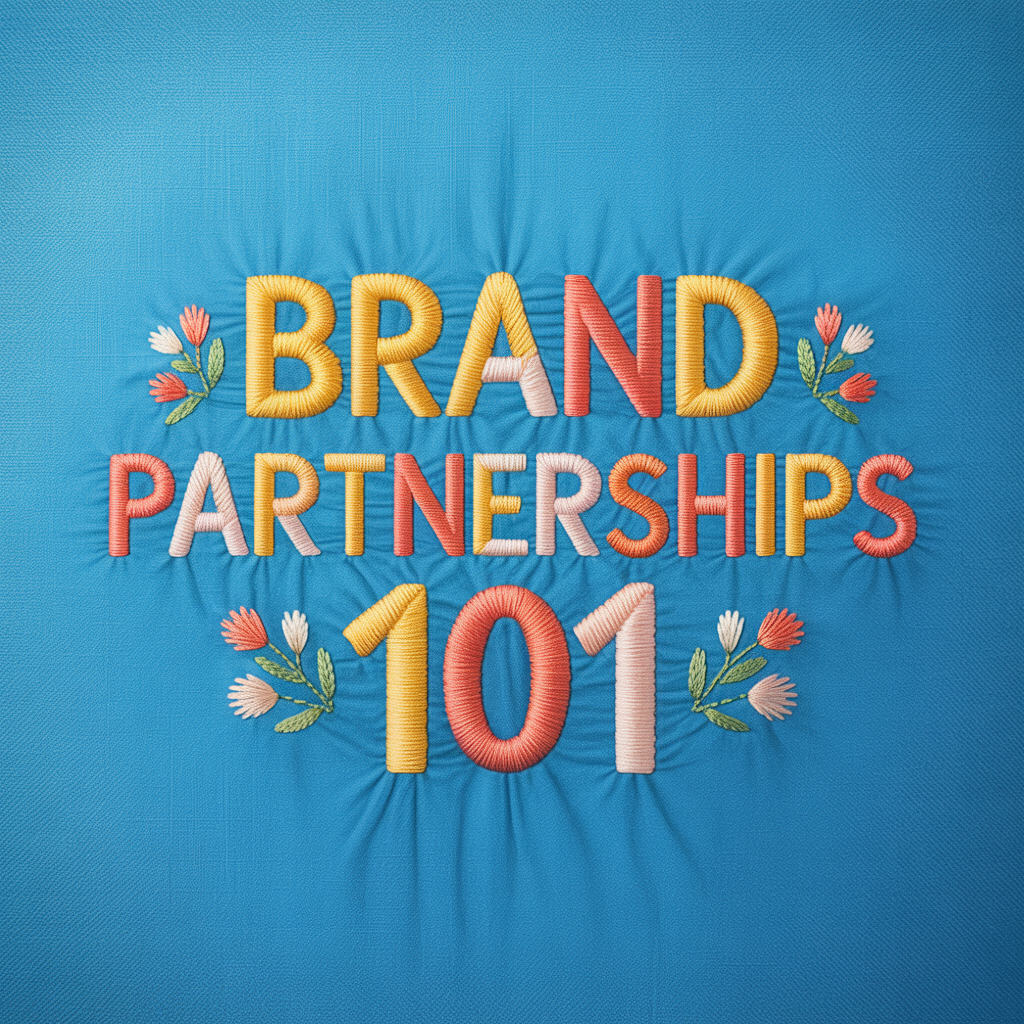
How it handled typography: Ideogram went for a cartoonish take on the embroidery, with an interesting attempt at making the fabric look like it was being pulled by the weight of the stitching. The effect didn't land for me. It felt tool-generated rather than handcrafted, which is the opposite of what this prompt was testing for. Other tools leaned into the realism of cross-stitch. Ideogram leaned into a stylized interpretation.
FLUX.2 Pro
Best for: Creators who want a model that takes creative liberties with prompts and produces outputs with a distinct point of view. Less predictable, but occasionally surprising in a good way.
FLUX.2 Pro is another model available inside Leonardo.ai. It's been gaining attention in the AI image generation space for its balance of quality and speed.
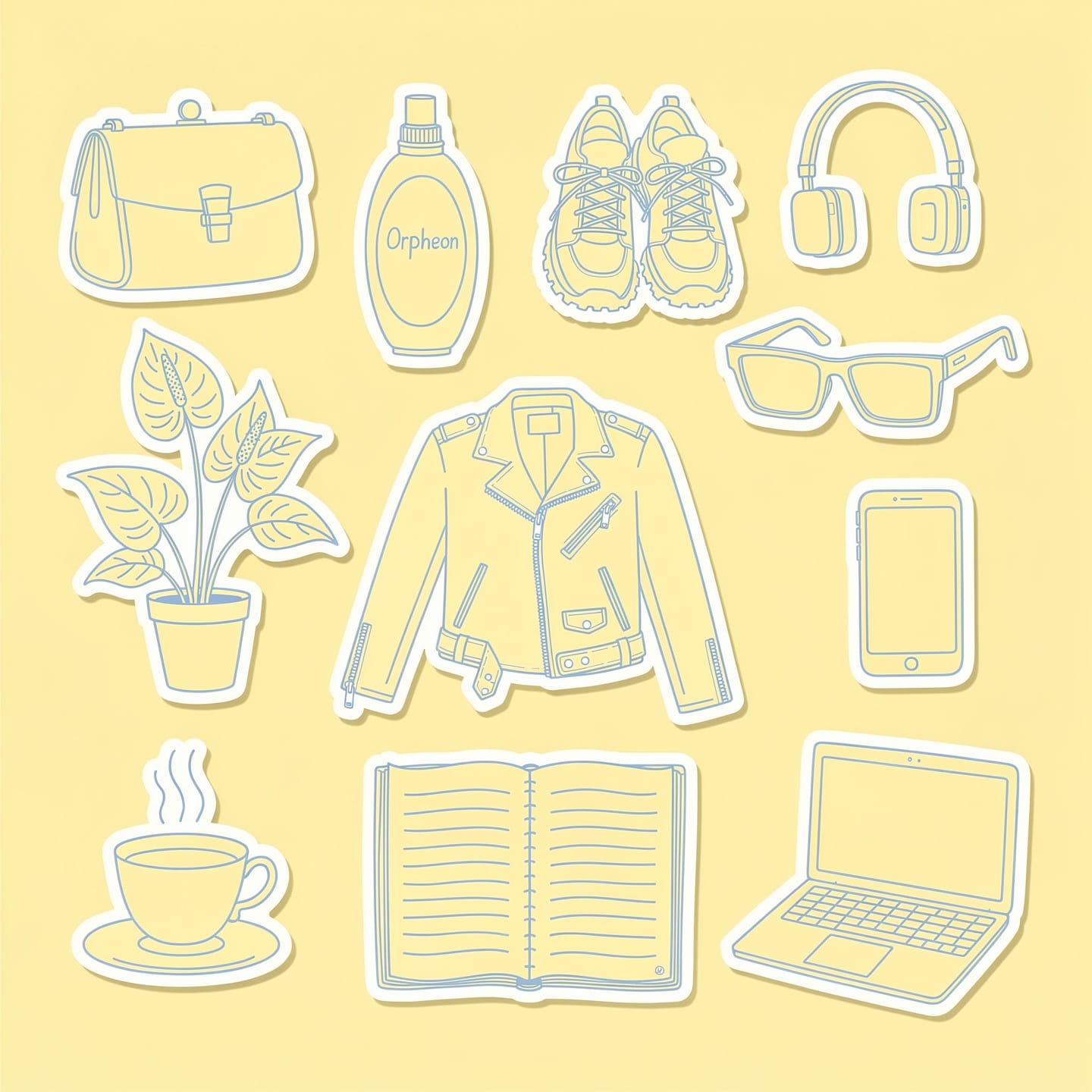
How it handled illustration: FLUX did something I wasn't expecting. Instead of generating flat sticker illustrations on a background, it created what looked like printed-out stickers that had been physically laid on a surface. Illustrated on a computer, printed, cut out, arranged, photographed. The model found its own middle ground between illustration and photorealism. The hand-drawn feel was there, but I wished the stickers sat flatter against the background so they'd look more natural when cropped. Some object details were off (the perfume bottle, the anthurium plant), but the overall approach was creative.
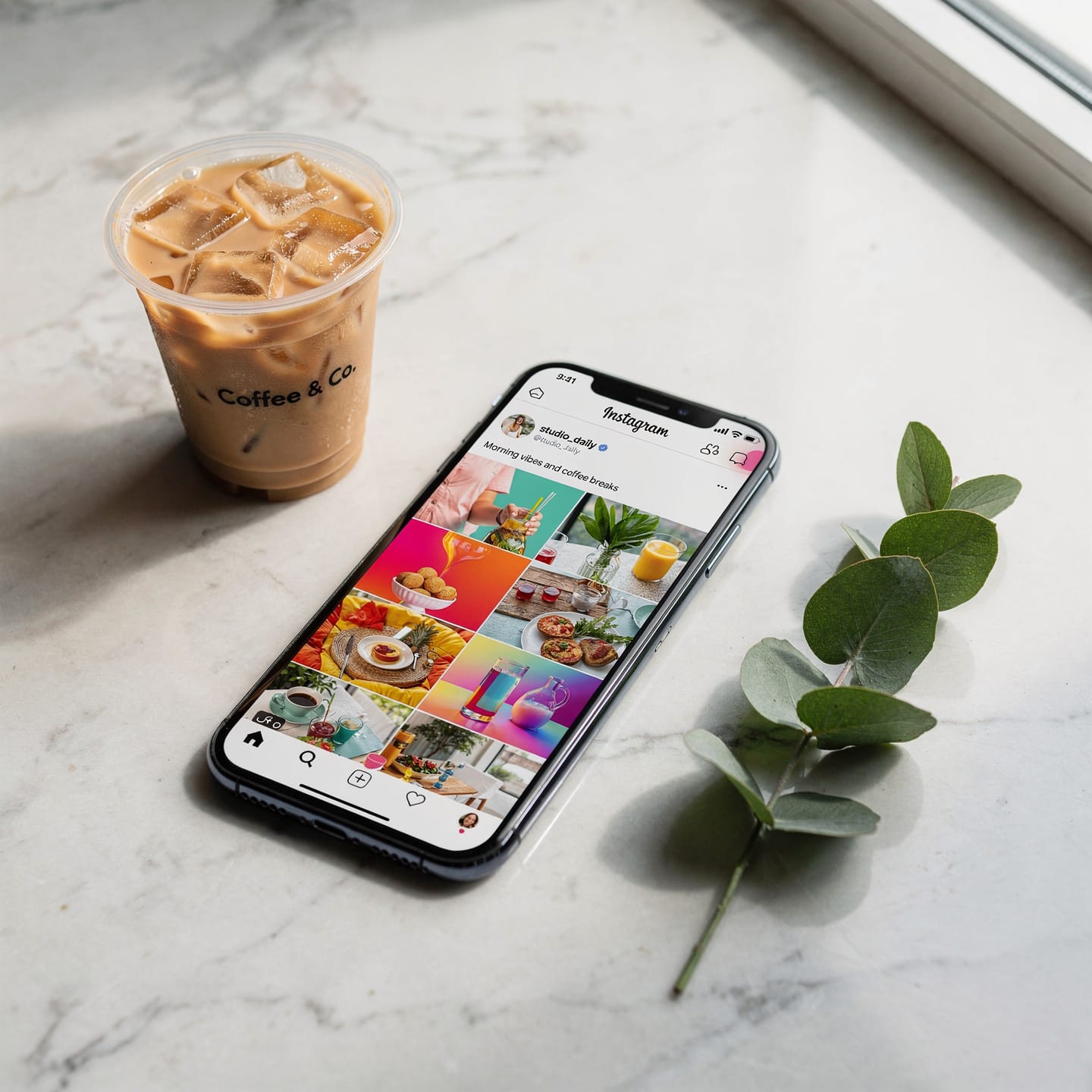
How it handled photorealism: FLUX handled shadows well and even added branding to the coffee cup (which I hadn't asked for, but it wasn't unwelcome). The phone was much closer to reality than the images from other models, but still not what I'd reach for if I needed a convincing flat lay image.
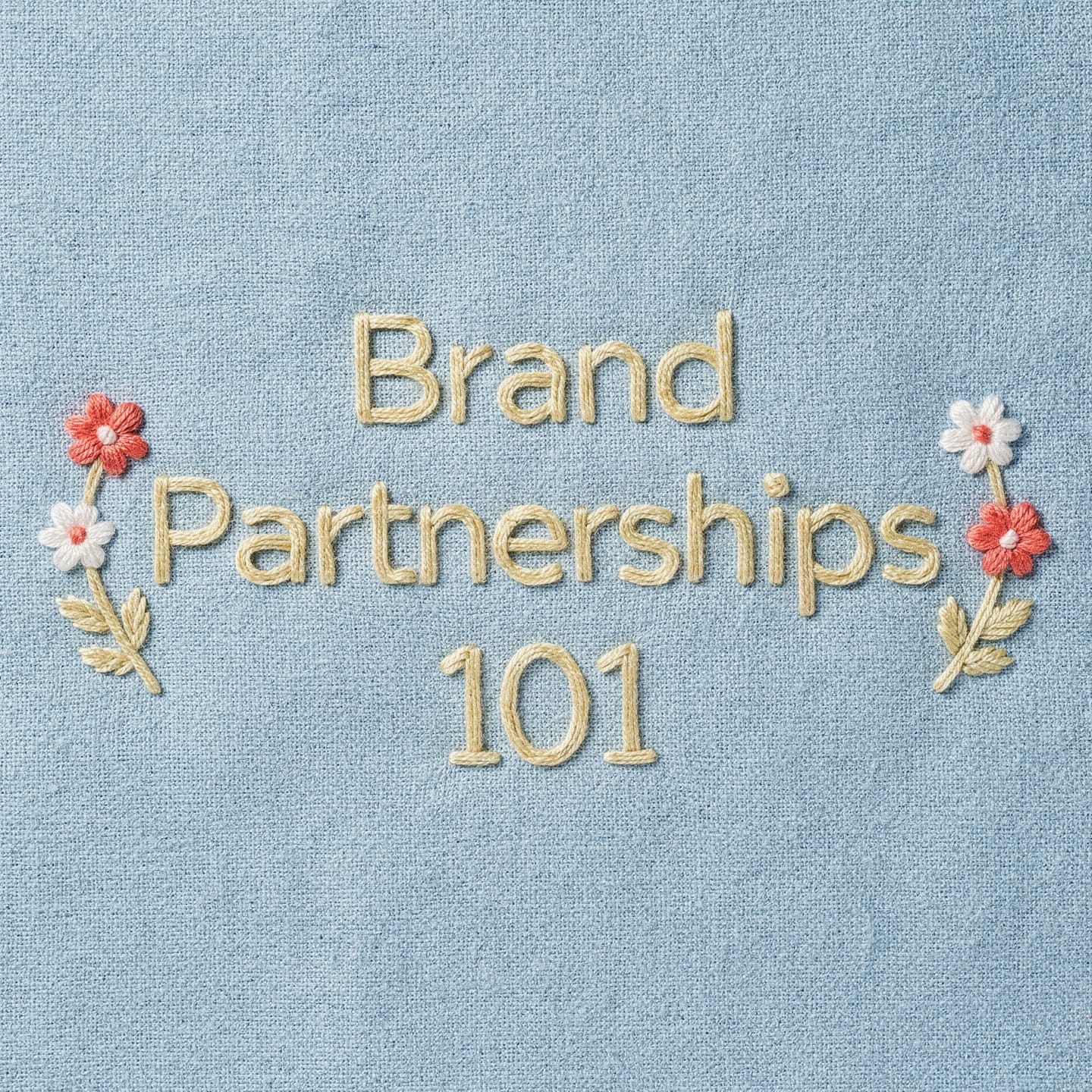
How it handled typography: When you zoom into FLUX's embroidery image, the stitching texture is genuinely impressive. It looks like real thread. But the text itself looked slightly glued on rather than stitched into the fabric, like someone had created embroidered letters separately and placed them on the background. The colors were also slightly more washed out than other models.
Lucid Origin
Best for: Creators who want quick generation with a distinctive dimensional quality and don't need pixel-perfect prompt adherence.
Lucid Origin offers both fast and ultra generation modes, plus a more limited set of style options compared to some other models on the platform. The ultra mode adds more detail but takes longer.
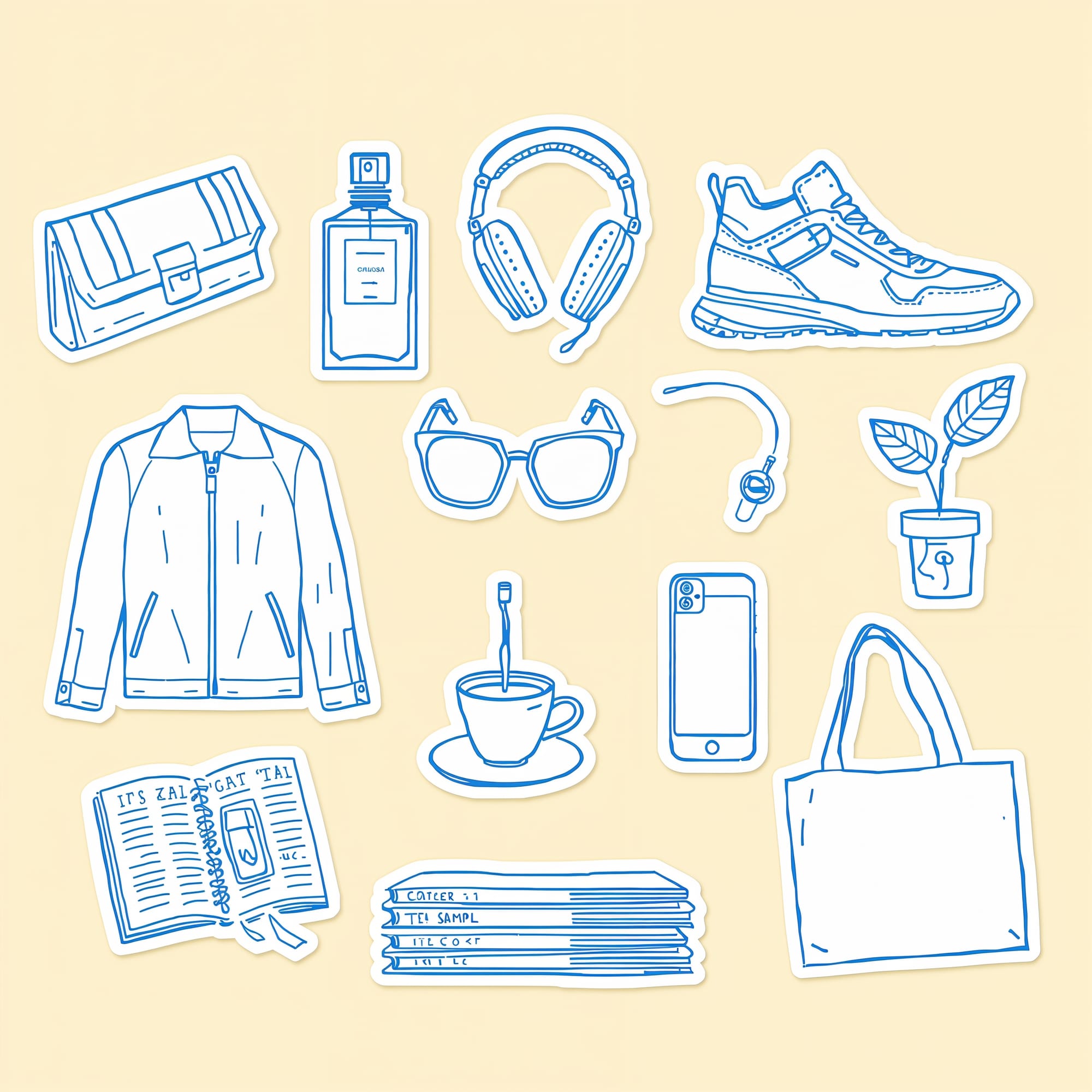
How it handled illustration: At first glance, the sticker sheet looked fine. On closer inspection, the text generation was poor compared to other models, and several requested objects didn't quite match the prompt. On the positive side, the stickers had an almost 3D quality that was visually interesting, like they had a slight embossed effect. If that dimensional look appeals to you, Lucid Origin delivers it naturally.

How it handled photorealism: This was one of the few tools that actually interpreted "flat lay" literally. Where other tools generated a three-quarter overhead shot, Lucid Origin went full top-down, which was closer to what the prompt language described. Points for reading comprehension. But the ice in the cup, phone content and on-screen images looked deeply unrealistic, more so than most competitors.
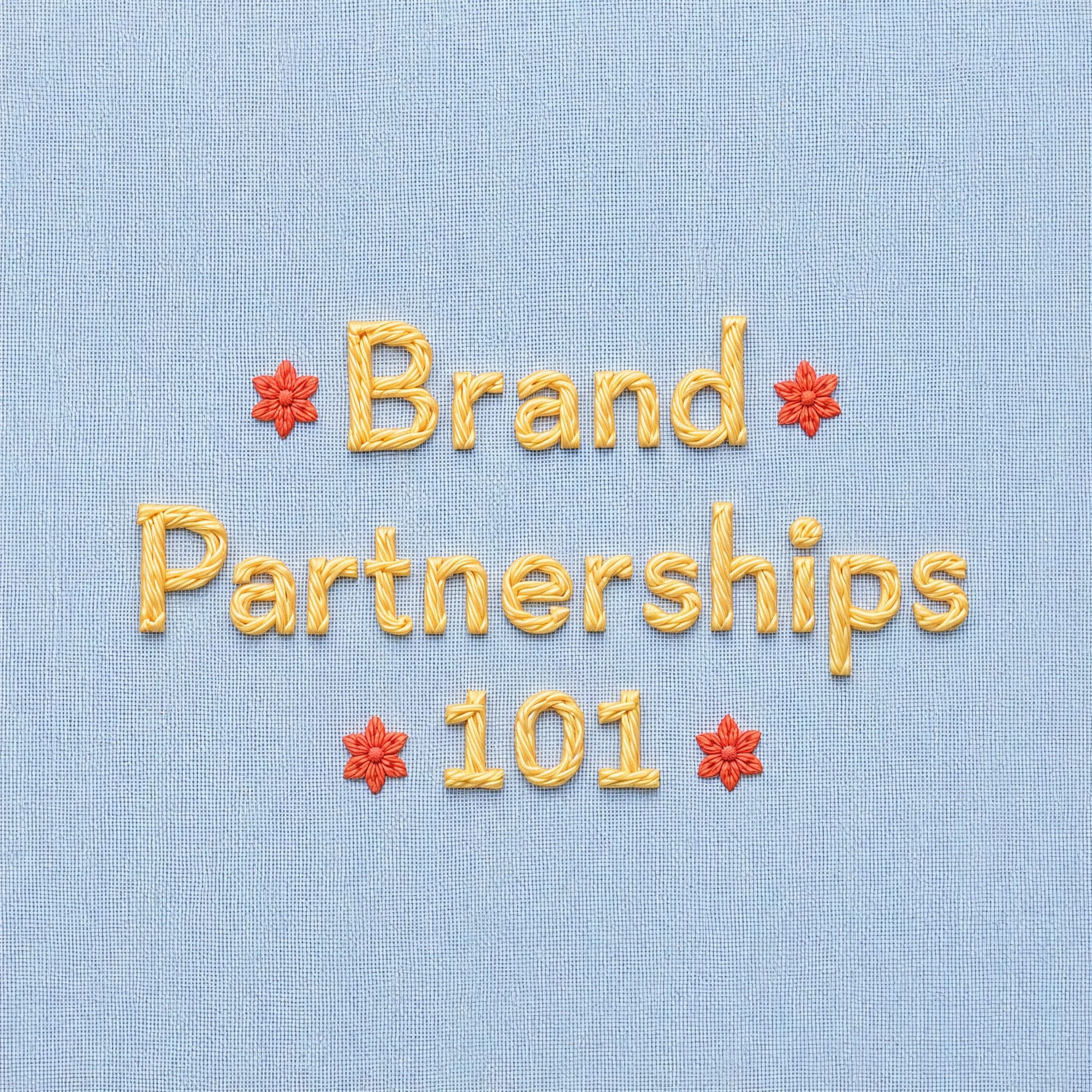
How it handled typography: I liked what Lucid Origin generated here. The colors were nice and the embroidery had a slightly raised quality that could work as a stylistic choice. It doesn't feel as grounded in physical reality as some of the other outputs, but for a creator who wants something that reads as "inspired by embroidery" rather than "trying to look like real embroidery," this is a viable option. It didn't nail every element (the white accents I asked for were missing), but the overall aesthetic was appealing.
FAQs
What is the best AI image generator overall?
Nano Banana 2 (Google's model) was the most consistent performer across all three of my test prompts. It handled illustration, photorealism, and typography well, and it seemed to understand the specific objects and brands I referenced better than other models.
I tested it inside Leonardo.ai, which I'd recommend as a starting point since it gives you access to multiple models in one platform. If you're already in the Adobe ecosystem, Firefly 5 is worth trying for the workflow integration and cleaner copyright positioning. And if you want the most artistic, visually rich outputs, Midjourney still has a distinct quality that other tools can't match, as long as you don't need accurate text.
How do AI image generators work?
Every AI image generator on this list works by turning text into pixels, but they don't all do it the same way. Understanding the basics helps explain why the same prompt can look completely different across two tools.
There are two main approaches powering the tools in this article.
Diffusion models start with visual noise (think: TV static) and gradually remove it, step by step, until an image forms. Each step, the model looks at your prompt and nudges the noise a little closer to what you described. FLUX, Stable Diffusion, and Midjourney all use variations of this approach. It's why these tools tend to produce images with a painterly or textured quality, and why they're often strong with artistic styles. They're building the whole image at once, refining it from chaos into clarity.
Autoregressive models work more like writing a sentence. They generate the image piece by piece, predicting what comes next based on what they've already created. Google's Imagen (the technology behind Nano Banana 2) and OpenAI's GPT Image models use this approach. These models tend to be better at following complex, detailed prompts because they process the image sequentially rather than all at once.
In practice, the line between these two categories is blurring. Some tools combine both approaches, and newer models like Seedream and Ideogram use hybrid architectures that are harder to categorize neatly. You don't need to know which approach a tool uses before you try it. But if you're wondering why Nano Banana 2 followed my 13-item sticker sheet more faithfully than FLUX did, or why Midjourney produces that distinctive artistic quality even when you ask for something simple, the underlying architecture is a big part of the answer.
One more thing worth knowing: these models learn from images and their descriptions. That's why photography terms work so well in prompts (the training data is full of photo captions) and why specific illustration vocabulary like "ink hatching" or "gouache blocks" gets better results than "make it look drawn." You're speaking the language the model was trained on.
Can I use AI images in my content?
You can use AI-generated images commercially. Every tool in this article allows it in their terms of service. But there are a few things worth knowing before you start publishing them.
AI-generated images aren't copyrightable (yet). The U.S. Copyright Office has ruled that typing a prompt doesn't make you the legal author of the output. In March 2026, the U.S. Supreme Court declined to change this. For most creators, this won't affect your day-to-day. You're putting these in social posts and blog headers, not licensing them. But it means if someone else generates something similar, you can't claim ownership the way you would with a photo you took. The more you modify and integrate an AI image into your own design work, the stronger your position gets.
The tools are trained on other people's art. Most models in this article learned from large datasets of images scraped from the internet, and over 70 copyright lawsuits are currently making their way through the courts. The biggest one, which names both Stability AI and Midjourney, goes to trial in September 2026. Adobe Firefly is the exception: it's trained on licensed Adobe Stock content and public domain material, and Adobe offers IP indemnification for enterprise plans. If clean sourcing matters to you, Firefly has the strongest case.
Be careful with people. I chose not to generate images of human subjects for this article. These tools can produce convincing images of people who don't exist, and some can produce images that resemble real people. That opens up right-of-publicity risks and ethical questions that go beyond copyright. If your content involves AI-generated people, that's a decision worth thinking through.
Are AI image generators free?
Most tools on this list offer a free tier or free credits to start. Leonardo.ai gives you daily tokens that refresh, so you can test multiple models without paying. Recraft, Ideogram, and Meta AI all have free access. Midjourney requires a paid subscription (plans start at $10/month). Adobe Firefly is included with most Creative Cloud plans, and you can generate a limited number of images for free through Adobe's website. ChatGPT includes image generation on its free plan, though paid plans give you faster generation and higher limits.
If you're trying to figure out which tool works for you before spending anything, Leonardo.ai is the best starting point because you can test multiple models in one place without a subscription.
What's the best AI image generator for social media graphics?
It depends on what kind of graphics you're making. For illustrated elements you want to drop into Canva (stickers, doodles, branded illustrations), Nano Banana 2 and Recraft were the strongest in my testing. For photorealistic product shots or lifestyle flat lays, Nano Banana 2 and FLUX.2 Pro produced the most convincing results, though every tool in this list still struggles with fine details on zoom. For text-heavy graphics like quote cards or typography-based designs, Seedream and Ideogram 3.0 had the most reliable text generation, while Midjourney consistently misspelled words.
Can AI image generators put text on images?
Some can, some can't. This was one of the biggest dividers in my testing. Seedream and Ideogram 3.0 nailed the spelling and placement of text across all three prompts. Adobe Firefly 5 handled it well. Midjourney struggled badly with anything beyond short, simple words. If accurate text matters for your use case (and for most social media graphics, it does), check the typography results in each tool's review above before choosing.
Do AI-generated images look obviously AI?
It depends on the type of image. For illustration and stylized graphics like embroidery or sticker sheets, no. The best outputs from my tests were genuinely usable in content without any obvious AI tells. For photorealism, yes, usually on closer inspection. Phone screens, text within the image, and small product details are the giveaways. The gap is closing fast, but we're not at "indistinguishable from a real photo" yet.
More resources
- 14 AI tools for social media content creation: my workflow guide — the AI tools I actually use for creating social content, from ideation to publishing
- The 11 best AI video editors for creators and marketers — tried and tested video editing tools for creators who want to work faster
- The top 10 AI writing tools I recommend as a professional writer — writing tools that pair well with the visual assets you generate
- 8 of the best AI productivity tools — tools to optimize how you work across your whole content workflow
Ready to put your AI-generated visuals to work? Get started with Buffer for free and start scheduling your content today.
from Buffer Resources https://ift.tt/t39Jdjm
I don't use AI image generators in my creative process — or at least, I didn't before writing this article. Every time I tried to think of a reason to generate an image, my brain went straight to photorealism.
And then I'd think: why wouldn't I just pick up my phone and take a picture of the thing? But it turns out, I was only considering one slice of what these tools can do.
I'm not particularly artistic. Here's the evidence:
I can write. I can build a (pretty good, if I do say so myself) carousel in Canva or even Figma. But I can't draw, and I can't create the kind of illustrations I see other creators using across their content. That turned out to be exactly the gap where AI image generators are most useful — not replacing photography, but creating visuals I couldn't make on my own.
So I tested nine of them through that lens, focusing on the use cases where these tools actually solve a problem. Everything I learned about writing prompts that work, which tools performed best, and the AI image generators worth knowing about in 2026 is here.
Key Takeaways
- I tested nine AI image generation models across three prompts — a hand-drawn sticker sheet, a photorealistic product flat lay, and an embroidery typography graphic — to see which ones actually deliver usable results for creators.
- Nano Banana 2 (Google) was the most consistent performer overall. It nailed illustration accuracy, came closest to photorealism, and handled typography well. If you only try one model, start there.
- Every tool struggled with photorealism in some way. None produced an image I'd confidently pass off as a real photo without editing, especially when the prompt included brand names or device screens.
- Typography was the biggest divider. Seedream and Ideogram 3.0 were the most reliable at spelling and placing text. Others, like Midjourney and GPT Image, garbled words or skipped them entirely.
- Your prompt structure matters more than your tool choice. Leading with the subject (not the style), using photography language for realism, and describing colors in plain words instead of hex codes made a noticeable difference across every model.
- I ran most of my tests inside Leonardo.ai because it gives you access to multiple models in one place and integrates directly with Canva — which is where I do all my visual design work.
- AI-generated images are commercially usable, but they're not copyrightable yet. If you're building a brand around original visuals, that's worth factoring in.
What makes a good AI image prompt?
When I first sat down to test every tool in this article, I blanked completely. The generators have gotten absurdly good, especially in the past year. But I couldn't think of a single image I needed.
I think that's where most people get stuck. The tools aren't the bottleneck anymore. Knowing what to ask for is.
So I spent time researching before I started testing. I read through creator communities on Reddit (r/midjourney and r/StableDiffusion are goldmines for this), studied prompt breakdowns on Instagram, and went through Envato's illustration prompt guide. Then I ran dozens of prompt variations across every tool on this list. A clear pattern emerged in what works and what doesn't.
Start with the subject, not the style
The first few words of your prompt carry the most weight. Every tool I tested responded better when I led with what's in the image before describing how it should look. "A woman sitting at a desk with a laptop open" before "editorial lifestyle photography, warm natural light."
When I flipped the order and led with style, the results lost focus. The model seemed to treat the style as the priority and get vague about the actual content.
Use camera language for photorealism
"Shallow depth of field." "Shot from a slight angle." "Soft golden hour lighting." "35mm film photography."
Photography terms are the single most effective way to get photorealistic results, because these models were trained on image captions and photography descriptions. They understand camera vocabulary natively. Vague descriptors like "beautiful" or "high quality" do almost nothing.
Describe colors in words, not codes
I tested the same prompt with hex codes and with plain descriptions ("light blue," "butter yellow"). The descriptive version was more accurate in the majority of tools I tested.
This one has some nuance, though. The Envato guide recommends hex codes for brand accuracy, and some tools (particularly ones built for designers, like Recraft) handle them better than others. If you're not sure, start with descriptive color names. If you're working with a specific brand palette and a design-focused tool, try the hex codes and see what you get.
Anchor your illustration style or the tool will choose for you
This was the biggest lesson from the illustration tests. When I prompted for photorealism, the tools mostly knew what I meant. When I switched to illustration, the results fell apart until I got specific about what kind.
"Hand-drawn doodle, light blue ink, single color, simple line art with slightly wobbly quality, outlines only" gave me something usable. Without those anchors, most tools defaulted to either photorealism or something that looked like free clip art from 2008.
The Envato guide breaks illustration styles into specific technique language: "ink hatching, gouache blocks, flat vector shapes, stipple shading, gestural linework." The more precise you are about the medium and technique, the closer the output gets to what you actually pictured.
Tell the tool what you don't want
Negative prompts are underrated. Adding "no watermark," "no text," "no photorealism" to my illustration prompts cleaned up the outputs noticeably. But they only work when the core prompt is already solid. You can't subtract your way to a good image from a vague starting point.
Put your most important exclusions early in the negative prompt. "No photorealism, no watermarks, no text" performed better than burying those instructions at the end.
A template you can steal
Here's the structure that worked consistently across the tools I tested:
[Subject and what they're doing] + [setting or context] + [2 or more specific details] + [style]
And here are the prompts I came up with.
For illustration:
A sticker sheet of hand-drawn doodle illustrations on a butter yellow background, with generous spacing between every object so each can be cropped as an individual sticker. Exactly these objects and nothing else: 1) a structured clutch bag with clasp hardware, 2) a tall oval perfume bottle with a label reading "Orpheon", 3) chunky lace-up trail running sneakers, 4) wireless square transparent over-ear headphones with absolutely no wire and no earbud attached completely standalone, 5) angular rectangular sunglasses, 6) a leather zip-up moto biker jacket with zippered pockets, 7) an anthurium plant with large waxy leaves and a spadix, 8) an open laptop computer, 9) a smartphone with a screen, 10) a single hot steaming cup of tea in a teacup on a saucer no iced drinks, no straws, no second cup, 11) an open journal with handwritten lines on the pages, 12) a flat neat stack of magazines with spines reading Kinfolk, Dazed, i-D, 13) a plain simple canvas tote bag with handles not mesh, not net. Light blue line art on butter yellow background, single color, simple wobbly hand-drawn line art, outlines only, zero shading, zero fill, zero color blocks. Flat lay arrangement.
For photorealism:
A photorealistic image of an iPhone resting on a light marble surface, screen facing up, showing a colorful Instagram feed. A small iced coffee in a clear cup and a sprig of eucalyptus beside it. Three-quarter overhead angle, soft natural window light from the right, gentle shadows. Clean, styled, editorial product photography. No people, no hands, no text overlays, no watermarks.
For typography as design:
Square graphic. The phrase 'Brand Partnerships 101' rendered as colorful embroidery stitching on light blue linen fabric background. Letters in butter yellow thread with visible stitch texture, cross-stitch style. Small decorative floral embroidery accents in coral and white thread flanking the text. Fabric has subtle woven texture. Warm, tactile, handcrafted feel. No photographs of real objects, no watermarks.
You'll see how each model handled these prompts (and where they fell apart) in the reviews below.
The nine best AI image generators
I tested nine AI image generation models across three prompts: a hand-drawn doodle sticker sheet, a styled product flat lay, and an embroidered typography graphic.
Some of these are models (the AI that generates the image), and some are platforms (where you access the model). Rather than trying multiple tools across different websites, I used Leonardo.ai as my testing hub for the models available there, testing the most recent version of each. Then I tested Midjourney, Recraft, and Adobe Firefly as standalone tools.
I picked Leonardo.ai because of its Canva integration — I can seamlessly add the images into my Canva and edit them from there, so this is a plus for my workflow. You don’t have to use it, go for any all-in-one image generator of your choice that suits your workflow (Recraft is another great option).
If you only try one or two models: Nano Banana 2 delivered the most accurate results across all three test categories. For text-heavy graphics, start with Seedream. For the most artistic, visually rich outputs, Recraft’s models have a quality that other tools can't match.
Now, the results.
Jump to a section:
Midjourney
Best for: Creators who want artistic, mood-driven visuals and don't need precise text or highly specific object rendering.
Midjourney has a reputation as the "artistic" AI image generator, and the visual richness of its outputs backs that up. The editing experience is button-based: you can vary elements to be subtle or strong, lean more creative, and even animate your results without leaving the tool.
How it handled illustration: Of the four images Midjourney generated from my sticker sheet prompt, only one was close to usable. Midjourney struggles with this level of detail and specificity. When you're listing 13 distinct objects with particular characteristics (a clutch with clasp hardware, transparent over-ear headphones, magazines with specific spine text), it can't keep up. The objects it did render looked good individually, but it missed the brief.
How it handled photorealism: The overall composition and photography feel were strong. The layout, the lighting, the general mood of the image landed well. But the details fell apart: the "iced coffee" had no ice (just an ambiguous glass of something), and the Instagram feed on the phone screen was warped beyond recognition. Midjourney builds a beautiful scene and then fumbles the specifics inside it.
How it handled typography: This is where Midjourney hit a wall. It spelled "brand" correctly and got "101" right, but "partnerships" was garbled. The embroidery stitching itself looked genuinely handcrafted, maybe even the best texture of the bunch. But when your competitor tools are nailing the text on the first try, beautiful stitching on misspelled words doesn't cut it.
Adobe Firefly 5
Best for: Creators already in the Adobe ecosystem who want clean commercial licensing and don't mind working around brand-name restrictions.
Adobe Firefly 5 is the latest image-generation model from Adobe, and its biggest selling point is its workflow integration. If you're already in Photoshop or Illustrator, you can generate an image and move it straight into your editing workspace. Adobe has also been vocal about training Firefly on licensed and public-domain content, which means you get cleaner commercial-use rights than most competitors.
I don't use Photoshop or Illustrator in my day-to-day, but if they're part of your workflow, the direct handoff alone might make Firefly worth trying.
How it handled illustration: The hand-drawn illustrations had a whimsical quality to them and felt truly hand-drawn. There were some attempts at making things feel "human-generated," like scribbles on the page, which was a nice touch. But the accuracy wasn't there: the leather jacket had zipper placements at the collar and bottom that were visibly wrong, and a few other objects felt approximated rather than intentional.
How it handled photorealism: This is where Firefly's copyright-conscious training showed up in a way I wasn't expecting.
It declined the words "iPhone" and "Instagram" in the prompt, which aligns with how Adobe avoids potential trademark issues. That's worth knowing upfront: if your prompt references specific brand names or products, Firefly might push back.
How it handled typography: The embroidery prompt was one of Firefly's better results. The fabric behind the text looked realistically aged and worn, the text itself was legible and well-generated, and there was genuine depth to the stitching. You could see the texture in a way that some of the other tools didn't quite achieve.
Recraft V4 Pro
Best for: Creators and designers who want serious control over visual style and want access to Recraft's reference and refinement features.
Recraft is another tool I tested as a standalone platform. It has a massive library of existing designs from real designers that you can use as reference images. You can assign a color palette, select from a wide range of visual styles, and work with its agentic chat to refine your images through conversation rather than re-prompting from scratch.
If you're not tied to Canva for your design workflow, Recraft is a genuinely solid all-in-one option. The ability to pull from its existing design library as reference images could save you a lot of back-and-forth if you already have a visual direction in mind.
I chose not to use any reference images from Recraft's library for this experiment, but it's something that could get you to better results faster.
How it handled illustration (using the Vector Pro model): The images had that hand-drawn quality I was going for. Objects like the plant and the coffee cup looked right. But inconsistencies crept in: the sneakers felt generic, and the laptop suddenly introduced a color that nothing else in the image had. Because Recraft lets you layer in visual styles and references, I think the gap between "first attempt" and "polished result" is smaller here than with other tools. I just didn't take those extra steps for this test.
How it handled photorealism (using the V4 Pro model): At a glance, the image looked photorealistic. The objects cast very realistic shadows and the condensation detail on the iced coffee caught my attention. But zooming in told a different story: the phone dimensions looked off, the camera was on the front of the device, the on-screen images were gibberish, and the table was sinking into the wall.
How it handled typography: Recraft went its own direction here. It didn't deliver the embroidery realism I asked for, but what it did produce had a clear aesthetic vision and a handcrafted feel that I could actually see myself using. I'd dock points for not following the brief, but then I’d have to add them back for creativity. Sometimes a tool that ignores your prompt gives you something better than what you asked for.
GPT Image 1.5 (OpenAI)
Best for: People already using ChatGPT who want quick image generation without switching tools. For more control, access the same model via an all-in-one image generator tool such as Leonardo.ai or Recraft.
If you've used image generation inside ChatGPT recently, you've likely used a version of this model. I tested GPT Image 1.5 inside Leonardo.ai, the first of the models on this list where I did this. You can dig deeper into style selection (illustration, photography, etc.), adjust quality settings, and control image dimensions. The model itself is the same underlying technology, but tools like Leonardo give you more knobs to turn.
How it handled illustration: This was not GPT Image's strongest showing. The sticker images looked almost compressed, probably because the spacing I requested between objects resulted in a lot of empty space that the model didn't know how to handle. The whole image also had that yellowish tinge that's become a recognizable "this is AI" tell. Other tools rendered the butter yellow background without that filter-like quality.
How it handled photorealism: It came closer than the illustration prompt, but the Instagram feed on the phone screen was missing the visible branding and layout cues that make it recognizable as Instagram.
How it handled typography: GPT Image leaned hard into the cross-stitch texture, which was technically what I asked for. It followed the prompt more faithfully than several other tools, and the execution was accurate. But the result wasn't something I'd use in my content. If prompt adherence matters more than aesthetics for your use case, GPT Image delivers on that.
Nano Banana 2 (Google)
Best for: Creators who want the most accurate rendering of specific real-world objects and styles, particularly for illustration work.
Nano Banana 2 is a Google model, and I have a theory about why it outperformed several competitors: Google has the search engine. It has image search, Google Shopping, and years of indexed visual data. When I asked for a "Diptyque Orphéon" perfume bottle or "chunky trail running sneakers from Salomon," Nano Banana seemed to actually know what those things look like. Other tools freestyled the details. This one got the closest to reality.
How it handled illustration: This was my top pick for the illustration prompt. The hand-drawn style landed, the proportions were correct, and nothing felt off. It got the style of the perfume bottle right, matched the sneaker aesthetic I was going for, and even rendered the magazine spines with fonts and imagery that felt close to the real publications. With reference images, I think this would get even closer, but even without them, Nano Banana 2 delivered the most complete sticker sheet of the group.
How it handled photorealism: Nano Banana came closest to generating a realistic Instagram feed, and the phone itself felt more believable than other tools' attempts. It did something interesting, though: it added elements I hadn't asked for (a small notebook, a pair of earbuds near the edge of the frame) that made the scene feel lived-in. That instinct for "what would actually be on this desk" pushed the image past the sterile quality that plagued other results.
How it handled typography: The embroidery text came out whimsical and stylized, with visible texture on both the fabric and the stitching. The overall feel was one of my preferred outputs from the group. The flowers and surrounding design elements had a cohesive quality that matched the text treatment, which not every tool managed.
Seedream (ByteDance)
Best for: Creators who need reliable text generation in their images and access within CapCut.
Seedream is ByteDance's image generation model and bonus: you can use it if you have CapCut Pro. It had some interesting strengths and some familiar weaknesses.
How it handled illustration: Seedream produced the most sticker-like effect of any tool, which was exactly the brief. But accuracy issues showed up on closer inspection: a phone appeared on the magazine stack (not requested), the headphones were transparent (not requested), and the perfume bottle didn't quite match the description. But text generation was spot-on. Every label, every spelling, every piece of text in the image was correct. It also correctly rendered an anthurium instead of defaulting to a monstera, which tripped up several other tools.
How it handled photorealism: The phone was the weak point: it was clearly not a real device. But the surrounding elements held up. The shadows were well-placed, the coffee cup was good (it even looked like a latte, more specific than what I asked for), and the overall scene had decent styling.
How it handled typography: Seedream did well here. The fabric texture behind the text looked realistic, and it got most of the prompt elements right. The font weight felt slightly cartoonish compared to the fabric realism, and it rendered "partnerships" across two lines, which didn't come up with other tools. But I could see myself using this in my content, which is more than I can say for some of the other outputs.
Ideogram 3.0
Best for: Creators who want accurate text in their generated images and are willing to trade visual personality for spelling precision.
Ideogram 3.0 is the latest model from Ideogram that is positioned as being great at generating images with text, but I found that it only got 75% of the way there in some of my requests.
How it handled illustration: The colors were off: the yellow was deeper than requested and there was no blue in the image. The illustrations themselves were generic, with very little of the hand-drawn personality I was going for. It gave me something closer to a monstera when I asked for an anthurium, which is a specific enough request that getting it wrong felt like the model was pattern-matching to "houseplant" rather than following the prompt. With reference images, this probably improves. Without them, the first-pass results were underwhelming.
How it handled photorealism: The image had that uncanny valley quality at a glance where other tools needed a bit more attention. The coffee looked slightly fake in a way that's easy to pinooint as AI. The shadows and lighting were actually good, with a nice play of light across the objects. But the overall impression was "almost real," which in photorealism is the same as "not real."
How it handled typography: Ideogram went for a cartoonish take on the embroidery, with an interesting attempt at making the fabric look like it was being pulled by the weight of the stitching. The effect didn't land for me. It felt tool-generated rather than handcrafted, which is the opposite of what this prompt was testing for. Other tools leaned into the realism of cross-stitch. Ideogram leaned into a stylized interpretation.
FLUX.2 Pro
Best for: Creators who want a model that takes creative liberties with prompts and produces outputs with a distinct point of view. Less predictable, but occasionally surprising in a good way.
FLUX.2 Pro is another model available inside Leonardo.ai. It's been gaining attention in the AI image generation space for its balance of quality and speed.
How it handled illustration: FLUX did something I wasn't expecting. Instead of generating flat sticker illustrations on a background, it created what looked like printed-out stickers that had been physically laid on a surface. Illustrated on a computer, printed, cut out, arranged, photographed. The model found its own middle ground between illustration and photorealism. The hand-drawn feel was there, but I wished the stickers sat flatter against the background so they'd look more natural when cropped. Some object details were off (the perfume bottle, the anthurium plant), but the overall approach was creative.
How it handled photorealism: FLUX handled shadows well and even added branding to the coffee cup (which I hadn't asked for, but it wasn't unwelcome). The phone was much closer to reality than the images from other models, but still not what I'd reach for if I needed a convincing flat lay image.
How it handled typography: When you zoom into FLUX's embroidery image, the stitching texture is genuinely impressive. It looks like real thread. But the text itself looked slightly glued on rather than stitched into the fabric, like someone had created embroidered letters separately and placed them on the background. The colors were also slightly more washed out than other models.
Lucid Origin
Best for: Creators who want quick generation with a distinctive dimensional quality and don't need pixel-perfect prompt adherence.
Lucid Origin offers both fast and ultra generation modes, plus a more limited set of style options compared to some other models on the platform. The ultra mode adds more detail but takes longer.
How it handled illustration: At first glance, the sticker sheet looked fine. On closer inspection, the text generation was poor compared to other models, and several requested objects didn't quite match the prompt. On the positive side, the stickers had an almost 3D quality that was visually interesting, like they had a slight embossed effect. If that dimensional look appeals to you, Lucid Origin delivers it naturally.
How it handled photorealism: This was one of the few tools that actually interpreted "flat lay" literally. Where other tools generated a three-quarter overhead shot, Lucid Origin went full top-down, which was closer to what the prompt language described. Points for reading comprehension. But the ice in the cup, phone content and on-screen images looked deeply unrealistic, more so than most competitors.
How it handled typography: I liked what Lucid Origin generated here. The colors were nice and the embroidery had a slightly raised quality that could work as a stylistic choice. It doesn't feel as grounded in physical reality as some of the other outputs, but for a creator who wants something that reads as "inspired by embroidery" rather than "trying to look like real embroidery," this is a viable option. It didn't nail every element (the white accents I asked for were missing), but the overall aesthetic was appealing.
FAQs
What is the best AI image generator overall?
Nano Banana 2 (Google's model) was the most consistent performer across all three of my test prompts. It handled illustration, photorealism, and typography well, and it seemed to understand the specific objects and brands I referenced better than other models.
I tested it inside Leonardo.ai, which I'd recommend as a starting point since it gives you access to multiple models in one platform. If you're already in the Adobe ecosystem, Firefly 5 is worth trying for the workflow integration and cleaner copyright positioning. And if you want the most artistic, visually rich outputs, Midjourney still has a distinct quality that other tools can't match, as long as you don't need accurate text.
How do AI image generators work?
Every AI image generator on this list works by turning text into pixels, but they don't all do it the same way. Understanding the basics helps explain why the same prompt can look completely different across two tools.
There are two main approaches powering the tools in this article.
Diffusion models start with visual noise (think: TV static) and gradually remove it, step by step, until an image forms. Each step, the model looks at your prompt and nudges the noise a little closer to what you described. FLUX, Stable Diffusion, and Midjourney all use variations of this approach. It's why these tools tend to produce images with a painterly or textured quality, and why they're often strong with artistic styles. They're building the whole image at once, refining it from chaos into clarity.
Autoregressive models work more like writing a sentence. They generate the image piece by piece, predicting what comes next based on what they've already created. Google's Imagen (the technology behind Nano Banana 2) and OpenAI's GPT Image models use this approach. These models tend to be better at following complex, detailed prompts because they process the image sequentially rather than all at once.
In practice, the line between these two categories is blurring. Some tools combine both approaches, and newer models like Seedream and Ideogram use hybrid architectures that are harder to categorize neatly. You don't need to know which approach a tool uses before you try it. But if you're wondering why Nano Banana 2 followed my 13-item sticker sheet more faithfully than FLUX did, or why Midjourney produces that distinctive artistic quality even when you ask for something simple, the underlying architecture is a big part of the answer.
One more thing worth knowing: these models learn from images and their descriptions. That's why photography terms work so well in prompts (the training data is full of photo captions) and why specific illustration vocabulary like "ink hatching" or "gouache blocks" gets better results than "make it look drawn." You're speaking the language the model was trained on.
Can I use AI images in my content?
You can use AI-generated images commercially. Every tool in this article allows it in their terms of service. But there are a few things worth knowing before you start publishing them.
AI-generated images aren't copyrightable (yet). The U.S. Copyright Office has ruled that typing a prompt doesn't make you the legal author of the output. In March 2026, the U.S. Supreme Court declined to change this. For most creators, this won't affect your day-to-day. You're putting these in social posts and blog headers, not licensing them. But it means if someone else generates something similar, you can't claim ownership the way you would with a photo you took. The more you modify and integrate an AI image into your own design work, the stronger your position gets.
The tools are trained on other people's art. Most models in this article learned from large datasets of images scraped from the internet, and over 70 copyright lawsuits are currently making their way through the courts. The biggest one, which names both Stability AI and Midjourney, goes to trial in September 2026. Adobe Firefly is the exception: it's trained on licensed Adobe Stock content and public domain material, and Adobe offers IP indemnification for enterprise plans. If clean sourcing matters to you, Firefly has the strongest case.
Be careful with people. I chose not to generate images of human subjects for this article. These tools can produce convincing images of people who don't exist, and some can produce images that resemble real people. That opens up right-of-publicity risks and ethical questions that go beyond copyright. If your content involves AI-generated people, that's a decision worth thinking through.
Are AI image generators free?
Most tools on this list offer a free tier or free credits to start. Leonardo.ai gives you daily tokens that refresh, so you can test multiple models without paying. Recraft, Ideogram, and Meta AI all have free access. Midjourney requires a paid subscription (plans start at $10/month). Adobe Firefly is included with most Creative Cloud plans, and you can generate a limited number of images for free through Adobe's website. ChatGPT includes image generation on its free plan, though paid plans give you faster generation and higher limits.
If you're trying to figure out which tool works for you before spending anything, Leonardo.ai is the best starting point because you can test multiple models in one place without a subscription.
What's the best AI image generator for social media graphics?
It depends on what kind of graphics you're making. For illustrated elements you want to drop into Canva (stickers, doodles, branded illustrations), Nano Banana 2 and Recraft were the strongest in my testing. For photorealistic product shots or lifestyle flat lays, Nano Banana 2 and FLUX.2 Pro produced the most convincing results, though every tool in this list still struggles with fine details on zoom. For text-heavy graphics like quote cards or typography-based designs, Seedream and Ideogram 3.0 had the most reliable text generation, while Midjourney consistently misspelled words.
Can AI image generators put text on images?
Some can, some can't. This was one of the biggest dividers in my testing. Seedream and Ideogram 3.0 nailed the spelling and placement of text across all three prompts. Adobe Firefly 5 handled it well. Midjourney struggled badly with anything beyond short, simple words. If accurate text matters for your use case (and for most social media graphics, it does), check the typography results in each tool's review above before choosing.
Do AI-generated images look obviously AI?
It depends on the type of image. For illustration and stylized graphics like embroidery or sticker sheets, no. The best outputs from my tests were genuinely usable in content without any obvious AI tells. For photorealism, yes, usually on closer inspection. Phone screens, text within the image, and small product details are the giveaways. The gap is closing fast, but we're not at "indistinguishable from a real photo" yet.
More resources
- 14 AI tools for social media content creation: my workflow guide — the AI tools I actually use for creating social content, from ideation to publishing
- The 11 best AI video editors for creators and marketers — tried and tested video editing tools for creators who want to work faster
- The top 10 AI writing tools I recommend as a professional writer — writing tools that pair well with the visual assets you generate
- 8 of the best AI productivity tools — tools to optimize how you work across your whole content workflow
Ready to put your AI-generated visuals to work? Get started with Buffer for free and start scheduling your content today.
Comments
Post a Comment