
You know how to schedule a week of posts in one sitting, keep up with comments across five channels, and 'B2B, but make it fun’ is practically your middle name. Same!
The nod to ‘social media management’ on our LinkedIn profiles doesn’t quite cover all that, does it?
Allow me to introduce you to LinkedIn’s Connected Apps. As of June 2026, you can connect Buffer to your LinkedIn profile and have the work you actually do show up as a capability — validated by Buffer, based on your real activity.
Here's what that means, which capabilities you can add, and exactly how to put one on your profile.
Jump to a section:
What are LinkedIn Connected Apps?
LinkedIn’s Connected Apps are LinkedIn-approved tools you can connect to your profile, turning your real product usage into credible, visible expertise.
You may have seen the idea already — perhaps you’ve spotted how Duolingo users can add their score to their profile? It’s exactly like that. And now a host of other tools (including Buffer!) are one of those connected apps.
When you link your LinkedIn profile to Buffer, the work you're already doing (scheduling, replying, publishing, and building with the API) can appear on your profile as a capability statement like "Schedules and publishes posts across multiple social media accounts in Buffer."
You don’t need to apply or submit anything for approval to get yours. All you need to do is toggle the feature on in your Buffer settings, and Buffer will flesh it out for you. Pretty cool, right?
How Buffer Capabilities work
The whole thing runs on real activity. Here's the short version:
- You use Buffer the way you normally would — scheduling posts, replying to comments, publishing across your channels.
- Buffer recognizes it. When your Buffer usage matches a capability (say, publishing to two or more channels), Buffer picks that up and validates it.
- You choose to display it. Nothing appears on your profile automatically. You opt in and pick the capability you want to show.
- It shows up on LinkedIn, attributed to Buffer, with a link out so anyone viewing your profile can see what it represents.
This works on personal LinkedIn profiles only, not pages, and at launch, you can display one capability at a time. (More on the why behind that below.)
The capabilities you can add right now
Buffer is starting with four capabilities. Each maps to a specific kind of work in the product, so the only way to add one is to actually do the thing.
- Schedules and publishes posts across multiple social media accounts in Buffer — based on publishing posts to two or more connected channels.
- Responds to comments and tracks mentions across multiple social channels in Buffer — based on engaging with comments, replies, and mentions across your connected channels.
- Publishes social content across Instagram and LinkedIn in Buffer for B2B and consumer audiences — based on publishing to both Instagram and LinkedIn through Buffer.
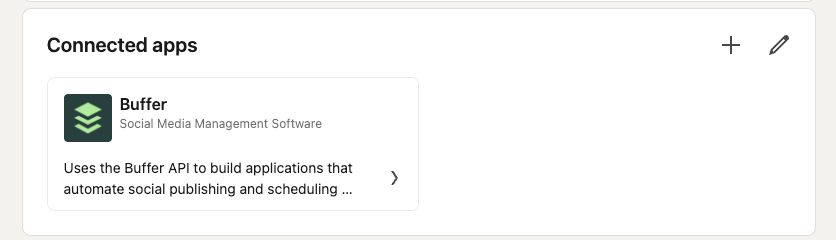
- Uses the Buffer API to build applications that automate social publishing and scheduling workflows — based on building an API client or shipping a Buffer integration.
The first three will fit most people managing social media day to day. The fourth is for the developers and vibecoders in the community — if you've built on the Buffer API, you can feature this on your profile, too!
How to add a Buffer capability to your LinkedIn profile
This will only take a few minutes:
Step 1: Connect LinkedIn OR refresh your connection
- If you haven’t already, connect your LinkedIn profile to Buffer by clicking New > Channel > LinkedIn and signing in.
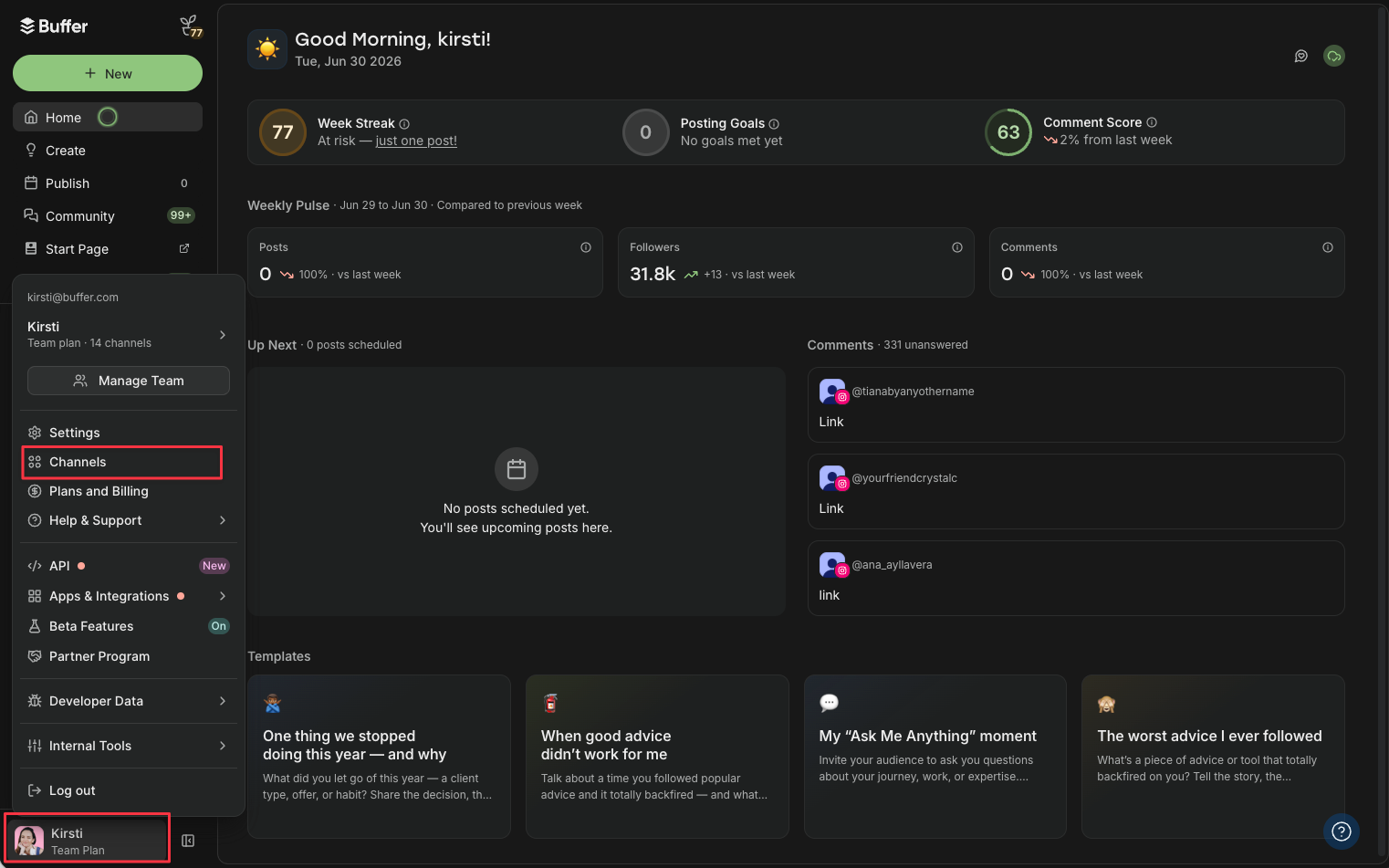
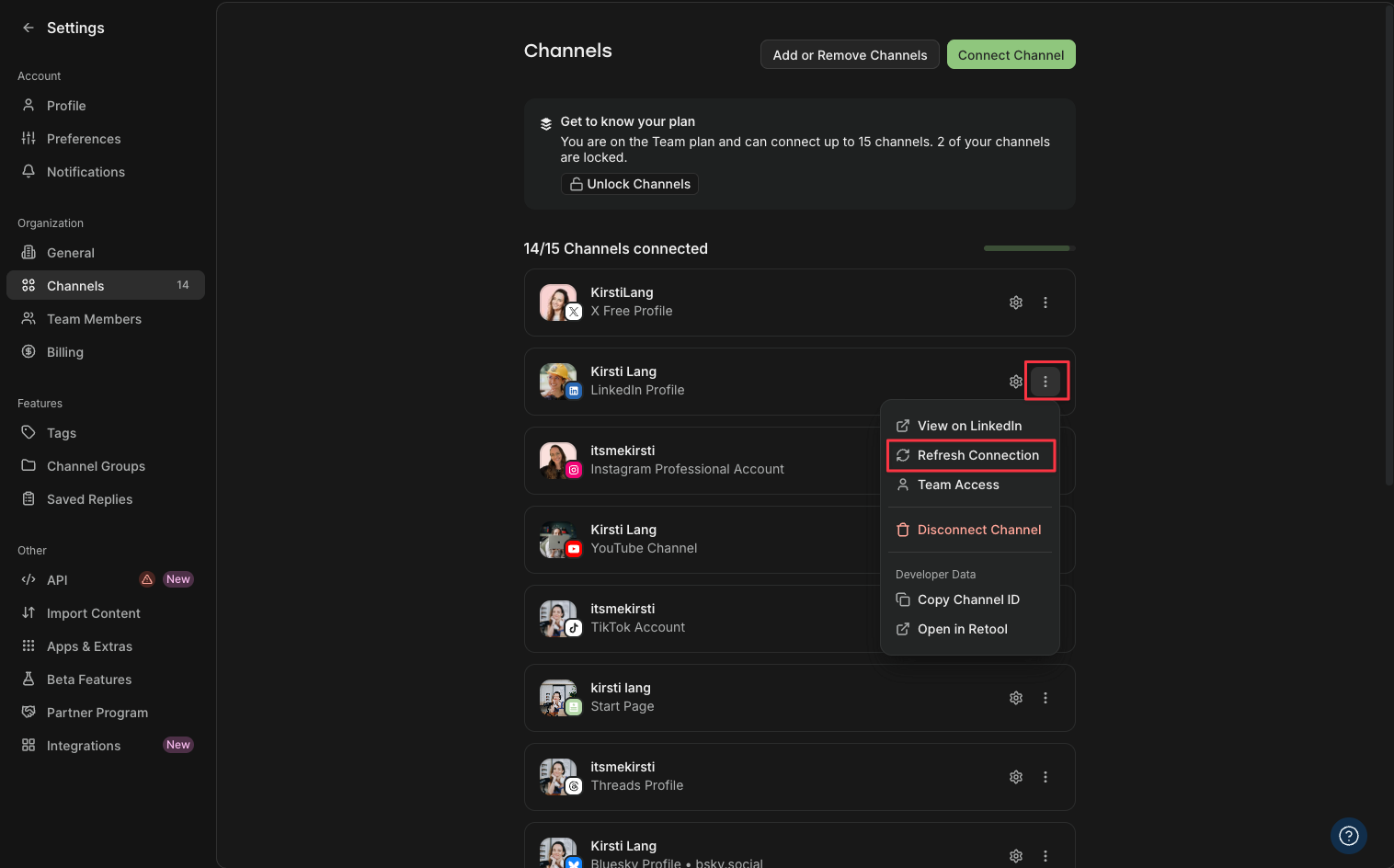
- If you've already got a LinkedIn profile connected, you'll need to refresh the connection to unlock the feature. To do that, click on your name on the bottom left > Channels. From there, click on the gear icon next to your LinkedIn Profile (not page) and click Refresh Connection.
Step 2: Turn on capabilities
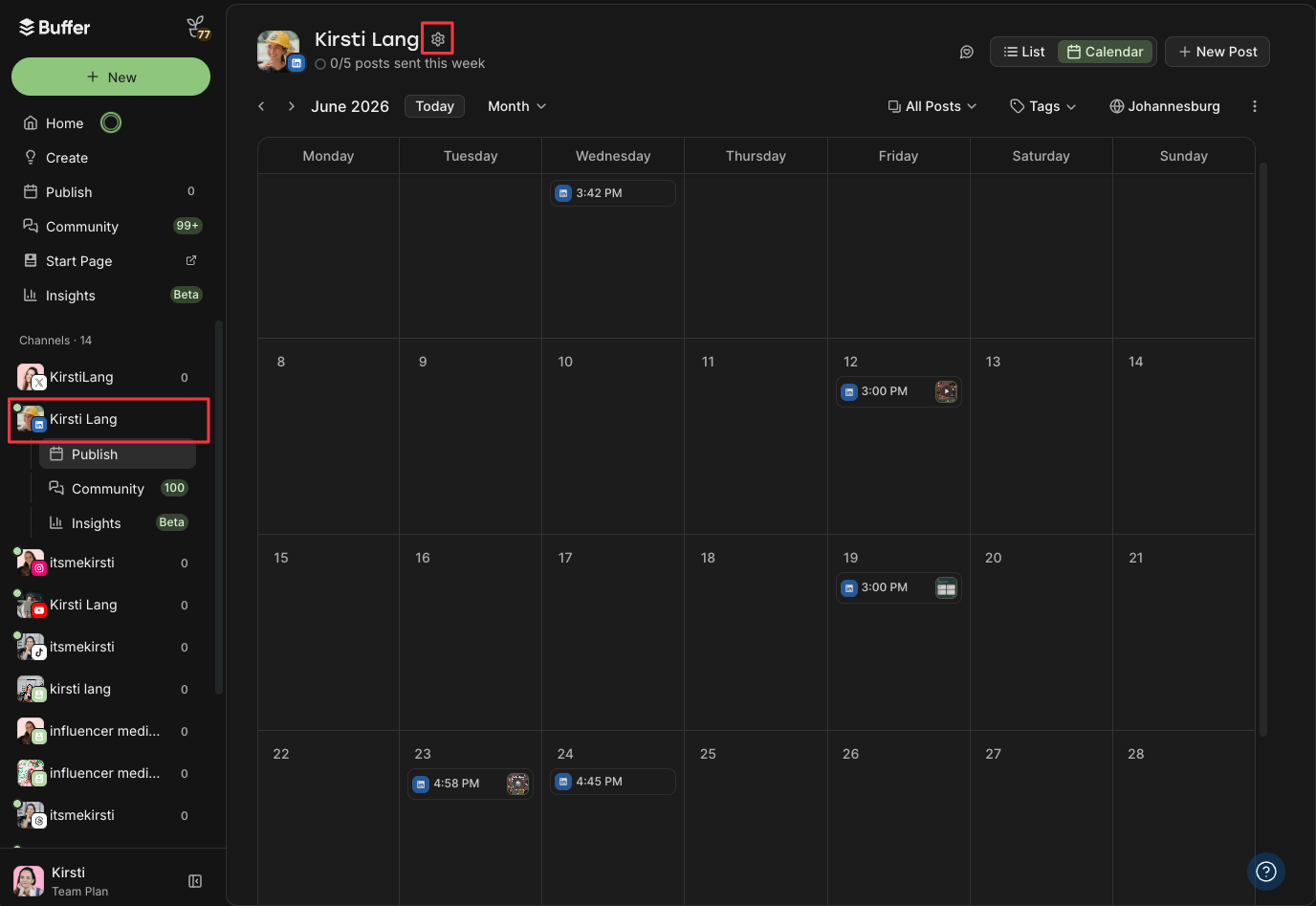
- Click on LinkedIn from your channels list on the left, then the gear icon at the top of the window (near your name).
- If you’ve already been using LinkedIn with Buffer for a while, you may already have some capabilities to choose from. Select the one you want to display on your LinkedIn Profile
- Check your LinkedIn profile. The capability appears, attributed to Buffer, with a "Learn more" link for anyone who wants the details.
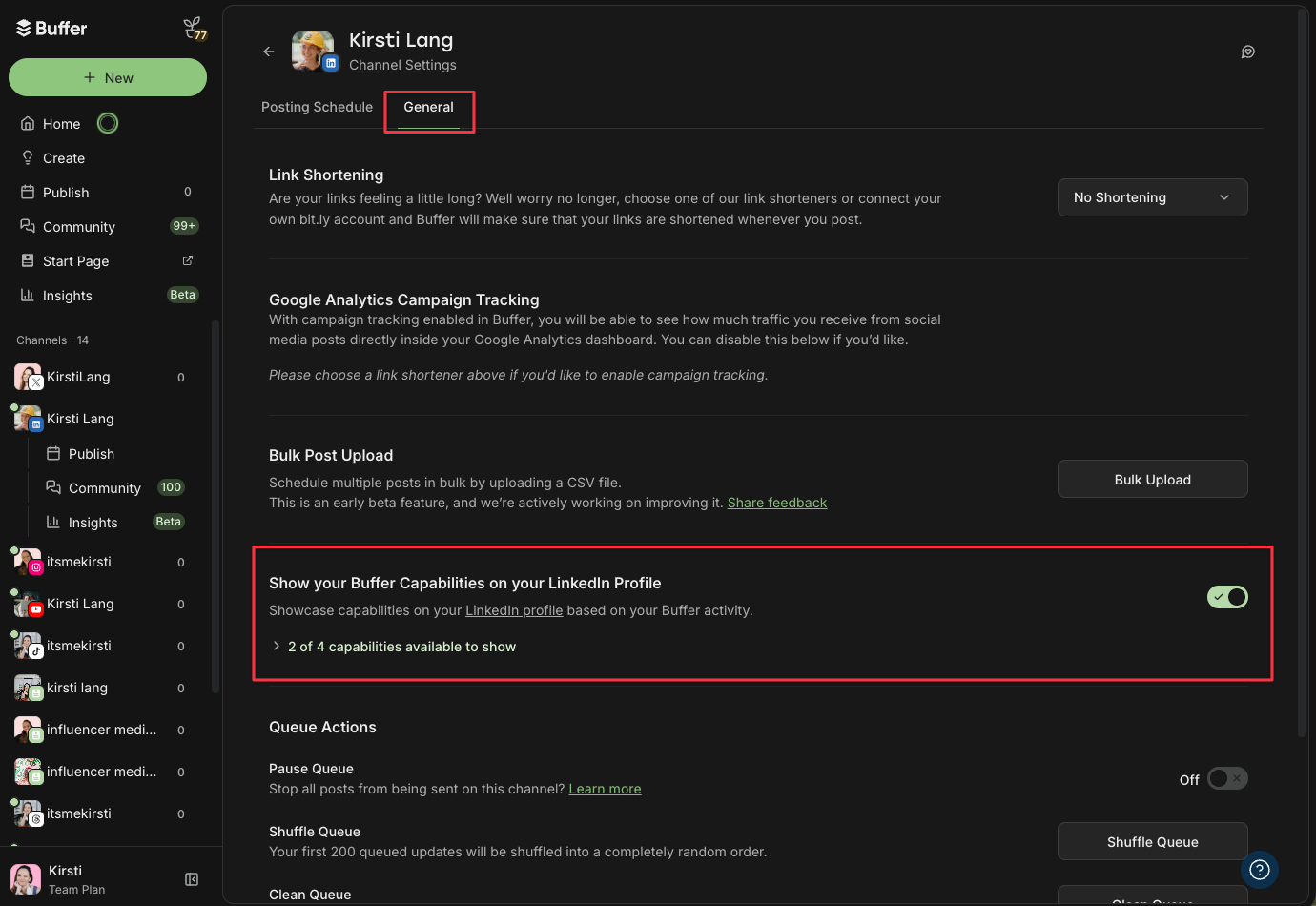
Click on General and scroll down to Show your Buffer Capabilities on LinkedIn. Toggle the button on.
Step 3: No capabilities showing yet? Give it time!
Keep using LinkedIn with Buffer to trigger your capabilities! If you have been doing this for a while and you don't see anything straight away, give it a day and make sure you've refreshed your LinkedIn connection in Buffer.
Here’s how it looks on my profile:
Why this matters for your profile
Social media work can sometimes feel a little intangible. You can grow an account into the thousands or run a multi-workflow content engine for a dozen clients, and still have very little on paper. A capability validated through a connected app is something you can actually point to when you're talking to a new client, applying for a role, or pitching for a project.
It pairs well with the profile work you're probably already doing. If you're optimizing your LinkedIn profile to stand out or building a personal brand on the platform, a validated capability adds a layer of proof that endorsements never could.
And for the freelancers and consultants in the community, it's one more credible signal when you're trying to source new clients on LinkedIn.
Similarly, it’s super handy for hiring managers looking for experience in a specific tool.
Ready to add yours? Connect your LinkedIn profile to Buffer and turn the work you're already doing into proof on your profile.
More LinkedIn
- How to Get More Followers on LinkedIn — Exactly What I Did to Get to 22K
- Why LinkedIn Is the Most-Cited Source in AI Search (and What Your Business Should Do Next)
- How LinkedIn’s Algorithm Works in 2026, According to the LinkedIn Team
- LinkedIn Marketing in 2026: The Complete Guide for Businesses and Creators
from Buffer Resources https://ift.tt/5fUn9PY
You know how to schedule a week of posts in one sitting, keep up with comments across five channels, and 'B2B, but make it fun’ is practically your middle name. Same!
The nod to ‘social media management’ on our LinkedIn profiles doesn’t quite cover all that, does it?
Allow me to introduce you to LinkedIn’s Connected Apps. As of June 2026, you can connect Buffer to your LinkedIn profile and have the work you actually do show up as a capability — validated by Buffer, based on your real activity.
Here's what that means, which capabilities you can add, and exactly how to put one on your profile.
Jump to a section:
What are LinkedIn Connected Apps?
LinkedIn’s Connected Apps are LinkedIn-approved tools you can connect to your profile, turning your real product usage into credible, visible expertise.
You may have seen the idea already — perhaps you’ve spotted how Duolingo users can add their score to their profile? It’s exactly like that. And now a host of other tools (including Buffer!) are one of those connected apps.
When you link your LinkedIn profile to Buffer, the work you're already doing (scheduling, replying, publishing, and building with the API) can appear on your profile as a capability statement like "Schedules and publishes posts across multiple social media accounts in Buffer."
You don’t need to apply or submit anything for approval to get yours. All you need to do is toggle the feature on in your Buffer settings, and Buffer will flesh it out for you. Pretty cool, right?
How Buffer Capabilities work
The whole thing runs on real activity. Here's the short version:
- You use Buffer the way you normally would — scheduling posts, replying to comments, publishing across your channels.
- Buffer recognizes it. When your Buffer usage matches a capability (say, publishing to two or more channels), Buffer picks that up and validates it.
- You choose to display it. Nothing appears on your profile automatically. You opt in and pick the capability you want to show.
- It shows up on LinkedIn, attributed to Buffer, with a link out so anyone viewing your profile can see what it represents.
This works on personal LinkedIn profiles only, not pages, and at launch, you can display one capability at a time. (More on the why behind that below.)
The capabilities you can add right now
Buffer is starting with four capabilities. Each maps to a specific kind of work in the product, so the only way to add one is to actually do the thing.
- Schedules and publishes posts across multiple social media accounts in Buffer — based on publishing posts to two or more connected channels.
- Responds to comments and tracks mentions across multiple social channels in Buffer — based on engaging with comments, replies, and mentions across your connected channels.
- Publishes social content across Instagram and LinkedIn in Buffer for B2B and consumer audiences — based on publishing to both Instagram and LinkedIn through Buffer.
- Uses the Buffer API to build applications that automate social publishing and scheduling workflows — based on building an API client or shipping a Buffer integration.
The first three will fit most people managing social media day to day. The fourth is for the developers and vibecoders in the community — if you've built on the Buffer API, you can feature this on your profile, too!
How to add a Buffer capability to your LinkedIn profile
This will only take a few minutes:
Step 1: Connect LinkedIn OR refresh your connection
- If you haven’t already, connect your LinkedIn profile to Buffer by clicking New > Channel > LinkedIn and signing in.
- If you've already got a LinkedIn profile connected, you'll need to refresh the connection to unlock the feature. To do that, click on your name on the bottom left > Channels. From there, click on the gear icon next to your LinkedIn Profile (not page) and click Refresh Connection.
Step 2: Turn on capabilities
- Click on LinkedIn from your channels list on the left, then the gear icon at the top of the window (near your name).
- If you’ve already been using LinkedIn with Buffer for a while, you may already have some capabilities to choose from. Select the one you want to display on your LinkedIn Profile
- Check your LinkedIn profile. The capability appears, attributed to Buffer, with a "Learn more" link for anyone who wants the details.
Click on General and scroll down to Show your Buffer Capabilities on LinkedIn. Toggle the button on.
Step 3: No capabilities showing yet? Give it time!
Keep using LinkedIn with Buffer to trigger your capabilities! If you have been doing this for a while and you don't see anything straight away, give it a day and make sure you've refreshed your LinkedIn connection in Buffer.
Here’s how it looks on my profile:
Why this matters for your profile
Social media work can sometimes feel a little intangible. You can grow an account into the thousands or run a multi-workflow content engine for a dozen clients, and still have very little on paper. A capability validated through a connected app is something you can actually point to when you're talking to a new client, applying for a role, or pitching for a project.
It pairs well with the profile work you're probably already doing. If you're optimizing your LinkedIn profile to stand out or building a personal brand on the platform, a validated capability adds a layer of proof that endorsements never could.
And for the freelancers and consultants in the community, it's one more credible signal when you're trying to source new clients on LinkedIn.
Similarly, it’s super handy for hiring managers looking for experience in a specific tool.
Ready to add yours? Connect your LinkedIn profile to Buffer and turn the work you're already doing into proof on your profile.
More LinkedIn
- How to Get More Followers on LinkedIn — Exactly What I Did to Get to 22K
- Why LinkedIn Is the Most-Cited Source in AI Search (and What Your Business Should Do Next)
- How LinkedIn’s Algorithm Works in 2026, According to the LinkedIn Team
- LinkedIn Marketing in 2026: The Complete Guide for Businesses and Creators
Comments
Post a Comment