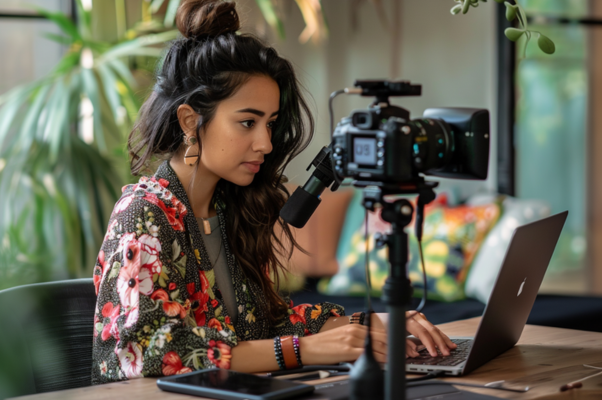
I picked up video as a format in 2023, when I was trying to build a consistency habit. Looking at that early content now, I'm surprised it got me as far as it did. That probably says more about the power of video than it does about my editing!
It's one thing to say you're going to post videos and another to do it. First, you have to get over the hurdle of setting up your camera, whether that's your phone or a more specialized device. Then you have to learn to speak coherently on camera, and one pass at filming will make you feel like you've forgotten all the words in human existence.
And once you finally have a rough cut, you face an even bigger hurdle: editing.
If you're fortunate enough to have someone in your ecosystem who can edit for you, never let them go. But starting out usually means doing everything yourself.
Editing is the task I still struggle with most. My taste in videos and my bar for quality sit far above my skill level. I'm closing that gap slowly (and gaining an expensive love for cameras in the process), but I'm not all the way there. I'm also not at the point where I can fully outsource it.
This is where AI video editors come in. I tested 7 of them to figure out which ones can contribute meaningfully to my process. Here’s what I found
What is an AI video editor?
There are two types of AI video editors. The first is AI-enabled editors, which are traditional video editors with AI features built in. The second is AI-led editors have you hand over the timeline and do the work for you.
Of course, the distinction gets blurry — ”AI video editor" is doing a lot of heavy lifting as a label right now. In my testing, every tool that claims it falls into one of two camps, with a little overlap here and there. Knowing which one you're looking at will save you from paying for the wrong thing. Let's take a closer look:
AI-enabled video editors
AI-enabled editors are regular video editors that have AI features. These are your Capcuts, Adobe Expresses, and Veeds. You're still the one working the timeline, but the AI takes over certain specific jobs: generating captions, cutting filler words, cleaning up background noise, reframing horizontal footage for vertical feeds. If you already know your way around an editor (or want to learn), these make you faster.
AI-led editors
AI-led editors do the actual editing for you, based on your plain-language instructions. You describe what you want ("cut the pauses, caption this, and pull the best 30 seconds for a reel") and an AI agent executes the edit. You review, adjust, and export. Vyra was built this way from the start, and OpusClip has worked this way for repurposing long before "agentic" became a thing.
The two categories are more of a Venn diagram than a list, though. Descript is the clearest example of the overlap: it's a transcript-based editor with an AI co-editor (Underlord) inside the app, and since May 2026, you can also connect it to Claude via MCP and run edits without opening Descript at all.
💡 MCP (Model Context Protocol) is a standard that lets AI assistants like Claude or ChatGPT connect directly to other tools. In practice, it means you can sit in a chat window, tell an AI to edit your video in Descript or Vyra, and it will.
Which camp to join depends on how much control you need or want over your editing. If your bar for quality means you'll be adjusting every cut anyway, an AI-enabled editor keeps you in control. If your bottleneck is time (or, like me, the gap between your taste and your skill), the AI-led camp is the one that could dramatically change your output.
How to use AI video editors
When it comes to using AI to edit videos, I learned the same lesson while testing AI image generators: the tools are no longer the bottleneck. Knowing what to ask for is.
Natural language editing sounds like it removes the need to understand editing. It doesn't. When you're describing an edit in plain English, knowing the terminology of what you're looking for will save you a lot of time, energy, and re-prompting. The AI can execute "add a J-cut into the b-roll" in one pass. "Make the transition feel smoother somehow" will just send you both into a spiral.
Learn the lingo (it gets you 50% of the way there)
You don't need to have gone to film school. A handful of terms will carry most of your edit briefs:
- Shot types: close-up, medium, wide, extreme wide. Learn when to use each one.
- Composition: rule of thirds, golden ratio, headroom, leading lines
- Cuts: jump cut, J-cut, L-cut, match cut, cutaway
- The workhorses: b-roll, lower thirds, hook text, safe zones, pacing
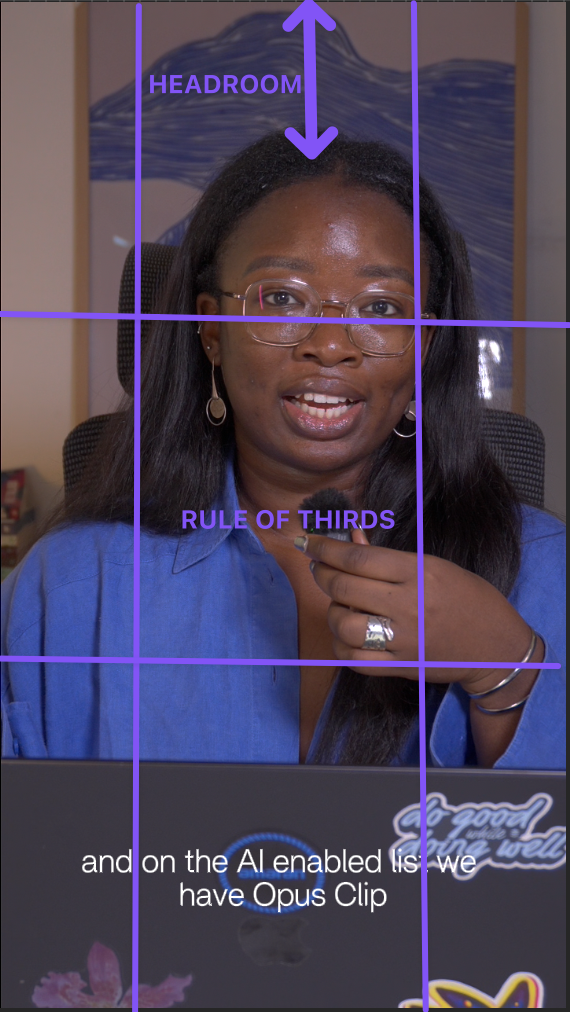
The difference shows up immediately. Compare "make the intro punchier" with "cut the first four seconds, open on the medium shot, add hook text in the top safe zone." The second version will come back closer right the first time.
Build an inspiration library
Study the creators you enjoy and the films you love as closely like they’re a textbook. When a video holds your attention, save it and write down why: where the video cuts, how long each shot ran for, how the use of text made you pay attention. Your library becomes two things at once: a source of vocabulary and a reference you can point an AI-led editor at when words fail. "Pace it like this" plus a link beats a paragraph of adjectives.
Sweat through a few edits yourself
The fastest way to learn the vocabulary is to create the effects yourself a few times. Editing two or three videos manually — even badly and slowly — teaches you what it feels like. It might be a placebo effect, but I think the terms stick for me because I've fumbled through the manual process myself. And the knowledge will not be wasted. Doing this will also come in handy if you choose to outsource to a human since you can direct a lot better when you have walked in their shoes, so to speak.
⚡ A brief template to steal: [what to cut] + [what to add] + [format and platform] + [style reference]. Example: "Remove filler words and silences over one second. Add captions and a hook line. Reframe to 9:16 for Reels. Keep the pacing tight, like the reference clip."
The 11 AI video editors I tested
There was no single way to test and compare every tool on this list that wouldn’t take a million hours, but I did test them out with the same clip. While it’s harder to show via screenshots how each tool operated, I took lots of notes to get you the most accurate breakdown.
I've also grouped them by camp, with AI-led first and then AI-enabled.
Let’s get into it.
Vyra
Best for: Handing the whole edit to an AI and only opening the timeline when you want to
Unlike many other AI video editors, Vyra wasn't retro-fitted with AI features. It was built that way: the editor is effectively a chat window, rather than a toolbar of different AI features.
When you upload footage, it analyzes every clip first, detecting scenes, transcribing speech, identifying what's in frame, so that when you describe an edit, the AI is working from what's in your footage rather than guessing. Even more crucially, you can upload reference videos for the AI to model the edit after: an incredible ability since that’s the way most of us start, by copying.
What sets it apart from in-app assistants is that you can use your own AI. Vyra supports MCP, so you can connect Claude, ChatGPT, or your preferred LLM to search your clips and apply edits directly. I gave Vyra an 81-second talking-head and gave Claude a simple brief to connect to Vyra's MCP as well as a reference video to model after. It analyzed the footage and quickly got to work.
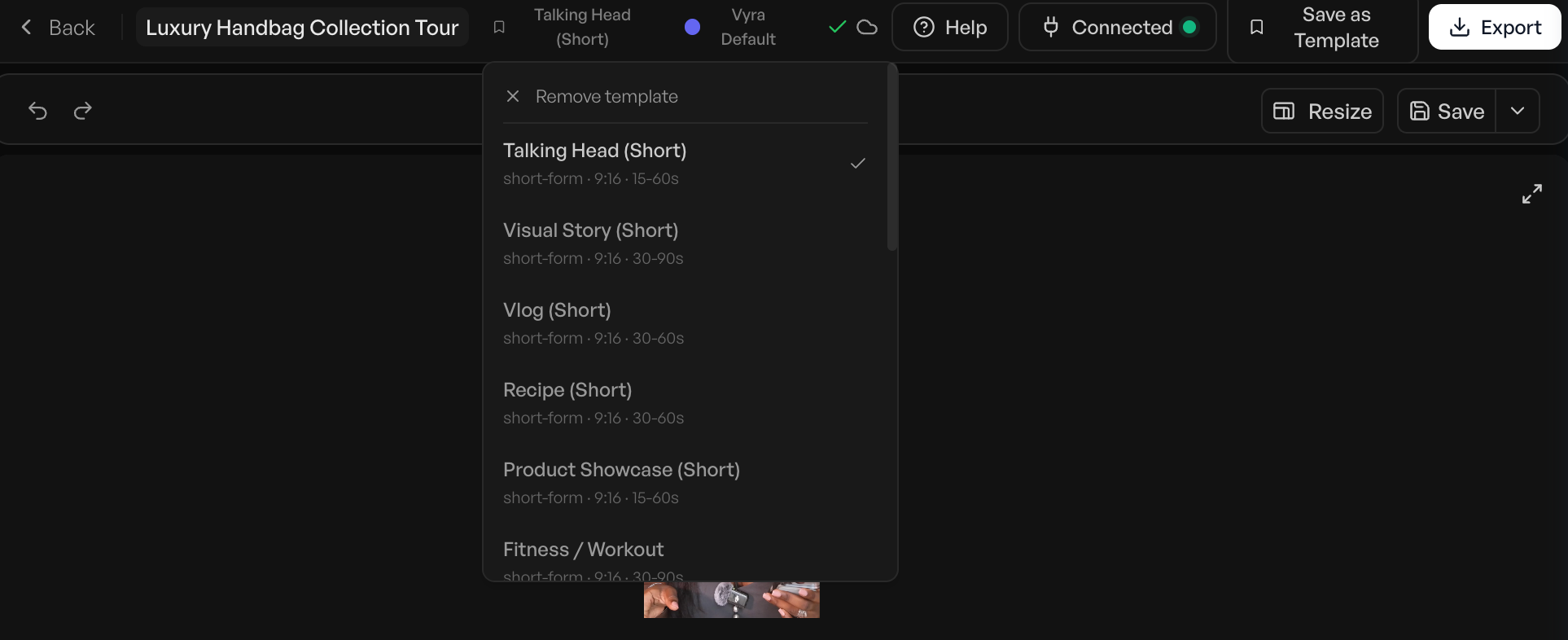
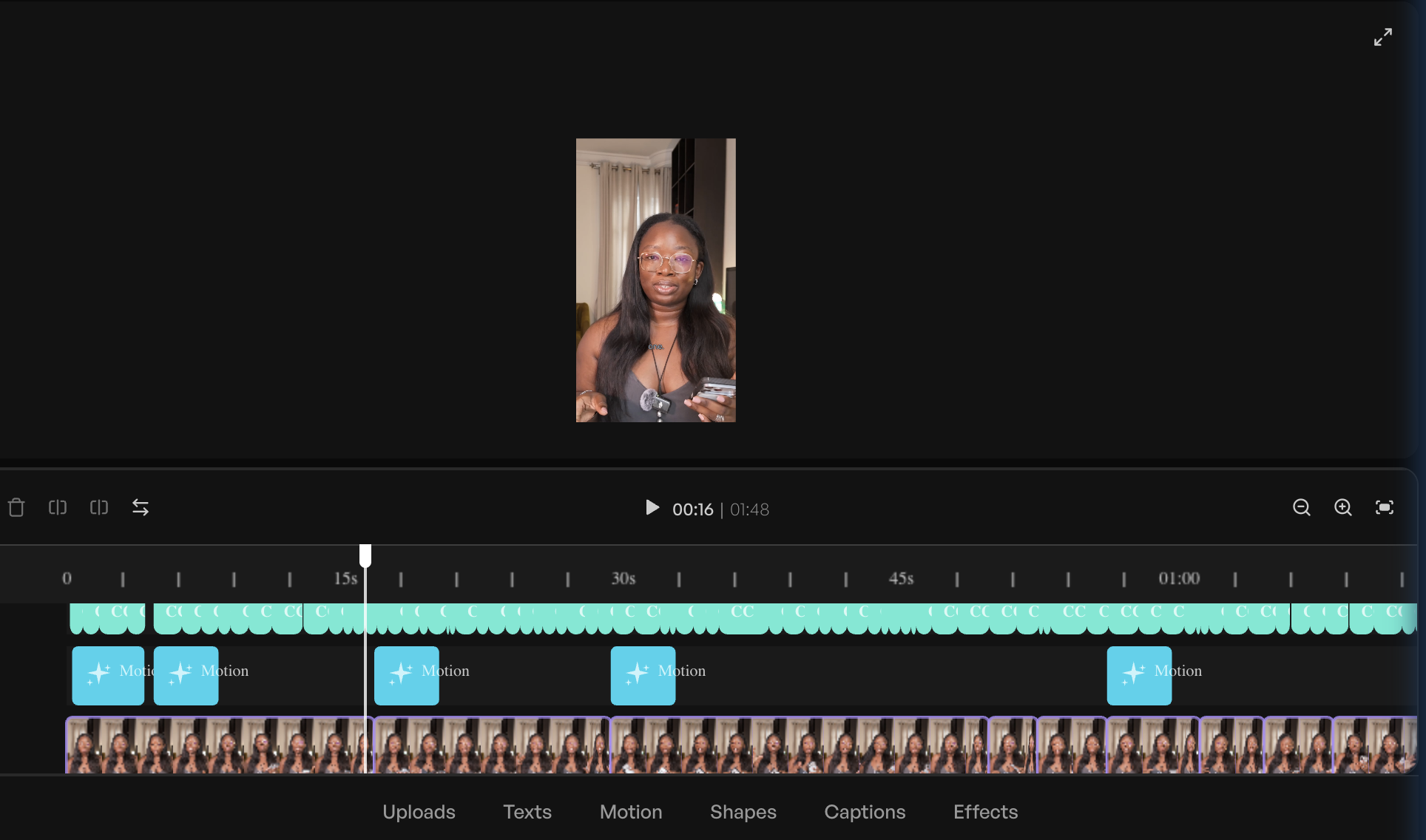
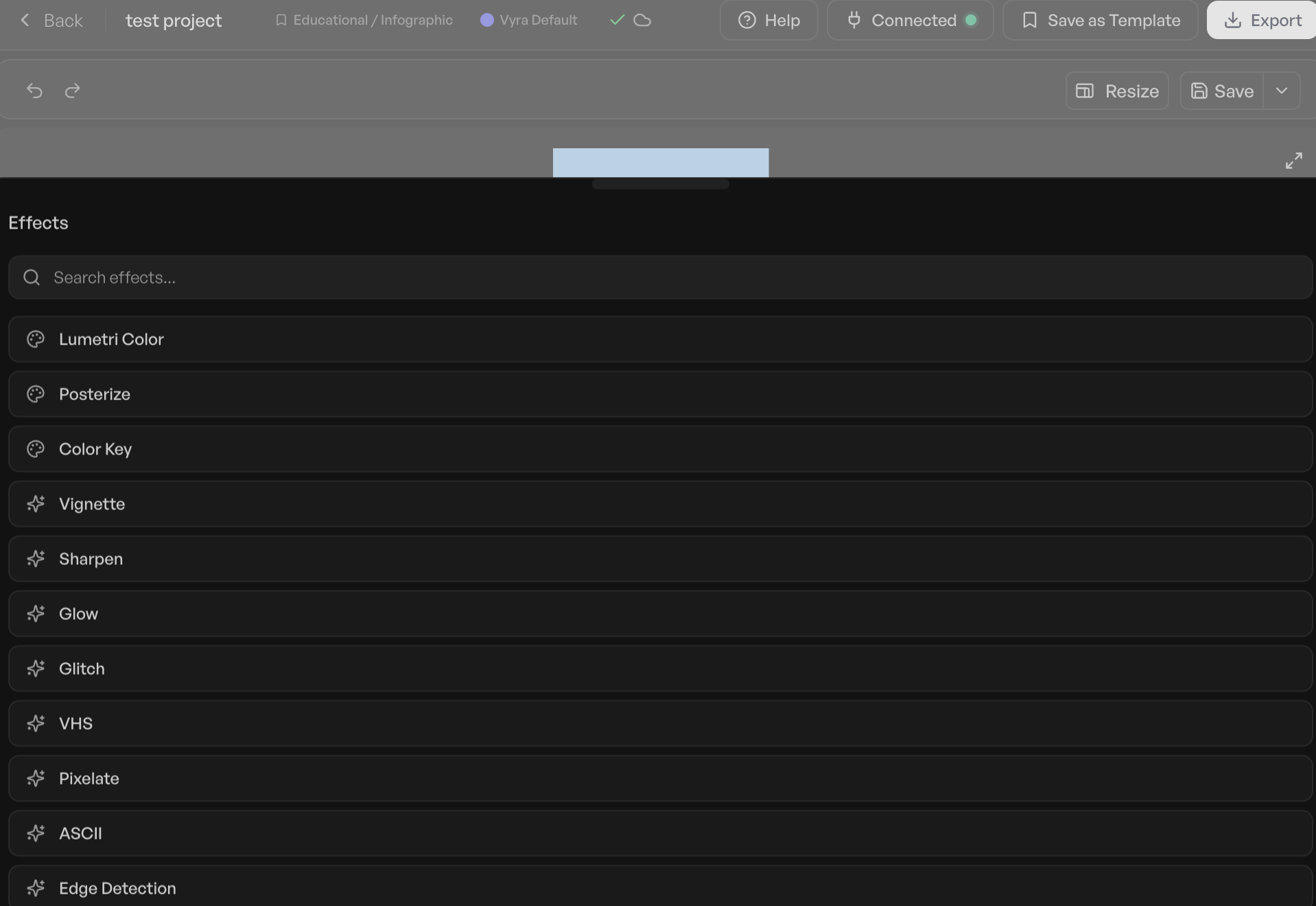
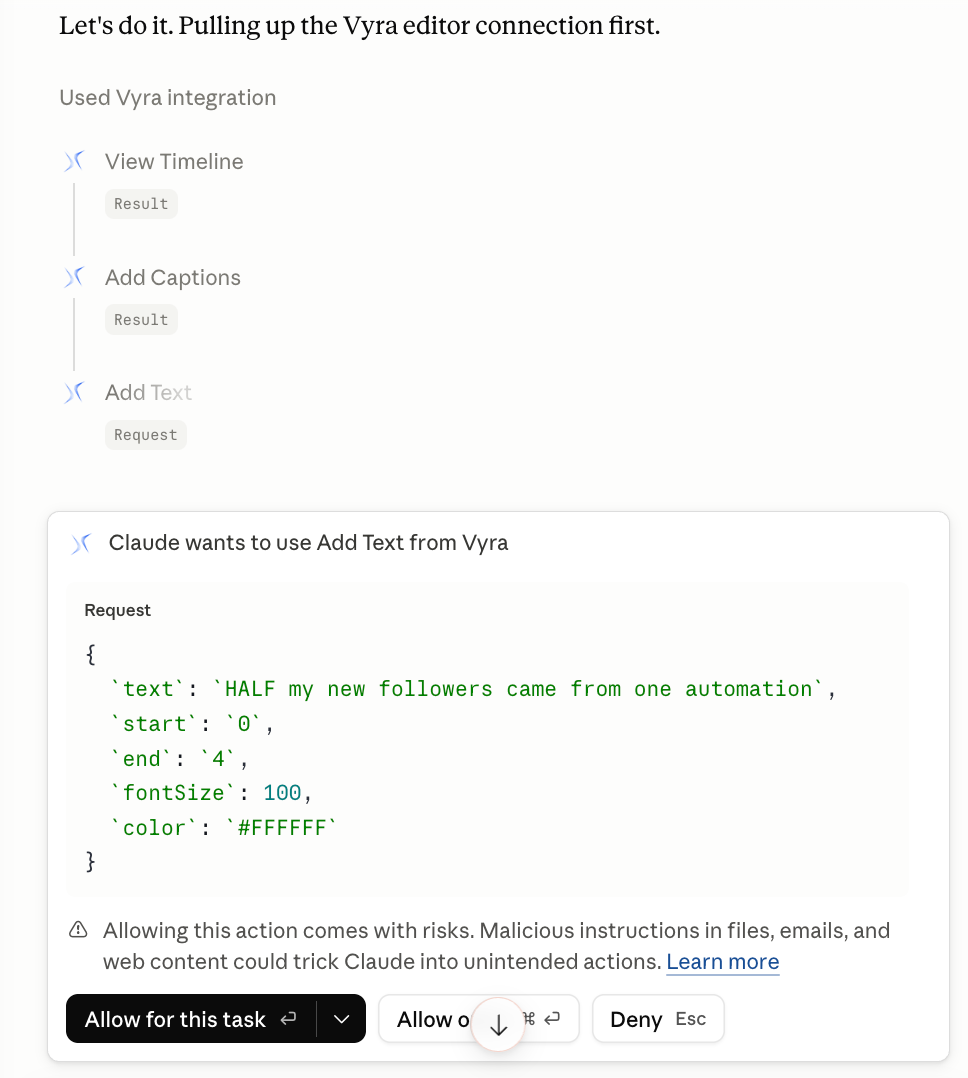
It’s important to note that Vyra is not without limitations. Editing files in the cloud takes time that could be saved with a tool that provides local folder access.
All told, it took about 20 minutes to get a finished product. While that’s not terrible, it’s important to note that this was without it adding any b-roll or music. It takes me around 30 minutes to finish editing a video in my current style (which is admittedly very simple).
The video turned out great in my opinion. It cut in all the right places, added captions and because my requests were pretty simple and I included a reference video, the results were solid.
I was also able to go in and add in the aforementioned b-roll and music touches
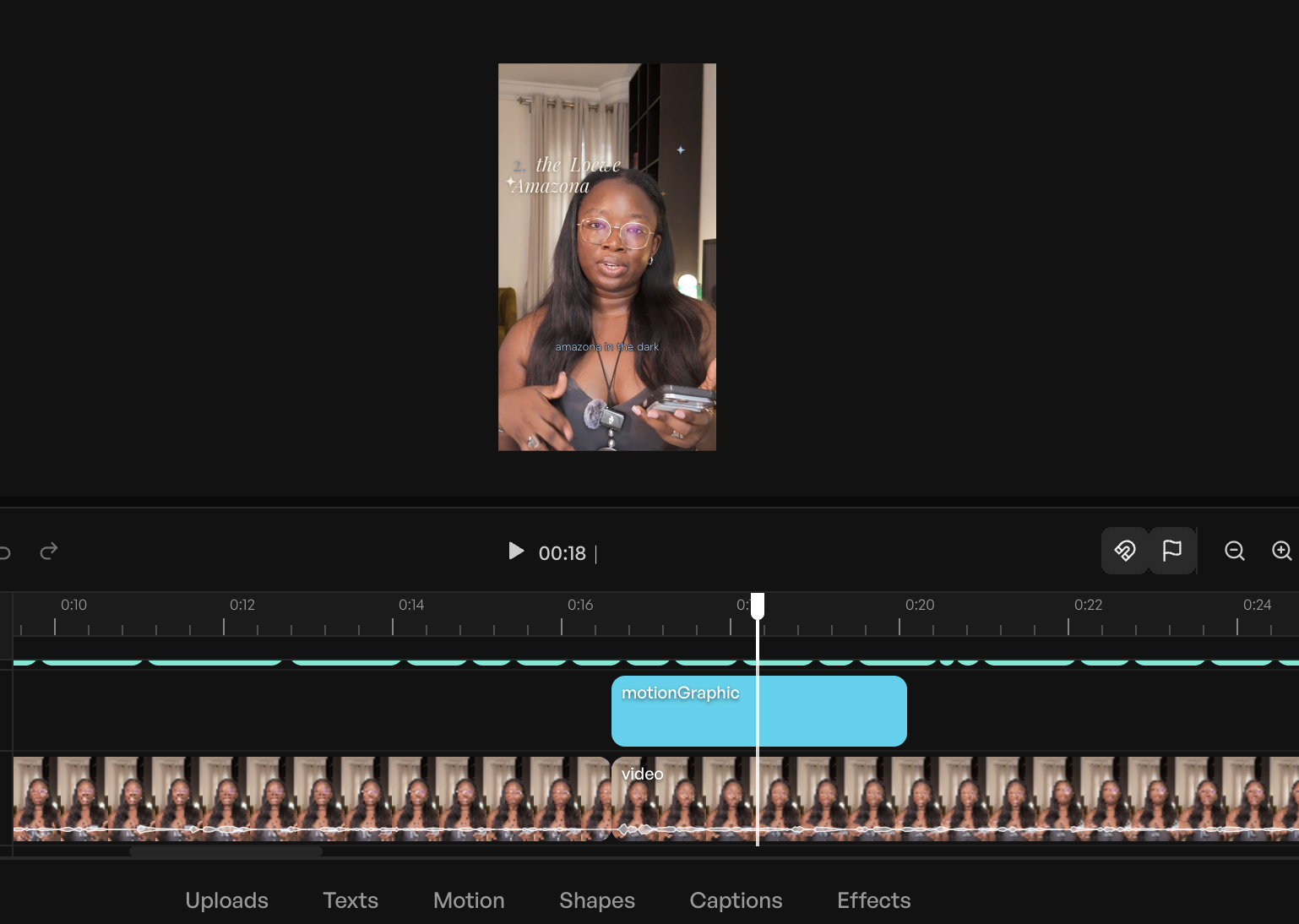
I could see this being most useful for first and final touches: things like cutting a video at the start, and then after adding in all the extra b-roll or graphics, adding captions and flairs. These are things that would otherwise take extra time that may be time-consuming or not worth the effort but are mice to have.
Price: Free trial; paid plan starts at $24 if you’re connecting your own AI and $54 per month if you’re using Vyra’s AI
Stanley Studio
Best for: The fastest way to get footage into an editor — with a video that needs some last-mile editing
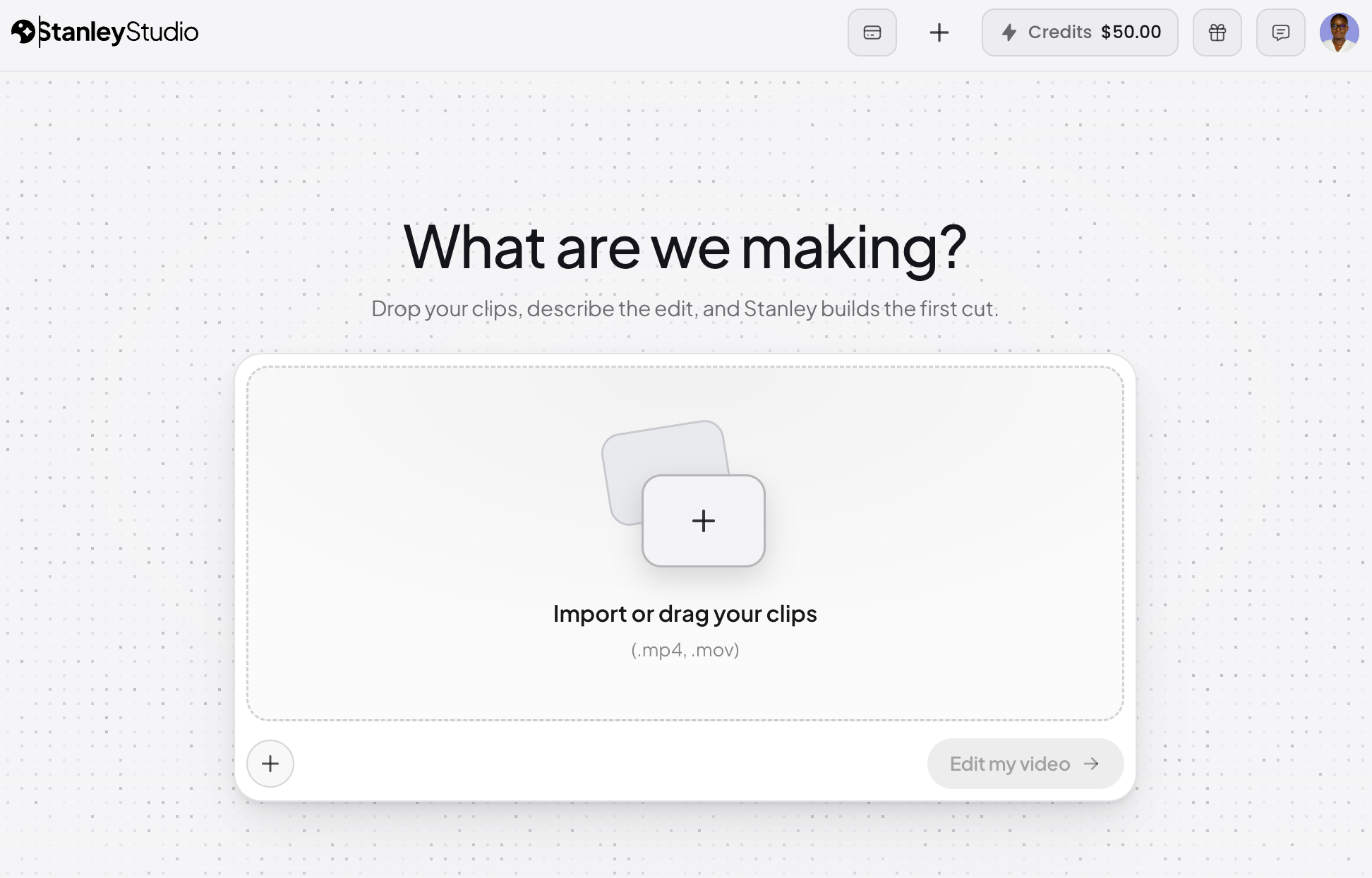
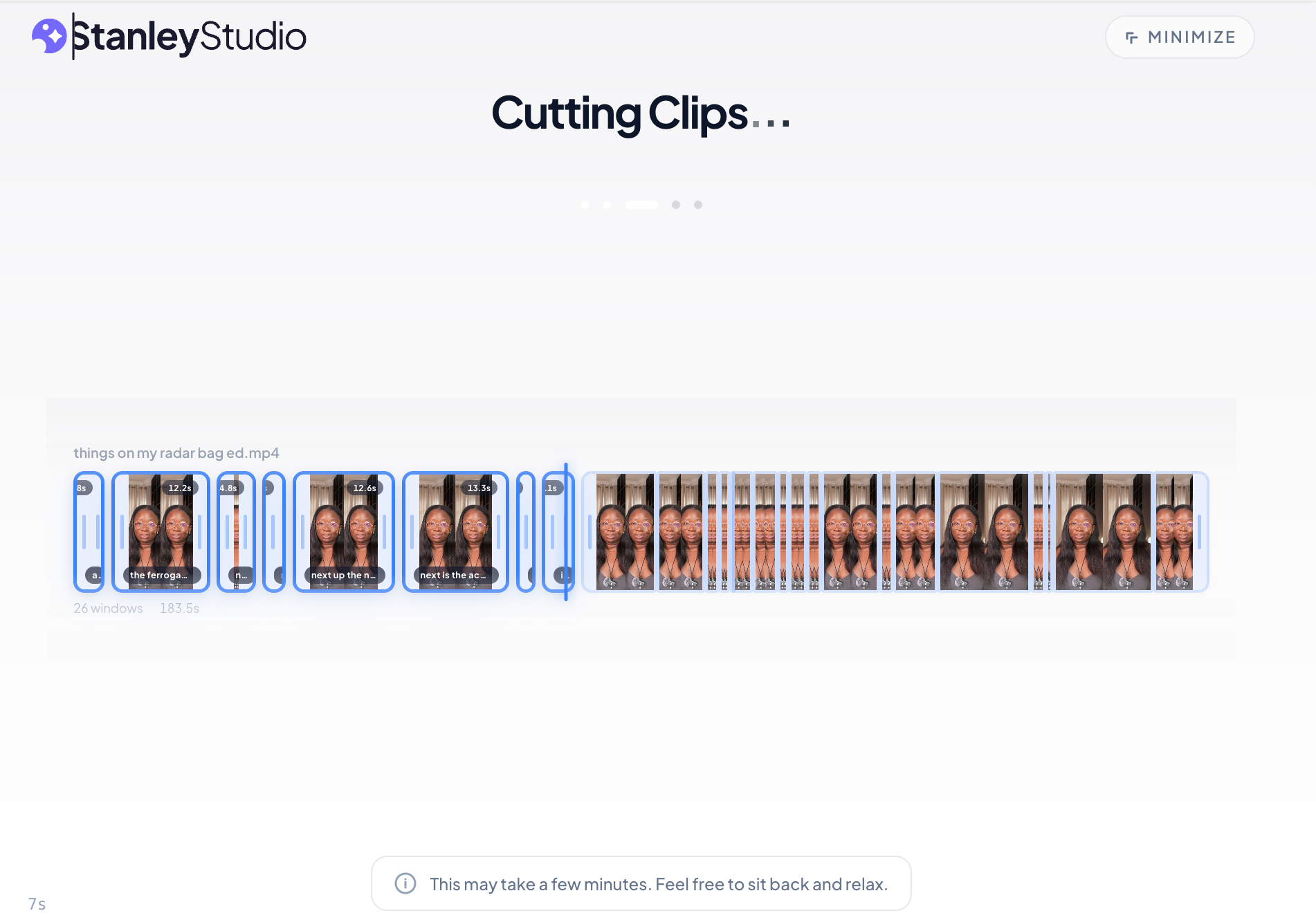
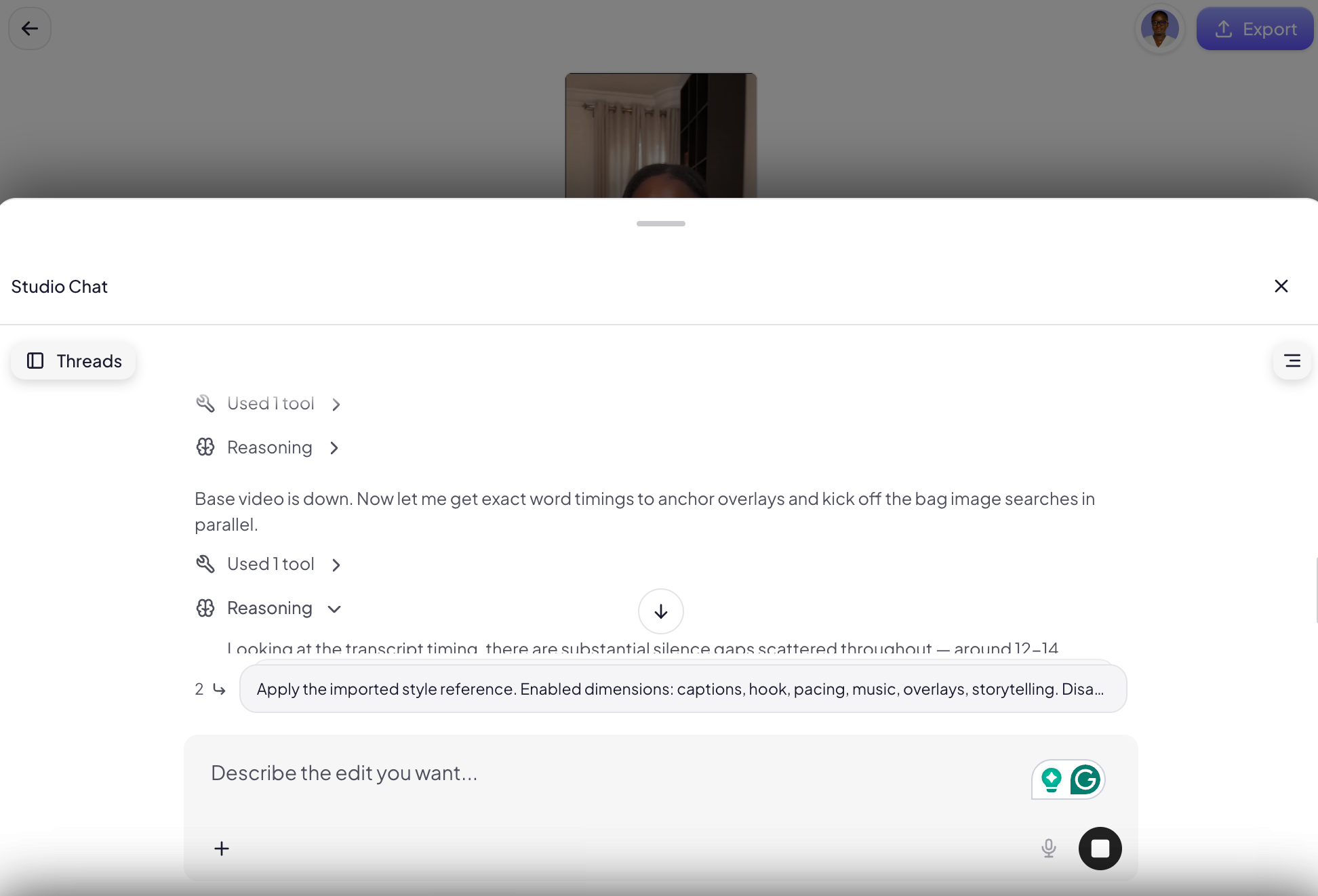
Stanley Studio has the purest AI-led pitch on this list: drop in clips, brief it like a human editor, never touch the timeline. It's from the same team as the Stan Store folks, and it just launched as I was planning this article.
In my testing, it won exactly one category outright: upload speed. Getting footage in was faster than with any other tool here, taking only about 5 minutes for a 350-megabyte file.
However, the edit was where things unraveled a bit. I uploaded a reference video for the text and caption style, and it picked up on things like colors and fonts, without quite nailing the style, which was what I was after. It also didn't cut my repeated takes and the pacing stayed slack when I'd asked for snappy. Most telling was that where my video needed screenshots and cutouts of the products I was talking about, Stanley generated AI images of them instead.
In fairness, my test was heavy on overlays, much tougher than a simple talking head, and so I'll be retesting with simpler footage on my own time. It’s also much newer, so it needs time to ramp up the improvements (I tested this tool last minute).
A final note is that, unlike Vyra and Descript, Stanley has no MCP: the only AI you can brief is its own in-tool chatbot. If you want your own assistant running the edit, this isn't the tool (yet).
Price: Free tier to work on one project; $19/month after that
Descript
Best for: Speech-heavy video and the clearest tool with an AI-enabled/AI-led overlap
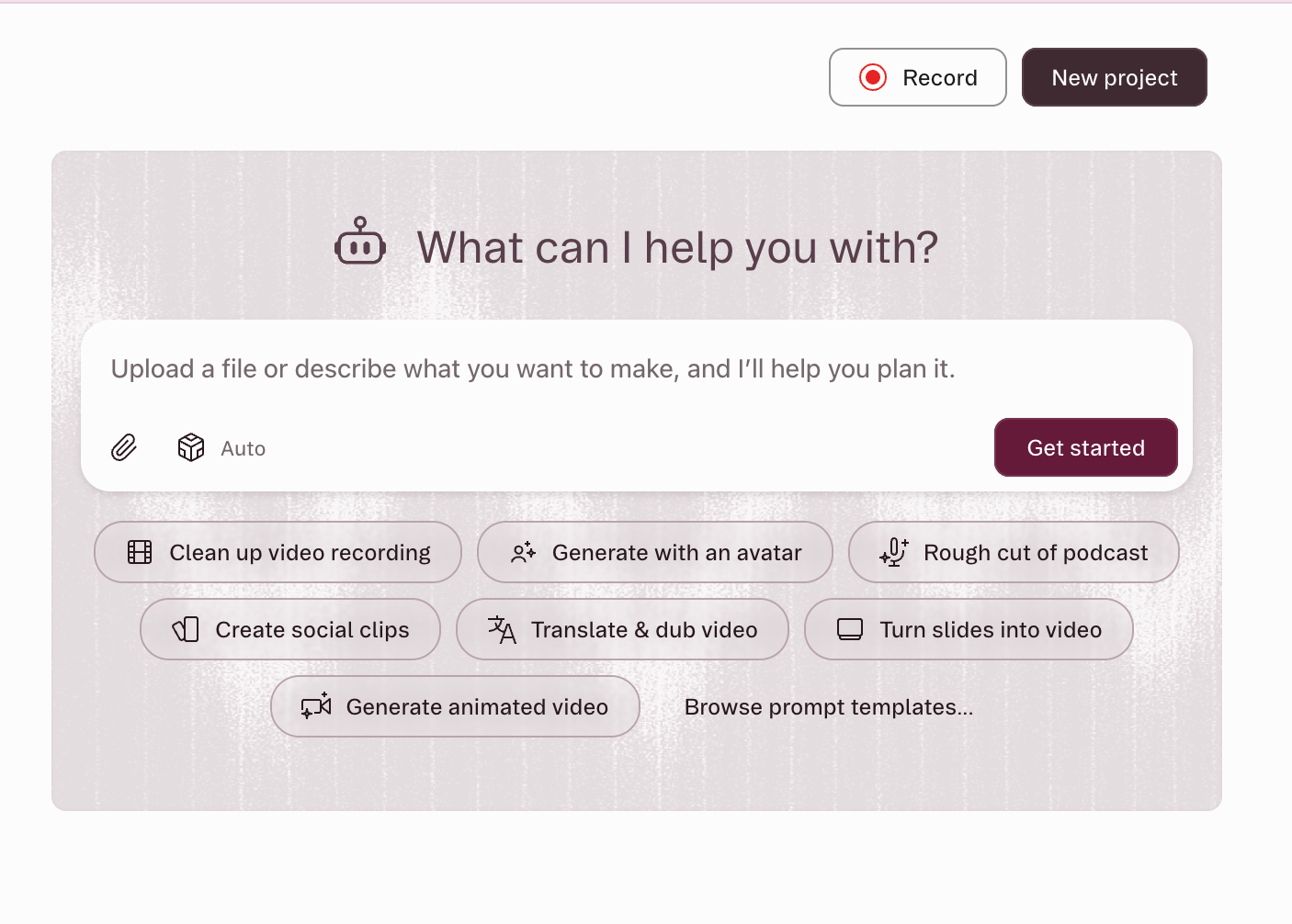
Descript is an interesting entry because it covers all three of the core AI video editor categories.
The core editor is transcript-based: delete a sentence from the transcript, and the footage disappears from the timeline. Underlord, its in-app co-editor, handles multi-step requests — filler removal, Studio Sound cleanup, captions, pulling social clips from long recordings.
Then there's the third mode, as of May 2026: Descript's hosted MCP server. Connect it to Claude, and you can import media, run Underlord edits, and export a finished video to a shareable link without opening Descript at all.
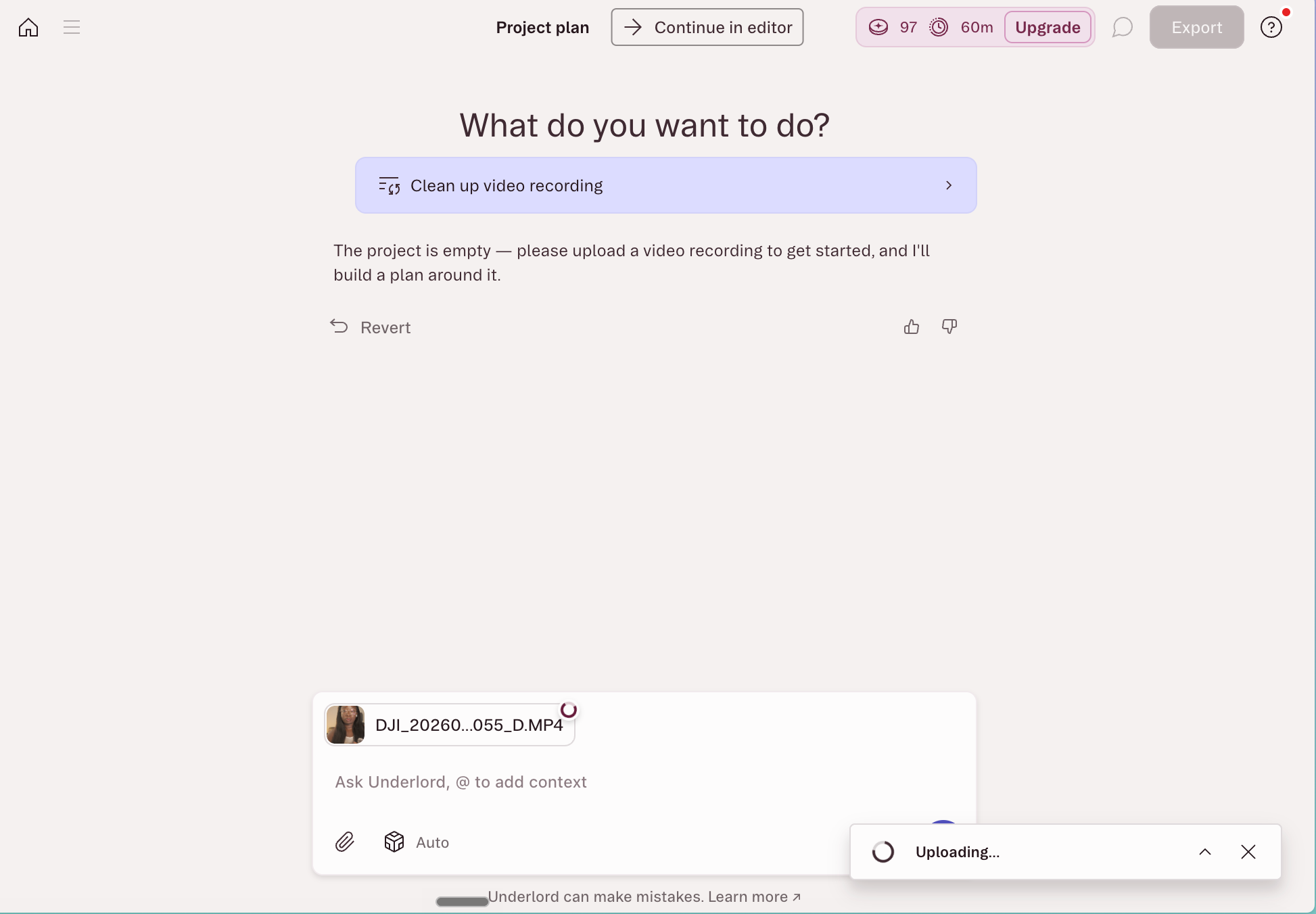
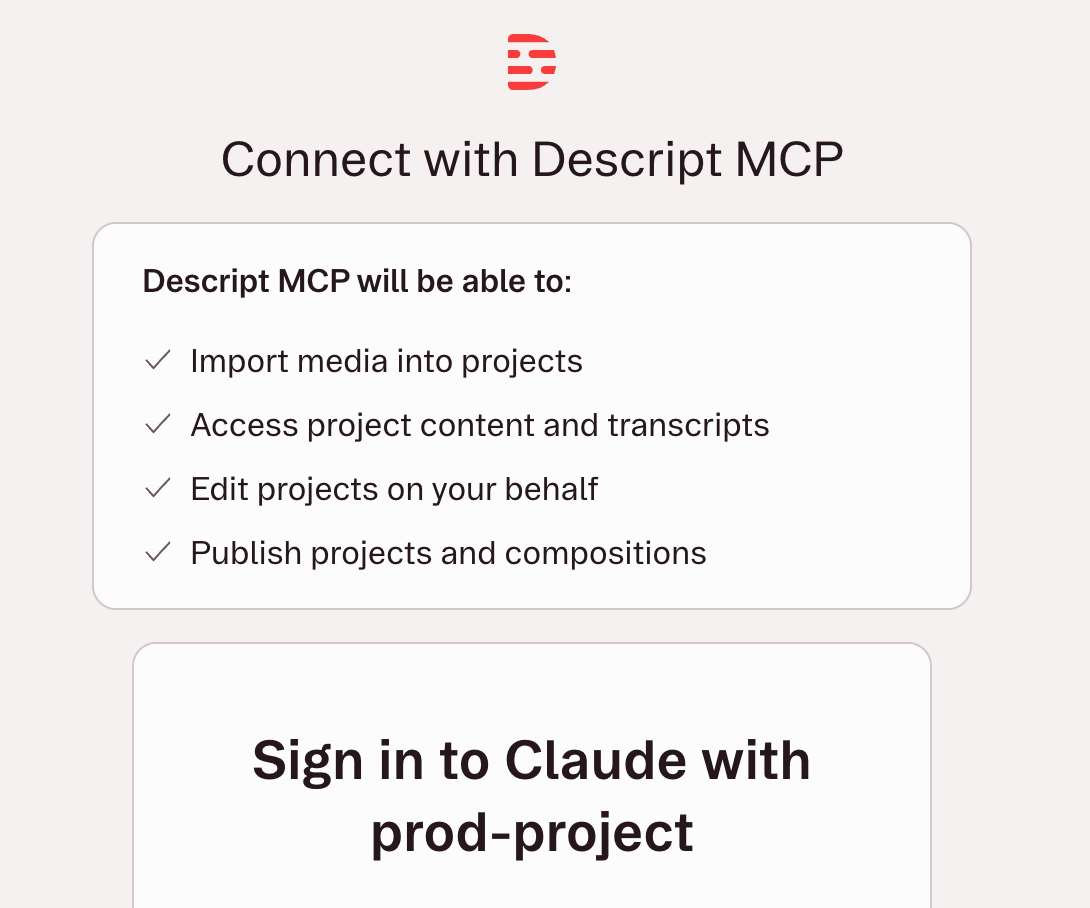
I ran the MCP test on the same footage as the other AI-led tools. One prompt came back 64 seconds lighter: it cut my false starts and repeated takes (keeping the better delivery each time), compressed six pauses, captioned the whole thing in an Instagram Reels-native style, and wrote its own hook line. I'd told it to leave my original composition untouched, and it did, editing a duplicate instead.
I’d say Descript got me 40% of the way to a complete video. Since there’s no way to add a reference video like some of the other tools on this list, it’s hard to get returned edits in my style. With some manual tweaking, I can take the video to completion, but it’s something to keep in mind.
The crisp edits you see on most Instagram/TikTok content still isn't its forté. If your videos aren’t speech-heavy, like podcast clips or cuts from a YouTube video, you might not get exactly what you want from this. It’s still a great tool for the first (and sometimes most tedious) part of editing: cutting and trimming.
Price: Free plan with limited credits; then $35/month
CapCut
Best for: The default choice when you want AI assists without leaving the editor you already know
CapCut is kind of a jack-of-all-trades that sits firmly in the AI-enabled camp. It's still a timeline editor at heart, with an AI toolkit layered on top. And that toolkit is full: speaker-ID captions, camera tracking, vocal isolation, background removal, and a script-to-video feature that can write, sources stock footage, captions, and syncs to trending audio from a single prompt.
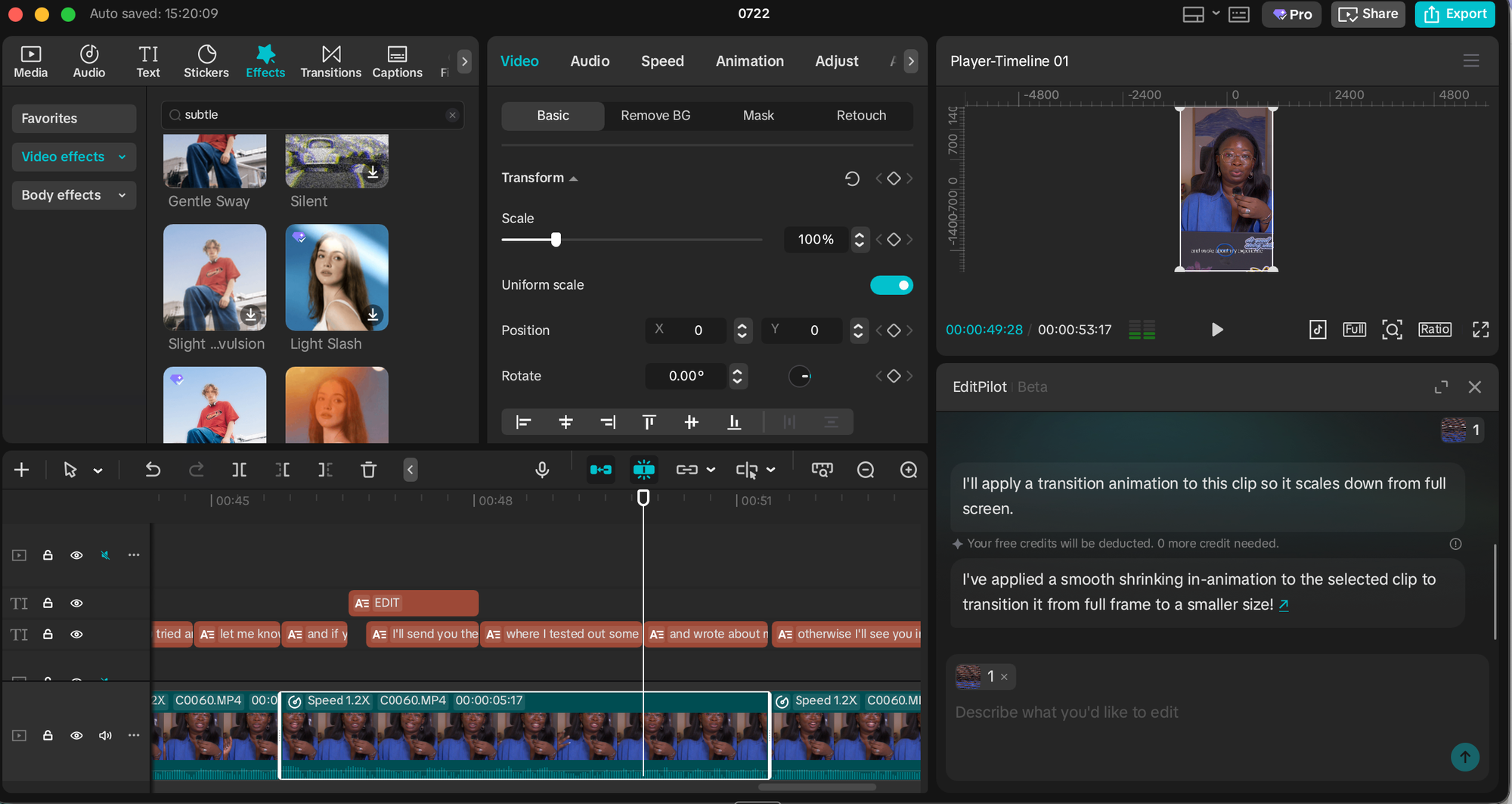
It also has a built-in AI editor feature that you can request things like cuts or transitions from called EditPilot.
It’s my tool of choice because it’s just that easy to start with. If you’re a beginner who wants AI capabilities but in a tool you can find a million tutorials for, this is the one for you.
However, the AI features are scattered across menus rather than gathered behind one instruction — you need to know each tool exists to use it.
Price: Free plan; with paid plans starting at $9.99/month
Canva
Best for: Editing video inside the tool where your social content already lives
Canva is where I do nearly all of my visual design work, so it’s a solid option just for that. If your carousels, covers, and graphics already live here, editing video in the same place with your brand kit, fonts, and templates one panel away is a serious advantage no dedicated editor can offer.
As an editor, it's firmly AI-enabled. Magic Video assembles a 60-second cut from your clips and photos with templates, transitions, and music, and everything stays editable afterward. Auto-captions, background removal, and beat sync cover the standard toolkit found in many of the more robust tools on this list. And the generative side (Magic Media, now powered by Google's Veo 3) is there too.
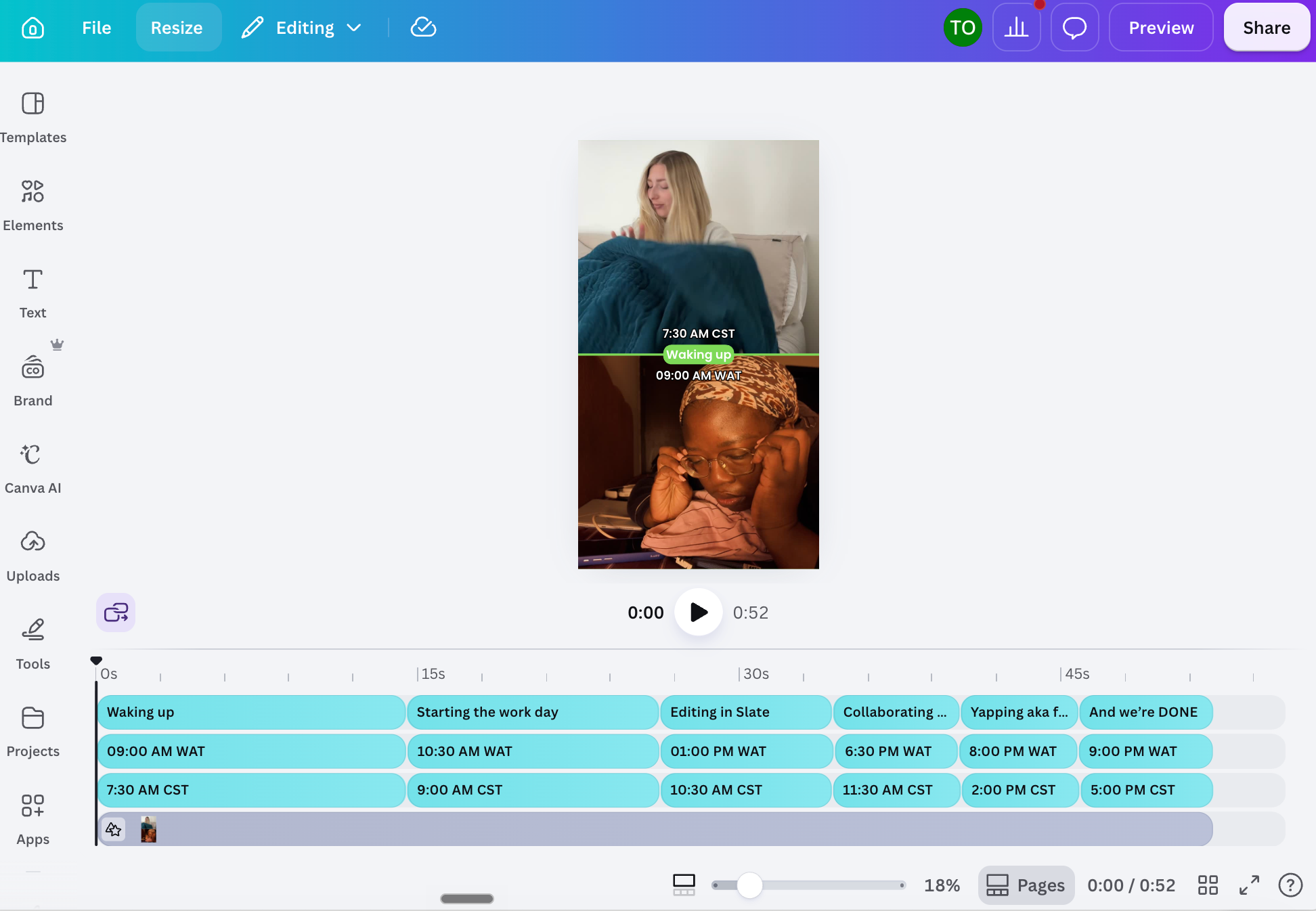
I’ve tested it out for video editing a few times, and while I still much prefer to do video editing in my usual apps, it works just fine. If you already use Canva and don’t want to add on multiple other subscriptions, this is a good one to try.
AI features draw from a monthly credit pool with no top-ups available — heavy users report running dry in the first two weeks, then waiting for the reset.
Price: Free plan with limited AI; paid plans start at $14.99/month (although Canva does use
Adobe Express
Best for: People already in the Adobe ecosystem
Adobe Express and Canva fall into the same boat for me. They prioritize design tools first, with video editing capabilities specific to social channels layered on top. Express is AI-enabled in the classic sense: you're working in a template-and-canvas editor, and the AI handles specific jobs when you call on them.
It generates captions from your audio, and you can restyle the font, colors, and shape to match your brand rather than settling for a stock look. And the Clip maker does a lightweight version of what OpusClip charges for: upload a longer video and it splices out short, captioned clips of the best moments.
Because it's Adobe, Express also comes with Firefly baked in for generative work, and it hands off to the rest of the ecosystem (Premiere for serious timelines, Adobe Podcast for audio cleanup) if you outgrow it.
Price: Free plan; paid plans start at $9.99/month
Riverside
Best for: Podcasters and interviewers who want the AI editor living where the footage is recorded
Riverside is a remote recording studio first. Co-Creator, its agentic editor, works on footage the platform captured itself — separate speaker tracks, local recording quality, transcripts from the start. You prompt it in plain language to clean audio, cut filler and silences, add AI b-roll, or pull social clips, and it can dub your video into another language with lip-sync to match.
Co-Creator is included in paid plans rather than sold as an add-on, though some features (AI translation, AI b-roll) draw from a monthly credit allowance.
If you're not recording in Riverside, you're importing footage into a tool built around its own recordings — at that point, Descript or CapCut fits the workflow better.
Price: Free plan; paid plans start at $29/month
Veed AI
Best for: Browser-based editing that covers the whole job without a learning curve
Veed is an AI-enabled all-rounder: transcription, captions with translation, eye-contact correction for scripted reads. Its transcription is also the most accurate among all tools on this list.
The free plan caps exports at 10 minutes per month with a watermark, if you want to test it out. AI features also draw from a credit allowance, so heavy use is capped even on paid plans.
Price: Free plan (10-minute monthly export cap, watermarked) with paid plans starting at $12/month.
OpusClip
Best for: Turning one long video into several short-form videos
OpusClip is AI-led for a single job: repurposing. You hand it a long video, and its ClipAnything model runs through four items — visual cues, audio sentiment, facial expressions, and narrative structure — to find the moments worth clipping. Each clip comes back with a hook, captions, and a virality score estimating how it'll perform on TikTok, Instagram Reels, or YouTube Shorts.
It won’t do what the first three tools on this list do. OpusClip doesn't want editing instructions; it wants long footage and a goal. The tradeoff is less control over individual cuts but with more finished clips per hour of your time. You can also tweak the output quite a bit (on the paid plan, of course) to get something that very closely matches your preferred style.
One important note is that if you have CapCut Pro or pay for Adobe Express, then you can get the same feature as OpusClip’s main offering.
Price: Free plan (60 processing minutes/month); paid plans start at $15/month
💡 And if you want finished Instagram Reels without ever meeting a timeline, template-first apps like Templify will get you there — pick a template, drop in clips, export. Just know that's templates doing the work, not AI.
A note on AI video generation
There are tools out there that will also generate video for you now, including some on this list. You could get text-to-video from a prompt, AI avatars that look just like you to read your script, or b-roll to cover your cuts. I don’t use those tools, which is why they’re not recommended in this list.
If generated b-roll or avatar presenters fit your workflow, several tools here offer them (CapCut's text-to-video, Riverside's AI b-roll), so test them out to see what works best for you.
The gap these AI video tools close
After all this testing, editing is still the part of making videos I struggle with most. But I could see a lot of these tools cutting down the time I spend struggling through.
Where certain things would take me an hour, I could cut my workflow down by 15 to 25 minutes just by having my clips pre-trimmed and focusing on the fun parts like what text to put on the screen or what meme to use for which clips.
If you're starting from zero: pick the camp that matches your current workflow, choose one tool from it, and try out editing one video with it this week. You'll learn more from that than from any roundup, including this one.
More AI video editing resources
- The 9 best AI image generators of 2026
- 14 AI tools for social media content creation
- The top 10 AI writing tools I recommend as a professional writer
Ready to put your finished videos to work? Get started with Buffer for free and schedule them across TikTok, Reels, and Shorts.
FAQs
What is the best AI video editor?
Vyra was the most consistent performer in my testing across the same footage and the same editing brief. The honest answer depends on which of the two camps you need, though: AI-enabled editors like CapCut and Veed make you faster inside a traditional timeline, while AI-led editors like Vyra and Descript's Underlord execute edits you describe in plain language. Start by deciding how much of the edit you want to keep doing yourself.
What's the difference between AI-enabled and AI-led video editors?
AI-enabled editors are traditional video editors with AI features built in — you work the timeline, and the AI handles specific jobs like captions, filler-word removal, and reframing. AI-led editors reverse the relationship: you describe the edit in plain language, and an AI agent executes it, leaving you to review and adjust. Some tools are both: Descript has a full manual editor, an in-app AI co-editor, and an MCP connection that lets an outside AI run it.
Can AI edit a video from a text prompt?
Yes. Tools like Vyra and Descript's Underlord accept plain-language instructions ("remove filler words, add captions, reframe to 9:16") and execute them on your actual footage. In my testing, the quality of the result depended more on how precisely I described the edit than on the tool — knowing terms like jump cut, b-roll, and safe zones got usable results in one pass.
What is MCP, and what does it have to do with video editing?
MCP (Model Context Protocol) is a standard that lets AI assistants like Claude and ChatGPT connect directly to other software. For video, it means an AI assistant can open your project, search your footage, and run edits in tools like Descript or Vyra without you touching the editor. I tested this while writing this article — Claude ran my caption brief in Vyra from a chat window.
Are AI video editors free?
Most offer a free tier, but the limits vary a lot. CapCut and Riverside have workable free plans; Veed's free tier caps exports at 10 minutes per month with a watermark; and OpusClip's free clips expire from storage after three days. Expect to pay $10–$29 per month for the AI features that save real time.
Will AI replace video editors?
Not on the evidence of my testing. The AI handled the mechanical work like cutting silences, captioning, and reframing. What it can't supply is the taste: knowing what the video should feel like, which take is the better one, and when a pause is dead air versus a beat. So don’t worry: humans here still have a job, just a slightly easier one.
from Buffer Resources https://ift.tt/p1twqbk
I picked up video as a format in 2023, when I was trying to build a consistency habit. Looking at that early content now, I'm surprised it got me as far as it did. That probably says more about the power of video than it does about my editing!
It's one thing to say you're going to post videos and another to do it. First, you have to get over the hurdle of setting up your camera, whether that's your phone or a more specialized device. Then you have to learn to speak coherently on camera, and one pass at filming will make you feel like you've forgotten all the words in human existence.
And once you finally have a rough cut, you face an even bigger hurdle: editing.
If you're fortunate enough to have someone in your ecosystem who can edit for you, never let them go. But starting out usually means doing everything yourself.
Editing is the task I still struggle with most. My taste in videos and my bar for quality sit far above my skill level. I'm closing that gap slowly (and gaining an expensive love for cameras in the process), but I'm not all the way there. I'm also not at the point where I can fully outsource it.
This is where AI video editors come in. I tested 7 of them to figure out which ones can contribute meaningfully to my process. Here’s what I found
What is an AI video editor?
There are two types of AI video editors. The first is AI-enabled editors, which are traditional video editors with AI features built in. The second is AI-led editors have you hand over the timeline and do the work for you.
Of course, the distinction gets blurry — ”AI video editor" is doing a lot of heavy lifting as a label right now. In my testing, every tool that claims it falls into one of two camps, with a little overlap here and there. Knowing which one you're looking at will save you from paying for the wrong thing. Let's take a closer look:
AI-enabled video editors
AI-enabled editors are regular video editors that have AI features. These are your Capcuts, Adobe Expresses, and Veeds. You're still the one working the timeline, but the AI takes over certain specific jobs: generating captions, cutting filler words, cleaning up background noise, reframing horizontal footage for vertical feeds. If you already know your way around an editor (or want to learn), these make you faster.
AI-led editors
AI-led editors do the actual editing for you, based on your plain-language instructions. You describe what you want ("cut the pauses, caption this, and pull the best 30 seconds for a reel") and an AI agent executes the edit. You review, adjust, and export. Vyra was built this way from the start, and OpusClip has worked this way for repurposing long before "agentic" became a thing.
The two categories are more of a Venn diagram than a list, though. Descript is the clearest example of the overlap: it's a transcript-based editor with an AI co-editor (Underlord) inside the app, and since May 2026, you can also connect it to Claude via MCP and run edits without opening Descript at all.
💡 MCP (Model Context Protocol) is a standard that lets AI assistants like Claude or ChatGPT connect directly to other tools. In practice, it means you can sit in a chat window, tell an AI to edit your video in Descript or Vyra, and it will.
Which camp to join depends on how much control you need or want over your editing. If your bar for quality means you'll be adjusting every cut anyway, an AI-enabled editor keeps you in control. If your bottleneck is time (or, like me, the gap between your taste and your skill), the AI-led camp is the one that could dramatically change your output.
How to use AI video editors
When it comes to using AI to edit videos, I learned the same lesson while testing AI image generators: the tools are no longer the bottleneck. Knowing what to ask for is.
Natural language editing sounds like it removes the need to understand editing. It doesn't. When you're describing an edit in plain English, knowing the terminology of what you're looking for will save you a lot of time, energy, and re-prompting. The AI can execute "add a J-cut into the b-roll" in one pass. "Make the transition feel smoother somehow" will just send you both into a spiral.
Learn the lingo (it gets you 50% of the way there)
You don't need to have gone to film school. A handful of terms will carry most of your edit briefs:
- Shot types: close-up, medium, wide, extreme wide. Learn when to use each one.
- Composition: rule of thirds, golden ratio, headroom, leading lines
- Cuts: jump cut, J-cut, L-cut, match cut, cutaway
- The workhorses: b-roll, lower thirds, hook text, safe zones, pacing
The difference shows up immediately. Compare "make the intro punchier" with "cut the first four seconds, open on the medium shot, add hook text in the top safe zone." The second version will come back closer right the first time.
Build an inspiration library
Study the creators you enjoy and the films you love as closely like they’re a textbook. When a video holds your attention, save it and write down why: where the video cuts, how long each shot ran for, how the use of text made you pay attention. Your library becomes two things at once: a source of vocabulary and a reference you can point an AI-led editor at when words fail. "Pace it like this" plus a link beats a paragraph of adjectives.
Sweat through a few edits yourself
The fastest way to learn the vocabulary is to create the effects yourself a few times. Editing two or three videos manually — even badly and slowly — teaches you what it feels like. It might be a placebo effect, but I think the terms stick for me because I've fumbled through the manual process myself. And the knowledge will not be wasted. Doing this will also come in handy if you choose to outsource to a human since you can direct a lot better when you have walked in their shoes, so to speak.
⚡ A brief template to steal: [what to cut] + [what to add] + [format and platform] + [style reference]. Example: "Remove filler words and silences over one second. Add captions and a hook line. Reframe to 9:16 for Reels. Keep the pacing tight, like the reference clip."
The 11 AI video editors I tested
There was no single way to test and compare every tool on this list that wouldn’t take a million hours, but I did test them out with the same clip. While it’s harder to show via screenshots how each tool operated, I took lots of notes to get you the most accurate breakdown.
I've also grouped them by camp, with AI-led first and then AI-enabled.
Let’s get into it.
Vyra
Best for: Handing the whole edit to an AI and only opening the timeline when you want to
Unlike many other AI video editors, Vyra wasn't retro-fitted with AI features. It was built that way: the editor is effectively a chat window, rather than a toolbar of different AI features.
When you upload footage, it analyzes every clip first, detecting scenes, transcribing speech, identifying what's in frame, so that when you describe an edit, the AI is working from what's in your footage rather than guessing. Even more crucially, you can upload reference videos for the AI to model the edit after: an incredible ability since that’s the way most of us start, by copying.
What sets it apart from in-app assistants is that you can use your own AI. Vyra supports MCP, so you can connect Claude, ChatGPT, or your preferred LLM to search your clips and apply edits directly. I gave Vyra an 81-second talking-head and gave Claude a simple brief to connect to Vyra's MCP as well as a reference video to model after. It analyzed the footage and quickly got to work.
It’s important to note that Vyra is not without limitations. Editing files in the cloud takes time that could be saved with a tool that provides local folder access.
All told, it took about 20 minutes to get a finished product. While that’s not terrible, it’s important to note that this was without it adding any b-roll or music. It takes me around 30 minutes to finish editing a video in my current style (which is admittedly very simple).
The video turned out great in my opinion. It cut in all the right places, added captions and because my requests were pretty simple and I included a reference video, the results were solid.
I was also able to go in and add in the aforementioned b-roll and music touches
I could see this being most useful for first and final touches: things like cutting a video at the start, and then after adding in all the extra b-roll or graphics, adding captions and flairs. These are things that would otherwise take extra time that may be time-consuming or not worth the effort but are mice to have.
Price: Free trial; paid plan starts at $24 if you’re connecting your own AI and $54 per month if you’re using Vyra’s AI
Stanley Studio
Best for: The fastest way to get footage into an editor — with a video that needs some last-mile editing
Stanley Studio has the purest AI-led pitch on this list: drop in clips, brief it like a human editor, never touch the timeline. It's from the same team as the Stan Store folks, and it just launched as I was planning this article.
In my testing, it won exactly one category outright: upload speed. Getting footage in was faster than with any other tool here, taking only about 5 minutes for a 350-megabyte file.
However, the edit was where things unraveled a bit. I uploaded a reference video for the text and caption style, and it picked up on things like colors and fonts, without quite nailing the style, which was what I was after. It also didn't cut my repeated takes and the pacing stayed slack when I'd asked for snappy. Most telling was that where my video needed screenshots and cutouts of the products I was talking about, Stanley generated AI images of them instead.
In fairness, my test was heavy on overlays, much tougher than a simple talking head, and so I'll be retesting with simpler footage on my own time. It’s also much newer, so it needs time to ramp up the improvements (I tested this tool last minute).
A final note is that, unlike Vyra and Descript, Stanley has no MCP: the only AI you can brief is its own in-tool chatbot. If you want your own assistant running the edit, this isn't the tool (yet).
Price: Free tier to work on one project; $19/month after that
Descript
Best for: Speech-heavy video and the clearest tool with an AI-enabled/AI-led overlap
Descript is an interesting entry because it covers all three of the core AI video editor categories.
The core editor is transcript-based: delete a sentence from the transcript, and the footage disappears from the timeline. Underlord, its in-app co-editor, handles multi-step requests — filler removal, Studio Sound cleanup, captions, pulling social clips from long recordings.
Then there's the third mode, as of May 2026: Descript's hosted MCP server. Connect it to Claude, and you can import media, run Underlord edits, and export a finished video to a shareable link without opening Descript at all.
I ran the MCP test on the same footage as the other AI-led tools. One prompt came back 64 seconds lighter: it cut my false starts and repeated takes (keeping the better delivery each time), compressed six pauses, captioned the whole thing in an Instagram Reels-native style, and wrote its own hook line. I'd told it to leave my original composition untouched, and it did, editing a duplicate instead.
I’d say Descript got me 40% of the way to a complete video. Since there’s no way to add a reference video like some of the other tools on this list, it’s hard to get returned edits in my style. With some manual tweaking, I can take the video to completion, but it’s something to keep in mind.
The crisp edits you see on most Instagram/TikTok content still isn't its forté. If your videos aren’t speech-heavy, like podcast clips or cuts from a YouTube video, you might not get exactly what you want from this. It’s still a great tool for the first (and sometimes most tedious) part of editing: cutting and trimming.
Price: Free plan with limited credits; then $35/month
CapCut
Best for: The default choice when you want AI assists without leaving the editor you already know
CapCut is kind of a jack-of-all-trades that sits firmly in the AI-enabled camp. It's still a timeline editor at heart, with an AI toolkit layered on top. And that toolkit is full: speaker-ID captions, camera tracking, vocal isolation, background removal, and a script-to-video feature that can write, sources stock footage, captions, and syncs to trending audio from a single prompt.
It also has a built-in AI editor feature that you can request things like cuts or transitions from called EditPilot.
It’s my tool of choice because it’s just that easy to start with. If you’re a beginner who wants AI capabilities but in a tool you can find a million tutorials for, this is the one for you.
However, the AI features are scattered across menus rather than gathered behind one instruction — you need to know each tool exists to use it.
Price: Free plan; with paid plans starting at $9.99/month
Canva
Best for: Editing video inside the tool where your social content already lives
Canva is where I do nearly all of my visual design work, so it’s a solid option just for that. If your carousels, covers, and graphics already live here, editing video in the same place with your brand kit, fonts, and templates one panel away is a serious advantage no dedicated editor can offer.
As an editor, it's firmly AI-enabled. Magic Video assembles a 60-second cut from your clips and photos with templates, transitions, and music, and everything stays editable afterward. Auto-captions, background removal, and beat sync cover the standard toolkit found in many of the more robust tools on this list. And the generative side (Magic Media, now powered by Google's Veo 3) is there too.
I’ve tested it out for video editing a few times, and while I still much prefer to do video editing in my usual apps, it works just fine. If you already use Canva and don’t want to add on multiple other subscriptions, this is a good one to try.
AI features draw from a monthly credit pool with no top-ups available — heavy users report running dry in the first two weeks, then waiting for the reset.
Price: Free plan with limited AI; paid plans start at $14.99/month (although Canva does use
Adobe Express
Best for: People already in the Adobe ecosystem
Adobe Express and Canva fall into the same boat for me. They prioritize design tools first, with video editing capabilities specific to social channels layered on top. Express is AI-enabled in the classic sense: you're working in a template-and-canvas editor, and the AI handles specific jobs when you call on them.
It generates captions from your audio, and you can restyle the font, colors, and shape to match your brand rather than settling for a stock look. And the Clip maker does a lightweight version of what OpusClip charges for: upload a longer video and it splices out short, captioned clips of the best moments.
Because it's Adobe, Express also comes with Firefly baked in for generative work, and it hands off to the rest of the ecosystem (Premiere for serious timelines, Adobe Podcast for audio cleanup) if you outgrow it.
Price: Free plan; paid plans start at $9.99/month
Riverside
Best for: Podcasters and interviewers who want the AI editor living where the footage is recorded
Riverside is a remote recording studio first. Co-Creator, its agentic editor, works on footage the platform captured itself — separate speaker tracks, local recording quality, transcripts from the start. You prompt it in plain language to clean audio, cut filler and silences, add AI b-roll, or pull social clips, and it can dub your video into another language with lip-sync to match.
Co-Creator is included in paid plans rather than sold as an add-on, though some features (AI translation, AI b-roll) draw from a monthly credit allowance.
If you're not recording in Riverside, you're importing footage into a tool built around its own recordings — at that point, Descript or CapCut fits the workflow better.
Price: Free plan; paid plans start at $29/month
Veed AI
Best for: Browser-based editing that covers the whole job without a learning curve
Veed is an AI-enabled all-rounder: transcription, captions with translation, eye-contact correction for scripted reads. Its transcription is also the most accurate among all tools on this list.
The free plan caps exports at 10 minutes per month with a watermark, if you want to test it out. AI features also draw from a credit allowance, so heavy use is capped even on paid plans.
Price: Free plan (10-minute monthly export cap, watermarked) with paid plans starting at $12/month.
OpusClip
Best for: Turning one long video into several short-form videos
OpusClip is AI-led for a single job: repurposing. You hand it a long video, and its ClipAnything model runs through four items — visual cues, audio sentiment, facial expressions, and narrative structure — to find the moments worth clipping. Each clip comes back with a hook, captions, and a virality score estimating how it'll perform on TikTok, Instagram Reels, or YouTube Shorts.
It won’t do what the first three tools on this list do. OpusClip doesn't want editing instructions; it wants long footage and a goal. The tradeoff is less control over individual cuts but with more finished clips per hour of your time. You can also tweak the output quite a bit (on the paid plan, of course) to get something that very closely matches your preferred style.
One important note is that if you have CapCut Pro or pay for Adobe Express, then you can get the same feature as OpusClip’s main offering.
Price: Free plan (60 processing minutes/month); paid plans start at $15/month
💡 And if you want finished Instagram Reels without ever meeting a timeline, template-first apps like Templify will get you there — pick a template, drop in clips, export. Just know that's templates doing the work, not AI.
A note on AI video generation
There are tools out there that will also generate video for you now, including some on this list. You could get text-to-video from a prompt, AI avatars that look just like you to read your script, or b-roll to cover your cuts. I don’t use those tools, which is why they’re not recommended in this list.
If generated b-roll or avatar presenters fit your workflow, several tools here offer them (CapCut's text-to-video, Riverside's AI b-roll), so test them out to see what works best for you.
The gap these AI video tools close
After all this testing, editing is still the part of making videos I struggle with most. But I could see a lot of these tools cutting down the time I spend struggling through.
Where certain things would take me an hour, I could cut my workflow down by 15 to 25 minutes just by having my clips pre-trimmed and focusing on the fun parts like what text to put on the screen or what meme to use for which clips.
If you're starting from zero: pick the camp that matches your current workflow, choose one tool from it, and try out editing one video with it this week. You'll learn more from that than from any roundup, including this one.
More AI video editing resources
- The 9 best AI image generators of 2026
- 14 AI tools for social media content creation
- The top 10 AI writing tools I recommend as a professional writer
Ready to put your finished videos to work? Get started with Buffer for free and schedule them across TikTok, Reels, and Shorts.
FAQs
What is the best AI video editor?
Vyra was the most consistent performer in my testing across the same footage and the same editing brief. The honest answer depends on which of the two camps you need, though: AI-enabled editors like CapCut and Veed make you faster inside a traditional timeline, while AI-led editors like Vyra and Descript's Underlord execute edits you describe in plain language. Start by deciding how much of the edit you want to keep doing yourself.
What's the difference between AI-enabled and AI-led video editors?
AI-enabled editors are traditional video editors with AI features built in — you work the timeline, and the AI handles specific jobs like captions, filler-word removal, and reframing. AI-led editors reverse the relationship: you describe the edit in plain language, and an AI agent executes it, leaving you to review and adjust. Some tools are both: Descript has a full manual editor, an in-app AI co-editor, and an MCP connection that lets an outside AI run it.
Can AI edit a video from a text prompt?
Yes. Tools like Vyra and Descript's Underlord accept plain-language instructions ("remove filler words, add captions, reframe to 9:16") and execute them on your actual footage. In my testing, the quality of the result depended more on how precisely I described the edit than on the tool — knowing terms like jump cut, b-roll, and safe zones got usable results in one pass.
What is MCP, and what does it have to do with video editing?
MCP (Model Context Protocol) is a standard that lets AI assistants like Claude and ChatGPT connect directly to other software. For video, it means an AI assistant can open your project, search your footage, and run edits in tools like Descript or Vyra without you touching the editor. I tested this while writing this article — Claude ran my caption brief in Vyra from a chat window.
Are AI video editors free?
Most offer a free tier, but the limits vary a lot. CapCut and Riverside have workable free plans; Veed's free tier caps exports at 10 minutes per month with a watermark; and OpusClip's free clips expire from storage after three days. Expect to pay $10–$29 per month for the AI features that save real time.
Will AI replace video editors?
Not on the evidence of my testing. The AI handled the mechanical work like cutting silences, captioning, and reframing. What it can't supply is the taste: knowing what the video should feel like, which take is the better one, and when a pause is dead air versus a beat. So don’t worry: humans here still have a job, just a slightly easier one.
Comments
Post a Comment