
Yes, you can schedule Instagram Stories — just not inside the Instagram app. Instagram's built-in scheduler doesn't cover stories, so you'll need a third-party social media scheduling tool like Buffer, or Meta's own Meta Business Suite.
That's good news if stories are the first thing to slip off your to-do list. They're fleeting, often on the fly, and easy to forget when your day gets busy. If you've ever found yourself scrambling for something (anything!) to post at the last minute, scheduling takes that pressure off. It's something I wish I'd started doing sooner.
In this guide, I'll walk you through both methods step by step — on desktop and on your phone — then share a few tips for getting more out of the stories you schedule.
Jump to a section:
- Can you schedule Instagram Stories?
- How to schedule a story on Instagram with Buffer (4 steps)
- How to schedule a story on Instagram from your phone
- How to schedule a story with Meta Business Suite
- What happens to stickers, polls, and links when you schedule a story?
- Buffer vs. Meta Business Suite: which should you use to schedule stories?
- Why schedule your Instagram Stories?
- Quick tips for scheduling Instagram Stories
Can you schedule Instagram Stories?
Yes, but not in the Instagram app itself. Instagram's built-in scheduler lets professional accounts schedule reels, photos, and carousel posts, but stories aren't included right now.
To schedule an Instagram Story, you need either Meta Business Suite (Meta's free tool for Facebook and Instagram), or a third-party scheduler like Buffer, which works from both desktop and mobile.
Whether your story publishes on its own depends on your account type and what's in it. More on that in the Buffer steps below.
Key takeaways
- Instagram app: There's no native story scheduling. The in-app scheduler covers only Reels, photos, and carousel posts.
- Meta Business Suite: Schedules Instagram Stories for free from a desktop browser and the app.
- Buffer: Schedules Instagram Stories from the web app or the iOS and Android apps, including on the free plan (up to three channels).
- Auto-publishing: Buffer publishes stories automatically for Instagram business and creator accounts. Personal accounts get a reminder on their phone to finish the post in Instagram.
- Stickers, links, and music: Instagram doesn't let third-party tools add these automatically, so stories that use them are sent to your phone to finish in the Instagram app.
- One file per story: In Buffer, each photo or video is scheduled as its own story.
- Story size: 9:16 aspect ratio (1080 x 1920 pixels). Story videos can run 3 to 60 seconds.
Your three options at a glance
There are three places you might try to schedule an Instagram Story. Only two of them can do it:
| Method | Stories? | Schedule from | Auto-publishes? | Cost |
|---|---|---|---|---|
| Instagram app | No (Reels, photos, and carousels only) | — | — | Free |
| Meta Business Suite | Yes | Desktop and mobile app | Yes | Free |
| Buffer | Yes | Web, iOS, and Android apps | Business and creator accounts: yes. Personal accounts: phone reminder | Free plan (up to 3 channels); paid plans from $6 per channel per month |
How to schedule a story on Instagram with Buffer (4 steps)
Here's how to schedule a story in Buffer's Instagram scheduler, from upload to publish:
Step 1. Start your story
- Click + New Post > Post in the top right of your Buffer dashboard to open the composer.
- Choose Instagram from the Channels list on the top left.
- Choose Story as the post type.
Step 2. Add your photo or video
- Drag and drop your image or video into the composer — or click to browse your folders.
- Check the preview on the right to see how the story will look once it's live.

Step 3. Make quick edits
Notice a photo needs a little tweak? No problem.
- Just hover over the image and click the pencil icon to edit.
- You'll be able to crop, rotate, blur, brighten, and more — handy for last-minute touch-ups.

Step 4. Set the time your story goes live
- Pick Automatic (Buffer posts it for you) or Notify Me (Buffer sends a reminder to your phone and you finish the post in Instagram).
- Choose when it goes out:
- Set Date and Time to pick a specific day and time — Buffer also suggests the times your audience is most likely to be active
- Next Available to drop it into your next open posting slot
- Prioritize to bump it to the top of your queue (paid plans)
- Now to post it straight away
- Click Schedule Post.


Business, creator, or personal account: what publishes automatically
How Buffer publishes your story depends on your Instagram account type:
- Business and creator accounts: Buffer can publish your story automatically at the time you choose.
- Personal accounts: Buffer sends a notification to the Buffer mobile app when it's time to post. You tap it and share the story from Instagram.
Even on a business or creator account, a story switches to a phone reminder if it includes stickers, a link, text, music, or a caption, or if your image or video falls outside Instagram's accepted size. Buffer shows you which method a story will use before you schedule it. (Our help center has the full rundown of automatic vs. notification publishing.)
And that's it — your story is scheduled.
How to schedule a story on Instagram from your phone
You can do all of the above from the Buffer app on iOS or Android:
- Tap the green + icon at the bottom right to open the composer.
- Tap the channel icon and select your Instagram account.
- Tap Story.
- Upload your photo or video.
- Tap Automatic or Notify Me.
- Pick a scheduling option — and you're done!


If you choose Notify Me — or your story needs a sticker or link — the Buffer app pings you at the scheduled time, and you finish the story in Instagram. You'll need push notifications turned on for that to work. (Here are the mobile scheduling steps in our help center, with screenshots.)
How to schedule a story with Meta Business Suite
Meta Business Suite is Meta's free tool for managing Facebook and Instagram, and it can schedule Instagram Stories from both your desktop browser and the Meta Business Suite app.
In your browser:
- Navigate to business.facebook.com to access Meta Business Suite, and log into the correct account.
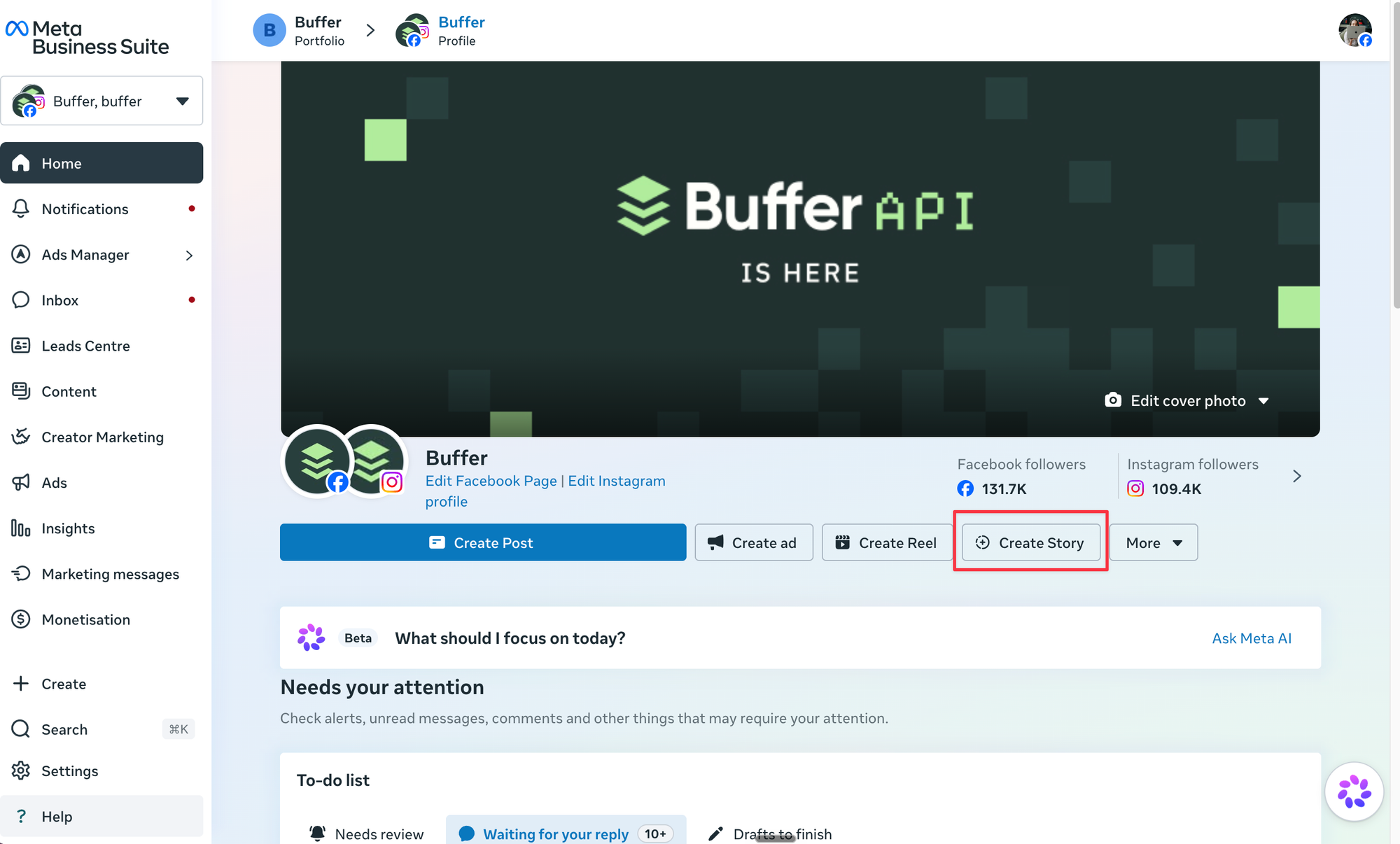
- Click the Create Story button.
- Select your Facebook and/or Instagram accounts.
- Upload media (images and videos) for your story.
- Click Edit to add text, mentions, or stickers.
- To schedule the Instagram Story to publish later, click the Schedule button.
With the Meta Business Suite app:
- Tap Content from the bottom navigation bar (or tap the + / Story button on the home screen).
- Select Story and add your photos or videos.
- Choose Schedule for later to set your date and time.
- Tap Schedule.
What happens to stickers, polls, and links when you schedule a story?
Instagram doesn't let third-party tools add interactive elements to a story automatically. That covers link stickers, polls, questions, music, and story text, plus captions on stories. So if a story needs any of these, it can't publish on its own — even on a business or creator account.
The workaround is simple. In Buffer, add the sticker you want (or a note about it) and the story switches to Notify Me. Buffer leaves a placeholder for each sticker so you remember what to add, sends the story to your phone at the scheduled time, and you add the sticker in Instagram before you share it. (Our help center explains which effects need notification publishing.)
If you've never added a link sticker before, here's how to add a link to your Instagram Story.
Buffer vs. Meta Business Suite: which should you use to schedule stories?
Both tools can schedule Instagram Stories. The main differences are which platforms they cover, whether you can schedule from your phone, and what happens with team workflows.
| Feature | Buffer | Meta Business Suite |
|---|---|---|
| Mobile scheduling | Yes — schedule Instagram Stories from the Buffer iOS and Android apps | Yes — schedule stories from the Meta Business Suite app |
| Pricing | Free plan for up to 3 channels; paid plans from $6 per channel per month | Free |
| Supported platforms | Instagram stories, reels, feed posts, and carousels, plus Facebook, X, LinkedIn, TikTok, and more | Facebook and Instagram only |
| Cross-platform visual planning | Calendar view across all your channels | Calendar for Facebook and Instagram only |
| Story previews | Preview each story before it’s scheduled | Story preview with upload |
| Content library | Store media and reuse it across posts and platforms | Limited media library |
| Team collaboration | Draft approvals, comments, and role assignments (Team plan) | No |
| Access to latest features | Indirect — may not always have immediate access to platform-specific features | Yes — immediate access to Facebook and Instagram updates |
Why schedule your Instagram Stories?
Scheduling your stories keeps you posting consistently, and consistent stories keep your existing followers engaged — which is what the Instagram algorithm wants to see. Stories might not be the best format for reaching new followers, but the more someone watches or interacts with your stories, the more likely Instagram is to show them your future posts and reels.
Here’s Adam Mosseri, the Head of Instagram, on how stories factor into the Instagram algorithm.
“The most important signals we look at when ranking Stories are the likelihood that you’ll tap on the story, like the story, or reply with a message,” he says.
Scheduling takes the pressure off needing to be "on" all the time, so your stories keep showing up even on your busiest days. Here's what that looks like in practice:
- Stay consistent without burning out: Scheduling ahead helps you keep showing up without scrambling for content, and without feeling like you have to be glued to your phone 24/7.
- Post with more intention: I've definitely posted a "just so I've posted something" story. Scheduling breaks that habit, because you're choosing what to share a few days out, not five minutes before bed. That extra time makes it easier to tie each story back to what you're working toward — a launch, a promo, a newsletter signup.
- Plan for key engagement moments: Tease a new product drop, share a promo code, or ask a poll question (finished in Instagram), so you're showing up at the top of your followers' feeds when it counts.
- Batch your stories in one sitting: Ever spent way too long hunting down screenshots and videos scattered across your phone, laptop, and maybe even an old Google Drive? I've been there. Pull everything together once, schedule it, and get on with the rest of your to-do list.
- Post when your followers are online: You might not always be online when your audience is, but scheduled stories can be. With scheduling, you can post your stories when your followers are most active without setting a reminder or stopping what you're doing. Our analysis of 9.6 million Instagram posts found Wednesday is the strongest day overall, with Thursday at 9 a.m. and Wednesday at 12 p.m. and 6 p.m. the top slots for posts — a good starting point for testing your story times.
- Plan from your desktop (or your phone): Sometimes, creating content on a bigger screen just feels better. Personally, I also prefer to keep my laptop for work, and my phone for personal stuff. When you schedule stories from your desktop, you get more space to plan, write, and design without squinting at your phone or juggling files between devices. And when you're away from your desk, the Buffer app covers the same ground.
Quick tips for scheduling Instagram Stories
Here are a few tips for making your scheduled stories land.
Stick to the right story size (so nothing gets cut off)
Instagram Stories are designed for people to view them full-screen while holding their phone vertically:
- Aspect ratio: 9:16 (vertical, full-screen)
- Recommended size: 1080 x 1920 pixels
- Video length: 3 to 60 seconds per story
Use the recommended dimensions so that your content shows up clearly without anything important getting cropped out.
Don't forget the link sticker
If you have something to promote, add a link sticker to your story. It's an easy way to send viewers straight to your website, blog, product page, or anywhere you want.
Just remember: link stickers can't be scheduled to publish automatically. Schedule the story with Notify Me, then tap the sticker icon and paste your link when Buffer sends it to your phone.
Turn posts into stories
Got a great feed post or reel? Boost its reach and make the most of the content you've already created by sharing it to your stories. Add a quick caption or sticker to encourage followers to tap through.
Mix it up with fun content
Show behind-the-scenes moments, polls, questions, quick tips, or even just a funny meme. Mixing things up keeps your audience engaged and reminds them there's a real person behind the brand.
Stay on track with posting goals and streaks
Need a little motivation to stay consistent? Set a story posting goal in Buffer and keep your streak going — every week you publish through Buffer counts toward it.
Every week, I get an email from Buffer on my progress, and it's amazing how a little accountability inspires me to keep going:
Use free tools to level up your stories
From content creation to scheduling and audience research, there are plenty of free tools out there to help you make your stories pop. Here's a list of 24 free Instagram tools for designing, editing, and planning your stories.
Start scheduling your stories with Buffer
Scheduling won't replace the occasional off-the-cuff story — and it shouldn't. But having a few stories lined up means every story is working toward your goals, and you're still showing up on the days you're too busy to think about Instagram.
Buffer's Instagram Story scheduler is included on the free plan for up to three channels.
Here's everything you need to know to schedule Instagram Stories with Buffer.
Happy scheduling!
Instagram Story scheduling FAQs
Can you schedule a story in the Instagram app itself?
No. Instagram's built-in scheduler covers Reels, photos, and carousel posts, but not stories (as of November 2026). Instagram hasn't added stories to it, so scheduling a story needs Meta Business Suite or a third-party scheduler that connects to Instagram, like Buffer.
Can you schedule Instagram Stories for free?
Yes. Meta Business Suite is free and schedules Instagram Stories from desktop or its mobile app. Buffer's free plan also includes Instagram Story scheduling for up to three channels, from desktop or mobile, with up to 10 scheduled posts per channel at a time.
Can you set a time for a story on Instagram?
Not in the Instagram app. With a scheduler, you pick the exact date and time. In Buffer, choose Set Date and Time when you schedule your story, and Buffer will also suggest times when your audience is most likely to be active.
Can you schedule Instagram Stories from your phone?
Yes, with the Buffer app for iOS or Android: tap Publish, open the composer, choose your Instagram account, tap Story, upload your media, and pick a time. You can also schedule stories in the Meta Business Suite app.
Can you schedule Instagram Stories on a personal account?
Yes, with Buffer, but they won't publish automatically. Buffer sends a reminder to your phone at the scheduled time and you finish the story in Instagram. To have stories publish on their own, switch to a free business or creator account. Meta Business Suite works with professional accounts only.
Will a scheduled story post automatically?
It depends. With Buffer, stories on business and creator accounts publish automatically, as long as they don't include stickers, links, text, music, or a caption. Stories on personal accounts, or stories with those features, are sent to your phone to finish in Instagram.
What's the best way to schedule Instagram Stories for the week?
Batch them. Set aside one session to gather your photos and videos, schedule each story into its slot, and use Buffer's calendar view as your Instagram Stories calendar so you can see the whole week at a glance. Setting a weekly posting goal (and keeping your streak going) helps you stick to it.
How do you edit or delete a scheduled Instagram Story?
In Buffer, head to the Queue or Drafts tab for your Instagram channel. Click on the scheduled Instagram Story you want to change. From there, you can edit the content, update the timing, or delete it entirely before it goes live.
More Instagram resources
- How to Get More Followers on Instagram
- How to Use Instagram Close Friends (and Pair With Broadcast Channels and Unlockable Reels)
- Unlockable Reels Are Coming to Instagram: Here’s How They Work
- 24 Free Instagram Tools to Grow Your Following
- How to Sell on Instagram: A Complete Guide for Creators and Businesses
- How to Share Instagram Feed Posts to Stories: 3 Simple Steps
from Buffer Resources https://ift.tt/9j5SvKO
Yes, you can schedule Instagram Stories — just not inside the Instagram app. Instagram's built-in scheduler doesn't cover stories, so you'll need a third-party social media scheduling tool like Buffer, or Meta's own Meta Business Suite.
That's good news if stories are the first thing to slip off your to-do list. They're fleeting, often on the fly, and easy to forget when your day gets busy. If you've ever found yourself scrambling for something (anything!) to post at the last minute, scheduling takes that pressure off. It's something I wish I'd started doing sooner.
In this guide, I'll walk you through both methods step by step — on desktop and on your phone — then share a few tips for getting more out of the stories you schedule.
Jump to a section:
- Can you schedule Instagram Stories?
- How to schedule a story on Instagram with Buffer (4 steps)
- How to schedule a story on Instagram from your phone
- How to schedule a story with Meta Business Suite
- What happens to stickers, polls, and links when you schedule a story?
- Buffer vs. Meta Business Suite: which should you use to schedule stories?
- Why schedule your Instagram Stories?
- Quick tips for scheduling Instagram Stories
Can you schedule Instagram Stories?
Yes, but not in the Instagram app itself. Instagram's built-in scheduler lets professional accounts schedule reels, photos, and carousel posts, but stories aren't included right now.
To schedule an Instagram Story, you need either Meta Business Suite (Meta's free tool for Facebook and Instagram), or a third-party scheduler like Buffer, which works from both desktop and mobile.
Whether your story publishes on its own depends on your account type and what's in it. More on that in the Buffer steps below.
Key takeaways
- Instagram app: There's no native story scheduling. The in-app scheduler covers only Reels, photos, and carousel posts.
- Meta Business Suite: Schedules Instagram Stories for free from a desktop browser and the app.
- Buffer: Schedules Instagram Stories from the web app or the iOS and Android apps, including on the free plan (up to three channels).
- Auto-publishing: Buffer publishes stories automatically for Instagram business and creator accounts. Personal accounts get a reminder on their phone to finish the post in Instagram.
- Stickers, links, and music: Instagram doesn't let third-party tools add these automatically, so stories that use them are sent to your phone to finish in the Instagram app.
- One file per story: In Buffer, each photo or video is scheduled as its own story.
- Story size: 9:16 aspect ratio (1080 x 1920 pixels). Story videos can run 3 to 60 seconds.
Your three options at a glance
There are three places you might try to schedule an Instagram Story. Only two of them can do it:
| Method | Stories? | Schedule from | Auto-publishes? | Cost |
|---|---|---|---|---|
| Instagram app | No (Reels, photos, and carousels only) | — | — | Free |
| Meta Business Suite | Yes | Desktop and mobile app | Yes | Free |
| Buffer | Yes | Web, iOS, and Android apps | Business and creator accounts: yes. Personal accounts: phone reminder | Free plan (up to 3 channels); paid plans from $6 per channel per month |
How to schedule a story on Instagram with Buffer (4 steps)
Here's how to schedule a story in Buffer's Instagram scheduler, from upload to publish:
Step 1. Start your story
- Click + New Post > Post in the top right of your Buffer dashboard to open the composer.
- Choose Instagram from the Channels list on the top left.
- Choose Story as the post type.
Step 2. Add your photo or video
- Drag and drop your image or video into the composer — or click to browse your folders.
- Check the preview on the right to see how the story will look once it's live.
Step 3. Make quick edits
Notice a photo needs a little tweak? No problem.
- Just hover over the image and click the pencil icon to edit.
- You'll be able to crop, rotate, blur, brighten, and more — handy for last-minute touch-ups.
Step 4. Set the time your story goes live
- Pick Automatic (Buffer posts it for you) or Notify Me (Buffer sends a reminder to your phone and you finish the post in Instagram).
- Choose when it goes out:
- Set Date and Time to pick a specific day and time — Buffer also suggests the times your audience is most likely to be active
- Next Available to drop it into your next open posting slot
- Prioritize to bump it to the top of your queue (paid plans)
- Now to post it straight away
- Click Schedule Post.
Business, creator, or personal account: what publishes automatically
How Buffer publishes your story depends on your Instagram account type:
- Business and creator accounts: Buffer can publish your story automatically at the time you choose.
- Personal accounts: Buffer sends a notification to the Buffer mobile app when it's time to post. You tap it and share the story from Instagram.
Even on a business or creator account, a story switches to a phone reminder if it includes stickers, a link, text, music, or a caption, or if your image or video falls outside Instagram's accepted size. Buffer shows you which method a story will use before you schedule it. (Our help center has the full rundown of automatic vs. notification publishing.)
And that's it — your story is scheduled.
How to schedule a story on Instagram from your phone
You can do all of the above from the Buffer app on iOS or Android:
- Tap the green + icon at the bottom right to open the composer.
- Tap the channel icon and select your Instagram account.
- Tap Story.
- Upload your photo or video.
- Tap Automatic or Notify Me.
- Pick a scheduling option — and you're done!
If you choose Notify Me — or your story needs a sticker or link — the Buffer app pings you at the scheduled time, and you finish the story in Instagram. You'll need push notifications turned on for that to work. (Here are the mobile scheduling steps in our help center, with screenshots.)
How to schedule a story with Meta Business Suite
Meta Business Suite is Meta's free tool for managing Facebook and Instagram, and it can schedule Instagram Stories from both your desktop browser and the Meta Business Suite app.
In your browser:
- Navigate to business.facebook.com to access Meta Business Suite, and log into the correct account.
- Click the Create Story button.
- Select your Facebook and/or Instagram accounts.
- Upload media (images and videos) for your story.
- Click Edit to add text, mentions, or stickers.
- To schedule the Instagram Story to publish later, click the Schedule button.
With the Meta Business Suite app:
- Tap Content from the bottom navigation bar (or tap the + / Story button on the home screen).
- Select Story and add your photos or videos.
- Choose Schedule for later to set your date and time.
- Tap Schedule.
What happens to stickers, polls, and links when you schedule a story?
Instagram doesn't let third-party tools add interactive elements to a story automatically. That covers link stickers, polls, questions, music, and story text, plus captions on stories. So if a story needs any of these, it can't publish on its own — even on a business or creator account.
The workaround is simple. In Buffer, add the sticker you want (or a note about it) and the story switches to Notify Me. Buffer leaves a placeholder for each sticker so you remember what to add, sends the story to your phone at the scheduled time, and you add the sticker in Instagram before you share it. (Our help center explains which effects need notification publishing.)
If you've never added a link sticker before, here's how to add a link to your Instagram Story.
Buffer vs. Meta Business Suite: which should you use to schedule stories?
Both tools can schedule Instagram Stories. The main differences are which platforms they cover, whether you can schedule from your phone, and what happens with team workflows.
| Feature | Buffer | Meta Business Suite |
|---|---|---|
| Mobile scheduling | Yes — schedule Instagram Stories from the Buffer iOS and Android apps | Yes — schedule stories from the Meta Business Suite app |
| Pricing | Free plan for up to 3 channels; paid plans from $6 per channel per month | Free |
| Supported platforms | Instagram stories, reels, feed posts, and carousels, plus Facebook, X, LinkedIn, TikTok, and more | Facebook and Instagram only |
| Cross-platform visual planning | Calendar view across all your channels | Calendar for Facebook and Instagram only |
| Story previews | Preview each story before it’s scheduled | Story preview with upload |
| Content library | Store media and reuse it across posts and platforms | Limited media library |
| Team collaboration | Draft approvals, comments, and role assignments (Team plan) | No |
| Access to latest features | Indirect — may not always have immediate access to platform-specific features | Yes — immediate access to Facebook and Instagram updates |
Why schedule your Instagram Stories?
Scheduling your stories keeps you posting consistently, and consistent stories keep your existing followers engaged — which is what the Instagram algorithm wants to see. Stories might not be the best format for reaching new followers, but the more someone watches or interacts with your stories, the more likely Instagram is to show them your future posts and reels.
Here’s Adam Mosseri, the Head of Instagram, on how stories factor into the Instagram algorithm.
“The most important signals we look at when ranking Stories are the likelihood that you’ll tap on the story, like the story, or reply with a message,” he says.
Scheduling takes the pressure off needing to be "on" all the time, so your stories keep showing up even on your busiest days. Here's what that looks like in practice:
- Stay consistent without burning out: Scheduling ahead helps you keep showing up without scrambling for content, and without feeling like you have to be glued to your phone 24/7.
- Post with more intention: I've definitely posted a "just so I've posted something" story. Scheduling breaks that habit, because you're choosing what to share a few days out, not five minutes before bed. That extra time makes it easier to tie each story back to what you're working toward — a launch, a promo, a newsletter signup.
- Plan for key engagement moments: Tease a new product drop, share a promo code, or ask a poll question (finished in Instagram), so you're showing up at the top of your followers' feeds when it counts.
- Batch your stories in one sitting: Ever spent way too long hunting down screenshots and videos scattered across your phone, laptop, and maybe even an old Google Drive? I've been there. Pull everything together once, schedule it, and get on with the rest of your to-do list.
- Post when your followers are online: You might not always be online when your audience is, but scheduled stories can be. With scheduling, you can post your stories when your followers are most active without setting a reminder or stopping what you're doing. Our analysis of 9.6 million Instagram posts found Wednesday is the strongest day overall, with Thursday at 9 a.m. and Wednesday at 12 p.m. and 6 p.m. the top slots for posts — a good starting point for testing your story times.
- Plan from your desktop (or your phone): Sometimes, creating content on a bigger screen just feels better. Personally, I also prefer to keep my laptop for work, and my phone for personal stuff. When you schedule stories from your desktop, you get more space to plan, write, and design without squinting at your phone or juggling files between devices. And when you're away from your desk, the Buffer app covers the same ground.
Quick tips for scheduling Instagram Stories
Here are a few tips for making your scheduled stories land.
Stick to the right story size (so nothing gets cut off)
Instagram Stories are designed for people to view them full-screen while holding their phone vertically:
- Aspect ratio: 9:16 (vertical, full-screen)
- Recommended size: 1080 x 1920 pixels
- Video length: 3 to 60 seconds per story
Use the recommended dimensions so that your content shows up clearly without anything important getting cropped out.
Don't forget the link sticker
If you have something to promote, add a link sticker to your story. It's an easy way to send viewers straight to your website, blog, product page, or anywhere you want.
Just remember: link stickers can't be scheduled to publish automatically. Schedule the story with Notify Me, then tap the sticker icon and paste your link when Buffer sends it to your phone.
Turn posts into stories
Got a great feed post or reel? Boost its reach and make the most of the content you've already created by sharing it to your stories. Add a quick caption or sticker to encourage followers to tap through.
Mix it up with fun content
Show behind-the-scenes moments, polls, questions, quick tips, or even just a funny meme. Mixing things up keeps your audience engaged and reminds them there's a real person behind the brand.
Stay on track with posting goals and streaks
Need a little motivation to stay consistent? Set a story posting goal in Buffer and keep your streak going — every week you publish through Buffer counts toward it.
Every week, I get an email from Buffer on my progress, and it's amazing how a little accountability inspires me to keep going:
Use free tools to level up your stories
From content creation to scheduling and audience research, there are plenty of free tools out there to help you make your stories pop. Here's a list of 24 free Instagram tools for designing, editing, and planning your stories.
Start scheduling your stories with Buffer
Scheduling won't replace the occasional off-the-cuff story — and it shouldn't. But having a few stories lined up means every story is working toward your goals, and you're still showing up on the days you're too busy to think about Instagram.
Buffer's Instagram Story scheduler is included on the free plan for up to three channels.
Here's everything you need to know to schedule Instagram Stories with Buffer.
Happy scheduling!
Instagram Story scheduling FAQs
Can you schedule a story in the Instagram app itself?
No. Instagram's built-in scheduler covers Reels, photos, and carousel posts, but not stories (as of November 2026). Instagram hasn't added stories to it, so scheduling a story needs Meta Business Suite or a third-party scheduler that connects to Instagram, like Buffer.
Can you schedule Instagram Stories for free?
Yes. Meta Business Suite is free and schedules Instagram Stories from desktop or its mobile app. Buffer's free plan also includes Instagram Story scheduling for up to three channels, from desktop or mobile, with up to 10 scheduled posts per channel at a time.
Can you set a time for a story on Instagram?
Not in the Instagram app. With a scheduler, you pick the exact date and time. In Buffer, choose Set Date and Time when you schedule your story, and Buffer will also suggest times when your audience is most likely to be active.
Can you schedule Instagram Stories from your phone?
Yes, with the Buffer app for iOS or Android: tap Publish, open the composer, choose your Instagram account, tap Story, upload your media, and pick a time. You can also schedule stories in the Meta Business Suite app.
Can you schedule Instagram Stories on a personal account?
Yes, with Buffer, but they won't publish automatically. Buffer sends a reminder to your phone at the scheduled time and you finish the story in Instagram. To have stories publish on their own, switch to a free business or creator account. Meta Business Suite works with professional accounts only.
Will a scheduled story post automatically?
It depends. With Buffer, stories on business and creator accounts publish automatically, as long as they don't include stickers, links, text, music, or a caption. Stories on personal accounts, or stories with those features, are sent to your phone to finish in Instagram.
What's the best way to schedule Instagram Stories for the week?
Batch them. Set aside one session to gather your photos and videos, schedule each story into its slot, and use Buffer's calendar view as your Instagram Stories calendar so you can see the whole week at a glance. Setting a weekly posting goal (and keeping your streak going) helps you stick to it.
How do you edit or delete a scheduled Instagram Story?
In Buffer, head to the Queue or Drafts tab for your Instagram channel. Click on the scheduled Instagram Story you want to change. From there, you can edit the content, update the timing, or delete it entirely before it goes live.
More Instagram resources
- How to Get More Followers on Instagram
- How to Use Instagram Close Friends (and Pair With Broadcast Channels and Unlockable Reels)
- Unlockable Reels Are Coming to Instagram: Here’s How They Work
- 24 Free Instagram Tools to Grow Your Following
- How to Sell on Instagram: A Complete Guide for Creators and Businesses
- How to Share Instagram Feed Posts to Stories: 3 Simple Steps
Comments
Post a Comment